
Learning Objectives
By the end of this module, you will be able to:
- Explain why version control matters and describe the problem it solves
- Describe the four stages of the Git workflow: working directory, staging area, local repository, and remote repository
- Use Git for basic version control operations: init, add, commit, push, pull, and branch
- Create and merge branches to work on features without breaking the main codebase
- Explain the purpose of GitHub and how it differs from Git
- Create a
.gitignorefile to prevent sensitive or unnecessary files from being tracked
Prerequisites
- A computer with internet access
- A terminal application (Terminal on macOS, Git Bash on Windows, terminal on Linux)
- Git installed (git-scm.com)
- Module 02 recommended for terminal skills
Estimated self-study time:
| Activity | Estimated Time |
|---|---|
| Reading | 20 to 25 minutes |
| Lab | 10 to 12 minutes |
| Quiz | 3 to 5 minutes |
| Total | 33 to 42 minutes |
Concepts
Why Version Control?
Imagine this scenario: You are working on a configuration file for a web server. You make several changes, save the file, and restart the server. It breaks. Something in your changes caused an error, but you cannot remember exactly what the file looked like before you started editing. You have no way to go back.
Without version control, your only options are to start over, try to undo changes from memory, or hope someone else has a working copy. This is stressful, slow, and unreliable.
Now imagine the same scenario with Git. You made a commit (a saved snapshot) before you started editing. When the server breaks, you run one command and instantly restore the file to its previous working state. Crisis over in seconds.
Version control solves three fundamental problems:
- Going back in time. Every commit is a snapshot you can return to. Made a mistake? Roll it back.
- Collaboration. Multiple people can work on the same project at the same time without overwriting each other's work.
- Accountability. Git records who changed what, when, and why. This audit trail is essential in professional environments.
Check your understanding: Think of a time you accidentally deleted or overwrote a file you needed. How long did it take to recover (or did you lose it entirely)? Version control prevents that.
Version Control with Git
Git is a version control system that tracks changes to files over time. It lets you save snapshots of your work, collaborate with others, and revert to previous versions if something goes wrong.
Why Git Matters for Cloud
- Infrastructure-as-code templates (CloudFormation, SAM, CDK) are stored in Git repositories
- CI/CD pipelines pull code from Git repositories to build and deploy applications
- Git provides an audit trail of every change: who changed what, when, and why
The Git Workflow
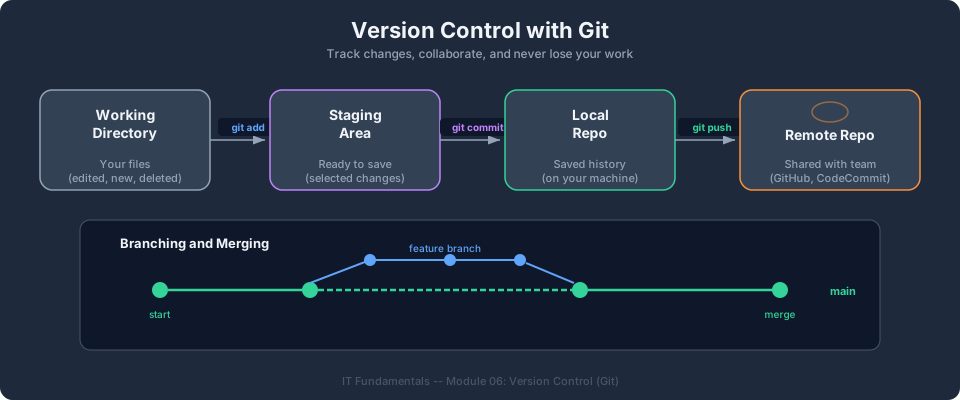
Git has four stages that your files move through. Understanding these stages is the key to understanding Git.
| Stage | What it is | Analogy |
|---|---|---|
| Working Directory | The folder on your computer where you edit files | Your desk, where you draft a letter |
| Staging Area | A holding area where you select which changes to include in your next snapshot | Putting the letter in an envelope and deciding it is ready to send |
| Local Repository | Your personal database of all committed snapshots, stored on your machine | Dropping the sealed envelope in your outbox |
| Remote Repository | A copy of the repository on a server (GitHub, GitLab, CodeCommit) that others can access | Mailing the letter so others can read it |
Here is how files flow through these stages:
  Edit files         Stage changes       Commit snapshot      Share with others
  ──────────>        ──────────>          ──────────>          ──────────>
  Working Dir    ──> Staging Area   ──>  Local Repo     ──>   Remote Repo
                    (git add)           (git commit)          (git push)
Why have a staging area? It lets you choose exactly which changes to include in a commit. Maybe you changed five files, but only three of them are related to the same task. You stage those three, commit them together with a clear message, and handle the other two separately. This keeps your project history clean and organized.
Check your understanding: You edited three files:
index.html,style.css, andnotes.txt. You only want to commitindex.htmlandstyle.css. Which Git command do you use, and what do you type?Answer: Use
git add index.html style.cssto stage just those two files, thengit commit -m "Your message"to commit them.notes.txtstays in your working directory, unchanged.
Core Git Concepts
| Concept | Description |
|---|---|
| Repository (repo) | A directory tracked by Git, containing your files and their history |
| Commit | A snapshot of your files at a point in time, with a message describing the change |
| Branch | A parallel line of development; main is the default branch |
| Remote | A copy of the repository hosted on a server (GitHub, GitLab, CodeCommit) |
| Clone | Download a remote repository to your local machine |
| Push | Upload your local commits to the remote repository |
| Pull | Download new commits from the remote repository to your local machine |
Essential Git Commands
# Set up Git (one-time)
git config --global user.name "Your Name"
git config --global user.email "you@example.com"

# Start a new repository
git init my-project
cd my-project

# Check the status of your files
git status

# Stage files for commit
git add index.html          # Stage a specific file
git add .                   # Stage all changed files

# Commit staged files
git commit -m "Add homepage"

# Connect to a remote repository
git remote add origin https://github.com/you/my-project.git

# Push commits to the remote
git push origin main

# Pull changes from the remote
git pull origin main

# Create and switch to a new branch
git checkout -b feature/add-login

# Switch back to main
git checkout main

# View commit history
git log --oneline
Tip: In the AWS Bootcamp, you will use Git to store CloudFormation templates and application code.
Branching Explained
Branching is one of Git's most powerful features. A branch is like a parallel universe for your project: you can make changes, experiment, and even break things without affecting the main codebase.
Why Branch?
Imagine you have a working web application. A user reports a bug, and you also want to add a new feature. If you make both changes directly to the main code and something goes wrong, you now have a mess: half-finished feature code mixed with a broken bug fix.
With branches, you create separate workspaces:
fix/login-bugfor the bug fixfeature/dark-modefor the new feature
Each branch starts as a copy of main. You work on each branch independently. When a change is tested and ready, you merge it back into main.
Branch Commands
# See all branches (* marks the current branch)
git branch

# Create a new branch and switch to it
git checkout -b feature/dark-mode

# Switch to an existing branch
git checkout main

# Merge a branch into main
git checkout main               # First, switch to main
git merge feature/dark-mode     # Merge the feature branch into main

# Delete a branch after merging (cleanup)
git branch -d feature/dark-mode
A Real Branching Scenario
Let's walk through a complete example:
# 1. You are on the main branch with a working application
git checkout main

# 2. Create a branch for your new feature
git checkout -b feature/contact-page

# 3. Build the contact page (edit files, create new ones)
# ... you make your changes ...

# 4. Stage and commit your work
git add contact.html style.css
git commit -m "Add contact page with form and styling"

# 5. Switch back to main
git checkout main

# 6. Merge your feature into main
git merge feature/contact-page

# 7. Clean up the branch
git branch -d feature/contact-page
After step 6, your main branch has the contact page, and you can verify everything works before sharing it.
Bootcamp connection: In the AWS Bootcamp, you will use branches to manage infrastructure-as-code changes. For example, you might create a branch to test a new CloudFormation template before merging it into your main branch and deploying it. CI/CD pipelines (Module 12) often trigger automatically when you merge code into
main.
Introduction to GitHub
You may have heard "Git" and "GitHub" used interchangeably, but they are different things.
| Git | GitHub | |
|---|---|---|
| What it is | A version control tool that runs on your computer | A website that hosts Git repositories online |
| Where it runs | Locally, on your machine | In the cloud, at github.com |
| Cost | Free and open source | Free for public repos; paid plans for private repos and teams |
| Purpose | Track changes to files | Share code, collaborate, review changes, host projects |
Git is the engine. GitHub is one of several platforms that host Git repositories online. Others include GitLab, Bitbucket, and AWS CodeCommit.
What GitHub Gives You
- Remote backup: Your code is stored on GitHub's servers, so you do not lose it if your laptop breaks
- Collaboration: Others can clone your repository, make changes, and submit pull requests for you to review
- Pull requests: A way to propose changes and have team members review them before merging into
main - Issues: A built-in tracker for bugs, feature requests, and tasks
- Web interface: Browse files, view commit history, and compare changes in your browser
Basic GitHub Workflow
- Create a repository on GitHub (through the web interface)
- Clone it to your local machine:
git clone https://github.com/you/my-project.git - Make changes locally, commit them
- Push your commits to GitHub:
git push origin main - Others can pull your changes:
git pull origin main
Check your understanding: What is the difference between Git and GitHub? Could you use Git without GitHub?
Answer: Git is a version control tool that runs on your computer. GitHub is a website that hosts Git repositories online. Yes, you can use Git without GitHub. Git works entirely on your local machine. GitHub (or a similar platform) is only needed when you want to share your code with others or have a remote backup.
The .gitignore File
Not every file in your project should be tracked by Git. Some files contain sensitive information, and others are too large or too temporary to bother saving.
A .gitignore file tells Git which files and folders to ignore. You place it in the root of your repository, and Git will skip anything that matches the patterns listed in it.
Why .gitignore Matters
- Security: Never commit passwords, API keys, or credentials. If you accidentally push a password to GitHub, anyone who views your repository can see it. Even if you delete it later, it remains in the commit history.
- Cleanliness: Build artifacts, dependency folders, and temporary files clutter your repository without adding value.
- Size: Some generated files (compiled code, installed libraries) can be very large. Tracking them wastes storage and slows down cloning.
Common .gitignore Patterns
# Environment and secret files
.env
*.pem
credentials.json

# Dependency directories
node_modules/
venv/

# Operating system files
.DS_Store
Thumbs.db

# Build output
dist/
build/
*.pyc

# Log files
*.log
Creating a .gitignore
# Create a .gitignore file
touch .gitignore

# Add patterns (one per line)
echo "node_modules/" >> .gitignore
echo ".env" >> .gitignore
echo "*.log" >> .gitignore

# Stage and commit
git add .gitignore
git commit -m "Add .gitignore to exclude secrets and dependencies"
Bootcamp connection: In the AWS Bootcamp, you will work with AWS credentials and configuration files. You must never commit these to a Git repository. A properly configured
.gitignoreis your first line of defense. In Module 02: IAM and Security, you will learn why leaked credentials are one of the most common and dangerous security incidents in cloud computing.
Common Git Mistakes (and How to Fix Them)
Everyone makes these mistakes when learning Git. Here is how to recognize and recover from them.
Mistake 1: Committing to the Wrong Branch
You start making changes, commit them, and then realize you are on main instead of your feature branch.
How to fix it:
# Create a new branch from your current position (keeps your commits)
git checkout -b feature/my-work

# Now your commits are on the new branch, and main is unaffected
Mistake 2: Forgetting to Pull Before Pushing
You try to push your changes, but Git rejects the push with an error about "non-fast-forward updates." This means someone else pushed changes to the remote that you do not have yet.
How to fix it:
# Pull the latest changes first
git pull origin main

# Then push your changes
git push origin main
Mistake 3: Merge Conflicts
A merge conflict happens when two people change the same lines in the same file. Git does not know which version to keep, so it asks you to decide.
When a conflict occurs, the file looks like this:
<<<<<<< HEAD
This is your version of the line.
=======
This is the other person's version of the line.
>>>>>>> feature/their-branch
How to fix it:
- Open the file and find the conflict markers (
<<<<<<<,=======,>>>>>>>) - Decide which version to keep (or write a combination of both)
- Delete the conflict markers
- Save the file, then stage and commit:
git add the-conflicted-file.txt
git commit -m "Resolve merge conflict in the-conflicted-file.txt"
Merge conflicts are normal and not a sign that something is broken. They mean Git needs human judgment to combine two sets of changes.
Mistake 4: Accidentally Committing Sensitive Files
You commit a file containing a password or API key.
How to prevent it: Always set up your .gitignore before you start working. Review your staged files with git status before every commit.
Check your understanding: You try to push your changes and get an error saying "Updates were rejected because the remote contains work that you do not have locally." What should you do?
Answer: Run
git pull origin mainfirst to download the latest changes from the remote, then trygit push origin mainagain. This is the "forgetting to pull before pushing" mistake.
Instructor Notes
Estimated lecture time: 20 to 25 minutes
Common student questions:
-
Q: Do I need a GitHub account? A: You do not need a GitHub account for this module or the lab. The lab uses Git locally on your machine. However, a GitHub account is useful for the bootcamp, where you will push code to remote repositories. You can create a free account at github.com.
-
Q: What is the difference between git add and git commit? A:
git addstages your changes, telling Git which files you want to include in the next snapshot.git commitsaves that snapshot with a descriptive message. Think ofgit addas placing items on a conveyor belt andgit commitas pressing the button to package them. -
Q: When should I create a branch? A: Any time you are working on something new or experimental. Branches are cheap and easy to create. A good rule of thumb: if the change might take more than one commit, or if you are not sure it will work, create a branch.
Teaching tips:
- Do a live demo: create a repo, make a commit, push to GitHub. Show the commit history on GitHub to demonstrate that Git tracks every change.
- Show the commit history on GitHub so students can see the visual representation of changes over time.
- For branching, draw a timeline on the whiteboard. Show
mainas a straight line, then draw a branch splitting off and merging back. This visual helps students understand what branches actually do. - When explaining
.gitignore, share a real-world story about leaked credentials. The AWS documentation includes guidance on what to do if you accidentally commit access keys. This makes the topic feel urgent and practical.
Pause points:
- After the Git Workflow section, ask students to describe the four stages in their own words.
- Ask students what
git statusshows. Expected answer: it shows which files have been modified, which are staged for commit, and which are untracked. - After the branching section, ask: "Why would you create a branch instead of committing directly to main?" Expected answer: to experiment without risking the working codebase.
Key Takeaways
- Git tracks changes to files over time and is the foundation for infrastructure-as-code and CI/CD pipelines.
- The Git workflow has four stages: working directory (edit files), staging area (
git add), local repository (git commit), and remote repository (git push). - Branches let you experiment and build features without breaking the main codebase. Always branch for new work.
- GitHub is a platform for hosting Git repositories. Git is the tool; GitHub is the service.
- A
.gitignorefile prevents sensitive and unnecessary files from being tracked. Set it up before you start working. - Merge conflicts, wrong-branch commits, and forgotten pulls are normal. Knowing how to fix them is part of using Git professionally.
Previous: Module 04, APIs and Programming Basics | Next: Module 06, Security Fundamentals | IT Fundamentals Overview
AWS Bootcamp: From Novice to Architect Author: Samuel Ogunti © 2026 Algorithmic Muse Technology LLC. All rights reserved.