
How to Cut Your AWS Bill: Cost Optimization Guide
Your AWS bill does not have to be a mystery. Whether you are running a personal project or managing infrastructure at work, the same principles apply: know what you are paying for, eliminate waste, and commit to what you know you will use.
In this guide, we will break down the most effective cost optimization strategies on AWS, from quick wins you can implement today to long-term planning that saves thousands over time.
Prerequisites: You should understand EC2 instance types and S3 storage classes before starting this article.
What You Will Learn
By the end of this article, you will be able to:
- Evaluate EC2 and Lambda workloads for right-sizing opportunities using CloudWatch metrics and Compute Optimizer
- Compare On-Demand, Savings Plans, Reserved Instances, and Spot pricing models, and choose the best fit for a given workload pattern
- Identify hidden costs (data transfer, NAT Gateways, CloudWatch Logs, Elastic IPs) and implement strategies to reduce or eliminate them
- Design S3 lifecycle policies and EBS volume optimizations that save 40-95% on storage
- Configure billing alerts, budgets, and Cost Anomaly Detection to prevent surprise charges
Why Cost Optimization Matters
Here is a stat that should get your attention: most organizations waste 30-35% of their cloud spending. That is not a small rounding error. That is real money going to resources nobody is using, instances that are oversized, and storage that nobody remembers creating.
Cost optimization is not about being cheap. It is about being smart. AWS gives you incredible flexibility to scale up and down, but that same flexibility means costs can spiral if you are not paying attention.
And here is a bonus: cost optimization is one of the six pillars of the AWS Well-Architected Framework. It shows up on the Solutions Architect Associate exam, and hiring managers love candidates who can talk about cloud economics.
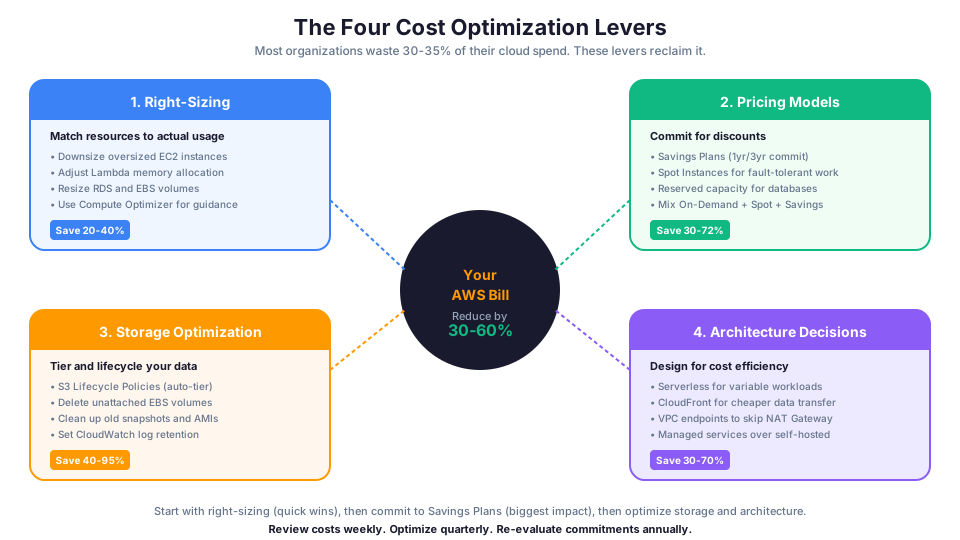
The Four Pillars of AWS Cost Optimization
1. Right-Sizing: Stop Paying for Resources You Do Not Use
Right-sizing means matching your instance types to your actual workload. It is the single highest-impact change most people can make.
Here is the problem: when you first launch an EC2 instance, you probably pick something bigger than you need "just in case." That is natural. But a t3.xlarge running at 5% CPU usage is burning money for no reason.
How to identify oversized instances:
# Check CPU usage for an instance over the past 14 days
aws cloudwatch get-metric-statistics \
  --namespace AWS/EC2 \
  --metric-name CPUUsage \
  --dimensions Name=InstanceId,Value=i-0abc123def456 \
  --start-time 2026-04-28T00:00:00Z \
  --end-time 2026-05-12T00:00:00Z \
  --period 86400 \
  --statistics Average Maximum \
  --region us-east-1
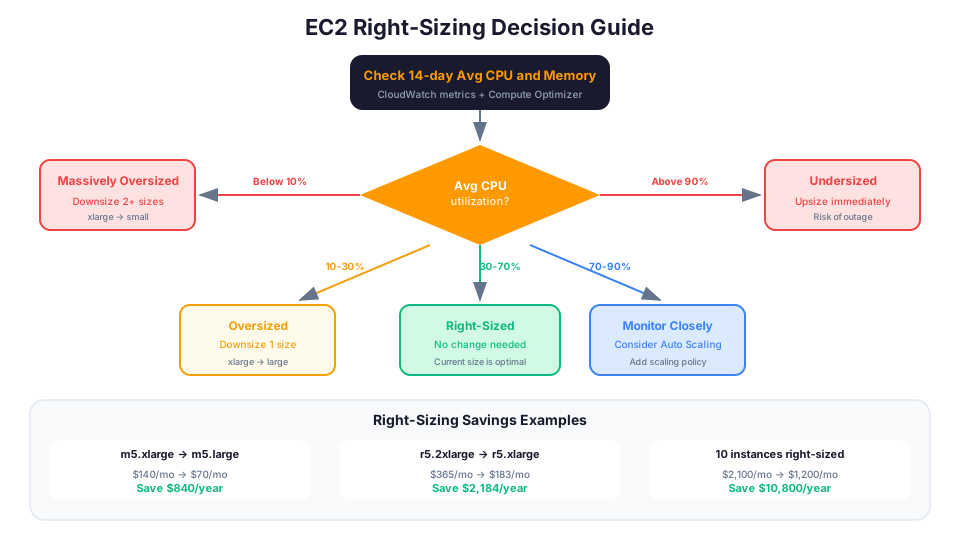
Rules of thumb for right-sizing:
| Average CPU | Maximum CPU | Action |
|---|---|---|
| Below 10% | Below 30% | Downsize by two sizes (e.g., xlarge to small) |
| 10-30% | Below 60% | Downsize by one size (e.g., xlarge to large) |
| 30-70% | Below 90% | Current size is appropriate |
| Above 70% | Above 90% | Consider upsizing or Auto Scaling |
Do not forget memory. CPU is only half the picture. Install the CloudWatch Agent to collect memory metrics:
# Check memory usage (requires CloudWatch Agent)
aws cloudwatch get-metric-statistics \
  --namespace CWAgent \
  --metric-name mem_used_percent \
  --dimensions Name=InstanceId,Value=i-0abc123def456 \
  --start-time 2026-04-28T00:00:00Z \
  --end-time 2026-05-12T00:00:00Z \
  --period 86400 \
  --statistics Average Maximum
AWS tools that help:
- AWS Compute Optimizer analyzes your EC2 instances, Auto Scaling groups, EBS volumes, and Lambda functions, then recommends the optimal size. It is free and incredibly useful.
- AWS Cost Explorer has a right-sizing recommendations feature that shows you exactly which instances to resize and how much you will save.
# Enable Compute Optimizer (do this once)
aws compute-optimizer update-enrollment-status \
  --status Active \
  --region us-east-1

# Get recommendations for EC2 instances
aws compute-optimizer get-ec2-instance-recommendations \
  --region us-east-1 \
  --query 'instanceRecommendations[*].{Instance:instanceArn,Current:currentInstanceType,Recommended:recommendationOptions[0].instanceType,Savings:recommendationOptions[0].projectedUsageMetrics}'
Right-Sizing Lambda Functions
Lambda is charged per millisecond of execution time multiplied by the memory allocated. Over-provisioning memory wastes money. Under-provisioning causes slow performance (and higher costs because it runs longer).
# Check Lambda function duration and memory
aws cloudwatch get-metric-statistics \
  --namespace AWS/Lambda \
  --metric-name Duration \
  --dimensions Name=FunctionName,Value=my-function \
  --start-time 2026-05-05T00:00:00Z \
  --end-time 2026-05-12T00:00:00Z \
  --period 86400 \
  --statistics Average Maximum

# Use AWS Lambda Power Tuning tool to find optimal memory
# https://github.com/alexcasalboni/aws-lambda-power-tuning
The AWS Lambda Power Tuning tool runs your function with different memory configurations and shows you the cost-performance sweet spot.
2. Pricing Models: Pay Less for the Same Resources
AWS offers four main pricing models for compute, and choosing the right one can cut your bill by up to 72%.
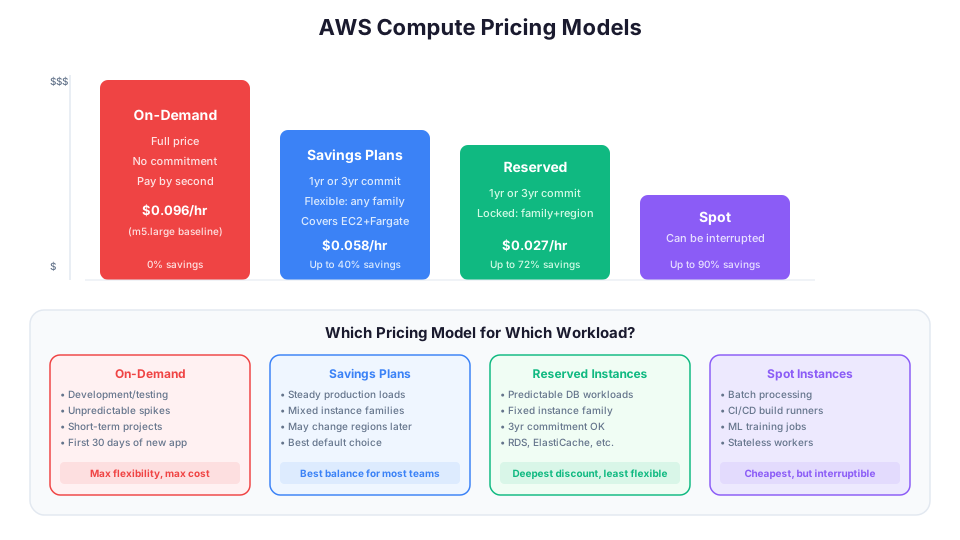
On-Demand is the default. You pay by the hour or second with no commitment. This is great for unpredictable workloads, development environments, and short-term projects. But it is the most expensive option for steady-state workloads.
Savings Plans offer 1-year or 3-year commitments in exchange for significant discounts. There are two types:
- Compute Savings Plans give you up to 66% off and apply to any EC2 instance family, size, region, OS, or tenancy. They also apply to Fargate and Lambda. This is the most flexible option.
- EC2 Instance Savings Plans give you up to 72% off but lock you into a specific instance family in a specific region (like m5 in us-east-1).
# View Savings Plans recommendations
aws cost-explorer get-savings-plans-purchase-recommendation \
  --savings-plans-type COMPUTE_SP \
  --term-in-years ONE_YEAR \
  --payment-option NO_UPFRONT \
  --lookback-period-in-days SIXTY_DAYS

# View current Savings Plans usage
aws cost-explorer get-savings-plans-usage \
  --time-period Start=2026-04-01,End=2026-05-01
Savings Plans payment options:
| Payment Option | Discount | Cash Flow |
|---|---|---|
| All Upfront | Highest (up to 72%) | Pay everything at purchase |
| Partial Upfront | Medium (up to 65%) | Pay half upfront, half monthly |
| No Upfront | Lowest (up to 40%) | Pay monthly, no upfront cost |
For most teams starting out, No Upfront is the right choice. You still get significant savings without tying up cash. You can always switch to upfront payments when you renew.
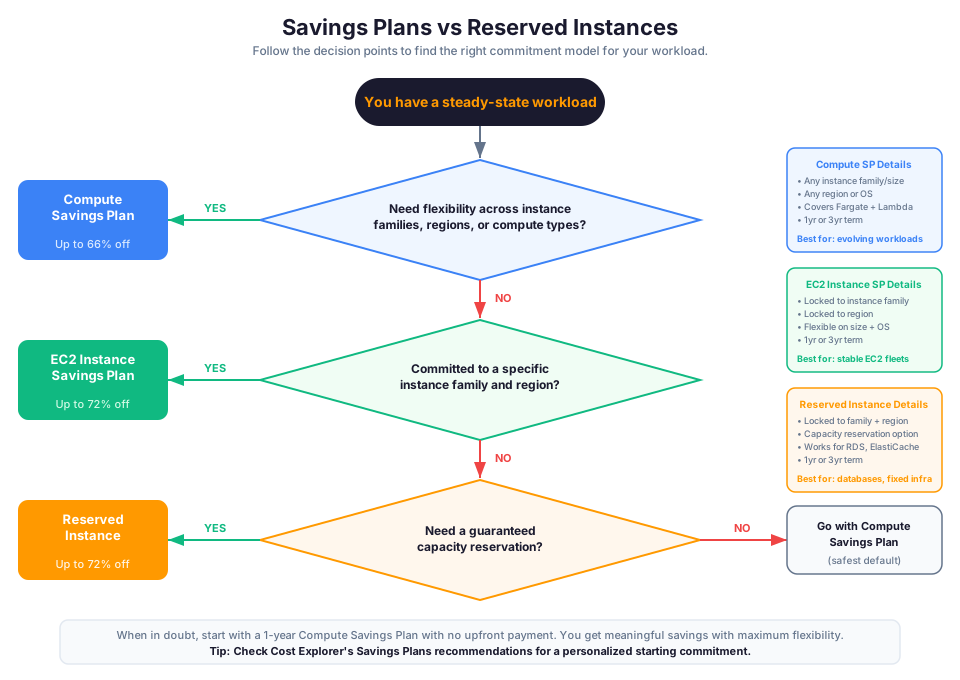
Reserved Instances are the older commitment model. They work similarly to Savings Plans but are less flexible. For new deployments, Savings Plans are almost always the better choice.
Spot Instances give you up to 90% off On-Demand pricing by letting you use unused EC2 capacity. The catch: AWS can take the instance back with a 2-minute warning. Spot is perfect for:
- Batch processing jobs
- Data analysis workloads
- CI/CD build servers
- Stateless web servers behind a load balancer
- Machine learning training
- Big data processing (EMR, Spark)
# Check current Spot pricing for m5.large in us-east-1
aws ec2 describe-spot-price-history \
  --instance-types m5.large \
  --product-descriptions "Linux/UNIX" \
  --start-time 2026-05-12T00:00:00Z \
  --region us-east-1 \
  --max-items 5
Spot Best Practices
To use Spot effectively:
- Diversify instance types. Request multiple instance types in your Spot Fleet. If m5.large is unavailable, m5a.large or m4.large might be.
- Use Spot Fleet with allocation strategies.
lowestPriceminimizes cost.capacityOptimizedminimizes interruption risk. - Handle interruptions gracefully. Your application must save state and shut down cleanly within 2 minutes.
- Use a mix of On-Demand and Spot. Keep a baseline of On-Demand instances and add Spot for peak capacity.
# Check Spot interruption frequency
aws ec2 describe-spot-instance-requests \
  --filters Name=state,Values=closed \
  --query 'SpotInstanceRequests[?Status.Code==`instance-terminated-by-price`].{Type:LaunchSpecification.InstanceType,Time:Status.UpdateTime}' \
  --output table
How to choose the right pricing model:
| Workload Pattern | Best Pricing Model | Typical Savings |
|---|---|---|
| Steady 24/7 production | Savings Plans (3-year) | 50-72% |
| Steady but may change | Savings Plans (1-year, no upfront) | 30-40% |
| Unpredictable or short-term | On-Demand | 0% (baseline) |
| Fault-tolerant batch jobs | Spot Instances | 60-90% |
| Mixed workloads | Combination of all four | 40-60% average |
3. Storage Optimization: Stop Hoarding Data
Storage costs sneak up on you because they grow slowly. Nobody notices an extra 10 GB this week, but after a year, you are paying for terabytes of data you forgot about.
S3 storage classes make a huge difference:
| Storage Class | Use Case | Cost per GB/month | Retrieval |
|---|---|---|---|
| S3 Standard | Frequently accessed data | $0.023 | Instant |
| S3 Infrequent Access | Accessed less than once/month | $0.0125 | Instant |
| S3 One Zone-IA | Non-critical infrequent data | $0.010 | Instant |
| S3 Glacier Instant Retrieval | Archives needing millisecond access | $0.004 | Instant |
| S3 Glacier Flexible Retrieval | Archives accessed 1-2x per year | $0.0036 | 1-12 hours |
| S3 Glacier Deep Archive | Long-term compliance archives | $0.00099 | 12-48 hours |
| S3 Intelligent-Tiering | Unknown access patterns | $0.023 (auto-tiers) | Automatic |
Moving data from Standard to Glacier Deep Archive saves you 95%. For data you are required to keep but rarely access, this is an enormous win.
S3 Intelligent-Tiering is worth special mention. It automatically moves data between tiers based on access patterns. You pay a small monitoring fee ($0.0025 per 1,000 objects) but never pay retrieval fees. If you are not sure which tier to use, start with Intelligent-Tiering.
Automate it with S3 Lifecycle Policies:
# Create a lifecycle policy that transitions objects automatically
aws s3api put-bucket-lifecycle-configuration \
  --bucket my-application-logs \
  --lifecycle-configuration '{
    "Rules": [
      {
        "ID": "ArchiveOldLogs",
        "Status": "Enabled",
        "Filter": {"Prefix": "logs/"},
        "Transitions": [
          {"Days": 30, "StorageClass": "STANDARD_IA"},
          {"Days": 90, "StorageClass": "GLACIER_IR"},
          {"Days": 365, "StorageClass": "DEEP_ARCHIVE"}
        ],
        "Expiration": {"Days": 2555}
      },
      {
        "ID": "CleanupIncompleteUploads",
        "Status": "Enabled",
        "Filter": {"Prefix": ""},
        "AbortIncompleteMultipartUpload": {"DaysAfterInitiation": 7}
      }
    ]
  }'
Note the AbortIncompleteMultipartUpload rule. Failed multipart uploads leave partial data in S3 that you pay for but cannot see. This rule cleans them up automatically.
EBS volumes are another common offender. Unattached EBS volumes still cost money. Snapshots accumulate silently.
# Find unattached EBS volumes (these are costing you money for nothing)
aws ec2 describe-volumes \
  --filters Name=status,Values=available \
  --query "Volumes[*].{ID:VolumeId,Size:Size,Type:VolumeType,Created:CreateTime}" \
  --output table \
  --region us-east-1

# Find old EBS snapshots (older than 90 days)
aws ec2 describe-snapshots \
  --owner-ids self \
  --query "Snapshots[?StartTime<='2026-02-11'].{ID:SnapshotId,Size:VolumeSize,Created:StartTime}" \
  --output table \
  --region us-east-1
EBS Volume Type Optimization
Not all EBS volumes need high performance:
| Volume Type | IOPS | Throughput | Cost per GB/mo | Use Case |
|---|---|---|---|---|
| gp3 | 3,000 baseline (up to 16,000) | 125 MB/s (up to 1,000) | $0.08 | Default choice for most workloads |
| gp2 | 3 IOPS/GB (up to 16,000) | Up to 250 MB/s | $0.10 | Legacy, migrate to gp3 |
| io2 | Up to 64,000 | Up to 1,000 MB/s | $0.125 + $0.065/IOPS | Databases needing high IOPS |
| st1 | 500 baseline | Up to 500 MB/s | $0.045 | Big data, log processing |
| sc1 | 250 baseline | Up to 250 MB/s | $0.015 | Cold storage, infrequent access |
Quick win: Migrate gp2 volumes to gp3. Same performance, 20% cheaper. gp3 also lets you configure IOPS independently of volume size.
# Modify a gp2 volume to gp3 (zero downtime)
aws ec2 modify-volume \
  --volume-id vol-0abc123 \
  --volume-type gp3
4. Architecture Decisions That Save Money
Some of the biggest cost savings come from choosing the right architecture in the first place.
Use serverless for variable workloads. Lambda costs nothing when idle. If your API handles 100 requests per hour during business hours and zero at night, Lambda is dramatically cheaper than an EC2 instance running 24/7.
Serverless vs EC2 cost comparison for an API:
| Scenario | Lambda Cost/mo | EC2 (t3.small) Cost/mo |
|---|---|---|
| 100 req/hr, 8 hrs/day, 22 days | $0.50 | $15.18 |
| 1,000 req/hr, 24/7 | $5.00 | $15.18 |
| 10,000 req/hr, 24/7 | $50.00 | $15.18 |
| 100,000 req/hr, 24/7 | $500.00 | $15.18 |
Lambda wins for low and variable traffic. EC2 wins for consistently high traffic. The crossover point is typically around 10,000-50,000 requests per hour, depending on function duration.
Use managed services instead of self-managed. Running your own Elasticsearch cluster on EC2 requires you to manage and pay for the instances. Amazon OpenSearch Serverless scales to zero and charges only for what you use.
Use CloudFront for content delivery. Every byte served through CloudFront is cheaper than serving it directly from S3 or your EC2 instances. Plus, your users get faster load times. It is a rare win-win.
Delete what you are not using. This sounds obvious, but you would be amazed how many AWS accounts have:
- Elastic IPs not attached to anything ($3.65/month each since February 2024)
- NAT Gateways in development VPCs ($32/month plus data processing)
- Old AMIs and their backing snapshots
- Unused Elastic Load Balancers ($16+/month each)
- CloudWatch log groups growing without retention policies
- Idle RDS instances in non-production environments
# Find unused Elastic IPs
aws ec2 describe-addresses \
  --query "Addresses[?AssociationId==null].{IP:PublicIp,AllocationId:AllocationId}" \
  --output table

# Find idle load balancers (zero requests in the past 7 days)
aws cloudwatch get-metric-statistics \
  --namespace AWS/ApplicationELB \
  --metric-name RequestCount \
  --start-time 2026-05-05T00:00:00Z \
  --end-time 2026-05-12T00:00:00Z \
  --period 604800 \
  --statistics Sum \
  --dimensions Name=LoadBalancer,Value=app/my-alb/xxxxx
The Hidden Costs That Catch Everyone
Data transfer is the silent budget killer. Transfer into AWS is free, but transfer out costs money. Transfer between Availability Zones costs money. Transfer between regions costs more. A common mistake is putting your application in one region and your database in another.
| Transfer Type | Cost per GB |
|---|---|
| Into AWS | Free |
| Between AZs (same region) | $0.01 |
| Between regions | $0.02 |
| Out to internet | $0.09 (first 10 TB) |
| Through NAT Gateway | $0.045 |
| Through VPC peering (cross-region) | $0.02 |
| Via CloudFront to internet | $0.085 (cheaper than direct) |
NAT Gateway data processing charges. Every byte that flows through a NAT Gateway costs $0.045 per GB on top of the hourly charge. If your private instances are downloading large packages or pulling container images frequently, this adds up fast. Consider VPC endpoints for S3 and DynamoDB to avoid NAT Gateway charges for those services.
# Create a VPC endpoint for S3 (eliminates NAT Gateway charges for S3 traffic)
aws ec2 create-vpc-endpoint \
  --vpc-id vpc-0abc123 \
  --service-name com.amazonaws.us-east-1.s3 \
  --route-table-ids rtb-0abc123

# Create a VPC endpoint for DynamoDB
aws ec2 create-vpc-endpoint \
  --vpc-id vpc-0abc123 \
  --service-name com.amazonaws.us-east-1.dynamodb \
  --route-table-ids rtb-0abc123
CloudWatch Logs ingestion. Every log line costs $0.50 per GB ingested. If your application is verbose and you are logging debug output in production, you could be spending hundreds on logs nobody reads. Set retention policies and filter what you log.
# Set log retention to 30 days (instead of forever)
aws logs put-retention-policy \
  --log-group-name /aws/lambda/my-function \
  --retention-in-days 30

# List all log groups and their current retention
aws logs describe-log-groups \
  --query "logGroups[*].{Name:logGroupName,Retention:retentionInDays,StoredBytes:storedBytes}" \
  --output table
Elastic IP charges. Since February 2024, AWS charges for ALL public IPv4 addresses, including those attached to running instances. $3.65/month per IP adds up when you have many instances.
Setting Up Cost Monitoring
Never let your AWS bill surprise you. Set up monitoring from day one.
Step 1: Create a budget
# Create a monthly budget with email alerts
aws budgets create-budget \
  --account-id 123456789012 \
  --budget '{
    "BudgetName": "Monthly-Total",
    "BudgetLimit": {"Amount": "50", "Unit": "USD"},
    "TimeUnit": "MONTHLY",
    "BudgetType": "COST"
  }' \
  --notifications-with-subscribers '[
    {
      "Notification": {
        "NotificationType": "ACTUAL",
        "ComparisonOperator": "GREATER_THAN",
        "Threshold": 50
      },
      "Subscribers": [
        {"SubscriptionType": "EMAIL", "Address": "you@example.com"}
      ]
    },
    {
      "Notification": {
        "NotificationType": "ACTUAL",
        "ComparisonOperator": "GREATER_THAN",
        "Threshold": 80
      },
      "Subscribers": [
        {"SubscriptionType": "EMAIL", "Address": "you@example.com"}
      ]
    },
    {
      "Notification": {
        "NotificationType": "FORECASTED",
        "ComparisonOperator": "GREATER_THAN",
        "Threshold": 100
      },
      "Subscribers": [
        {"SubscriptionType": "EMAIL", "Address": "you@example.com"}
      ]
    }
  ]'
This creates three alerts:
- When you have spent 50% of your budget
- When you have spent 80% of your budget
- When AWS forecasts you will exceed your budget (early warning)
Step 2: Enable Cost Explorer
Cost Explorer gives you visual breakdowns of your spending by service, region, instance type, and more. Enable it in the AWS Console under Billing and Cost Management. It takes 24 hours to populate data.
Step 3: Set up Cost Anomaly Detection
Cost Anomaly Detection uses machine learning to identify unusual spending patterns:
# Create a cost anomaly monitor
aws ce create-anomaly-monitor \
  --anomaly-monitor '{
    "MonitorName": "ServiceMonitor",
    "MonitorType": "DIMENSIONAL",
    "MonitorDimension": "SERVICE"
  }'

# Create an anomaly subscription (get alerts)
aws ce create-anomaly-subscription \
  --anomaly-subscription '{
    "SubscriptionName": "CostAlerts",
    "MonitorArnList": ["MONITOR_ARN"],
    "Subscribers": [{"Type": "EMAIL", "Address": "you@example.com"}],
    "Threshold": 10,
    "Frequency": "DAILY"
  }'
Step 4: Review weekly
Block 15 minutes on your calendar every Monday morning to review your Cost Explorer dashboard. Look for:
- Any service with unexpected growth
- Resources in regions you do not use
- Spikes that correlate with specific deployments
- Untagged resources (you cannot track what you cannot tag)
Troubleshooting Common Errors
Savings Plan not applying to expected instances Savings Plans apply to usage based on the plan type. A Compute Savings Plan covers any EC2 instance family, region, OS, and tenancy, plus Fargate and Lambda. An EC2 Instance Savings Plan is locked to a specific instance family and region. If your instances are in a different region or family than the plan covers, the discount will not apply. Run aws ce get-savings-plans-usage --time-period Start=2026-05-01,End=2026-05-13 to see usage. Also check that you did not purchase a plan for a different account in an AWS Organization without enabling sharing.
Cost Anomaly Detection false positives Anomaly Detection learns your spending pattern over time and flags deviations. New services, one-time purchases, or seasonal traffic changes can trigger false alerts. Adjust the threshold in your anomaly subscription (the Threshold field) to a higher dollar amount to filter out minor variations. You can also provide feedback on individual anomalies in the Cost Explorer console to improve the model's accuracy over time.
Budget alert not firing Budget alerts are evaluated approximately every 8-12 hours, not in real time. If your spending crossed the threshold recently, wait for the next evaluation cycle. Verify the subscriber email address is correct and check spam folders. Also confirm the notification threshold is set as a percentage of the budget, not an absolute dollar amount (a common mix-up). Run aws budgets describe-budget --account-id <account-id> --budget-name <name> to verify the configuration.
Quick Win Checklist
Here is a checklist you can run through today to find immediate savings:
- Turn off or downsize development instances outside business hours
- Delete unattached EBS volumes and unused Elastic IPs
- Migrate gp2 EBS volumes to gp3 (20% cheaper, same performance)
- Set S3 lifecycle policies on log buckets
- Set CloudWatch log retention policies (30 or 90 days)
- Create VPC endpoints for S3 and DynamoDB
- Enable Compute Optimizer and review its recommendations
- Check for unused Elastic Load Balancers and NAT Gateways
- Review your EC2 instances for right-sizing opportunities
- Evaluate Savings Plans for any steady-state workloads
- Set up billing alerts and budgets
- Clean up old EBS snapshots and unused AMIs
- Abort incomplete S3 multipart uploads
Tagging Strategy: Know Where Your Money Goes
You cannot optimize what you cannot see. AWS Cost Allocation Tags let you break down your bill by team, project, environment, or any other dimension that matters to your organization.
Required tags for cost visibility:
| Tag Key | Example Values | Purpose |
|---|---|---|
| Environment | production, staging, development | Identify environments to shut down |
| Team | engineering, data, marketing | Cost ownership by team |
| Project | website, api, analytics-pipeline | Track spending per project |
| CostCenter | CC-1234, CC-5678 | Map to business cost centers |
| ManagedBy | cloudformation, cdk, terraform, manual | Track IaC coverage |
# Tag an EC2 instance
aws ec2 create-tags \
  --resources i-0abc123def456 \
  --tags Key=Environment,Value=development Key=Team,Value=engineering Key=Project,Value=api

# Tag an RDS instance
aws rds add-tags-to-resource \
  --resource-name arn:aws:rds:us-east-1:123456789012:db:my-database \
  --tags Key=Environment,Value=production Key=Team,Value=data

# Find untagged EC2 instances
aws ec2 describe-instances \
  --query "Reservations[*].Instances[?!Tags || !Tags[?Key=='Environment']].{ID:InstanceId,Type:InstanceType,State:State.Name}" \
  --output table
After activating cost allocation tags in the Billing Console (it takes 24 hours for them to appear in Cost Explorer), you can filter your spending by any tag. This is how you answer the question "Why did our bill go up 30% this month?" Instead of guessing, you filter by team and project and find the exact source.
Pro tip: Use AWS Organizations with Service Control Policies to require specific tags on resource creation. This prevents untagged resources from being created in the first place.
Scheduling: Turn Off What You Do Not Use
Development and staging environments running 24/7 when developers only work 8-10 hours on weekdays is one of the most common forms of waste. The math is simple:
- 24/7 operation: 730 hours/month
- Business hours only (10 hours x 22 weekdays): 220 hours/month
- Savings: 70% just by turning things off at night and on weekends
# Use AWS Instance Scheduler or a simple Lambda function
# Here is the EventBridge rule to trigger a Lambda at 7 PM ET on weekdays
aws events put-rule \
  --name "StopDevInstances" \
  --schedule-expression "cron(0 23 ? * MON-FRI *)" \
  --state ENABLED \
  --description "Stop development EC2 instances at 7 PM ET"

# And start them at 7 AM ET
aws events put-rule \
  --name "StartDevInstances" \
  --schedule-expression "cron(0 11 ? * MON-FRI *)" \
  --state ENABLED \
  --description "Start development EC2 instances at 7 AM ET"
This applies to more than just EC2. RDS instances, Redshift clusters, SageMaker notebooks, and ECS services can all be stopped or scaled down during off-hours.
RDS Scheduling
# Stop an RDS instance (automatically restarts after 7 days)
aws rds stop-db-instance --db-instance-identifier my-dev-database

# Start an RDS instance
aws rds start-db-instance --db-instance-identifier my-dev-database
Note: RDS instances automatically restart after 7 days when stopped. Schedule your stop command to run weekly to keep dev databases off on weekends.
Real-World Cost Optimization Wins
Here are three scenarios showing how these strategies combine for significant savings:
Scenario 1: The startup burning cash on development environments
A team of 8 developers, each with their own set of EC2 instances, RDS databases, and NAT Gateways in a dev environment. Monthly dev cost: $2,400.
Changes made:
- Scheduled dev environments to run only during business hours (saving 70%): -$1,680
- Right-sized dev RDS from db.r5.large to db.t3.medium: -$180
- Replaced individual NAT Gateways with a shared one: -$96
- New monthly cost: $444. Annual savings: $23,472.
Scenario 2: The production workload on On-Demand pricing
A company running 10 m5.xlarge instances 24/7 on On-Demand in us-east-1. Monthly cost: $1,401.60.
Changes made:
- Purchased Compute Savings Plans (1-year, no upfront) for 8 instances: -$421
- Converted 2 remaining instances to Spot (fault-tolerant worker nodes): -$126
- New monthly cost: $854.60. Annual savings: $6,564.
Scenario 3: The S3 bucket nobody looked at
An application logging to S3 with no lifecycle policy. Bucket had grown to 12 TB over 3 years. Monthly cost: $276.
Changes made:
- Added lifecycle policy: Standard for 30 days, IA for 90 days, Glacier Deep Archive after 1 year
- Deleted 2 TB of debug logs that were never needed
- Added multipart upload cleanup rule
- New monthly cost: $38. Annual savings: $2,856.
Scenario 4: The NAT Gateway surprise
A company with 5 microservices in private subnets, all pulling Docker images from ECR and writing logs to CloudWatch. NAT Gateway charges: $450/month (mostly data processing).
Changes made:
- Created VPC endpoints for ECR, S3, CloudWatch Logs, and STS: -$350
- Interface endpoints cost $40/month but eliminated most NAT traffic
- New monthly cost: $140. Annual savings: $3,720.
AWS Cost Management Tools Summary
| Tool | What It Does | Cost |
|---|---|---|
| Cost Explorer | Visualize and analyze spending | Free |
| AWS Budgets | Set spending limits and alerts | 2 free budgets, $0.02/budget/day after |
| Cost Anomaly Detection | ML-based spending anomaly alerts | Free |
| Compute Optimizer | Right-sizing recommendations | Free |
| Trusted Advisor | Cost, security, and performance checks | Free (basic), Business Support for full |
| Savings Plans | Commitment-based discounts | Free to use (you commit to spending) |
| Cost and Usage Report (CUR) | Detailed billing data in S3 | Free (S3 storage costs apply) |
How This Shows Up in Architecture Decisions
Cost optimization scenarios come up constantly in architecture reviews, team planning, and interviews. Here are the patterns to recognize:
- "We need to reduce costs for a batch processing workload that can tolerate interruptions." (Answer: Spot Instances)
- "Our application has steady traffic during business hours and minimal traffic at night." (Answer: consider Savings Plans for the baseline, On-Demand for the peak, or Auto Scaling with scheduled policies)
- "We store log files that are rarely accessed after 30 days." (Answer: S3 Lifecycle Policy transitioning to Glacier)
- "We want to reduce data transfer costs for private subnet instances accessing S3." (Answer: S3 Gateway VPC Endpoint, which is free)
- "We need to identify which team is responsible for a cost increase." (Answer: Cost Allocation Tags in Cost Explorer)
- "Our application has unpredictable access patterns for stored objects." (Answer: S3 Intelligent-Tiering)
Understanding the trade-offs between pricing models, storage classes, and architecture decisions is essential for real-world cloud engineering and technical interviews.
Next Steps
Cost optimization is not a one-time project. It is a habit. The most successful cloud teams review costs weekly, right-size quarterly, and re-evaluate commitments annually.
| Frequency | Action |
|---|---|
| Weekly | Review Cost Explorer dashboard, check for anomalies |
| Monthly | Review Compute Optimizer recommendations, check Savings Plans usage |
| Quarterly | Right-size instances, review reserved capacity, clean up unused resources |
| Annually | Re-evaluate Savings Plans, review architecture for optimization opportunities |
Here is your challenge: open AWS Cost Explorer right now and find one thing to optimize this week. Maybe it is an unattached EBS volume, a gp2 volume that should be gp3, or a dev instance running through the weekend. One thing. That is all it takes to build the habit.
The tension with cost optimization is real, though. Every hour you spend trimming your bill is an hour you are not building features or improving reliability. The trick is not to go overboard. Automate what you can (lifecycle policies, scheduling, Compute Optimizer), set up alerts so surprises do not happen, and save the deep dives for your quarterly reviews.
Pricing note: EC2 On-Demand rates, S3 storage class pricing, data transfer costs, NAT Gateway charges, and Elastic IP fees cited in this article are for us-east-1 and were verified in May 2026. Check the AWS Pricing Calculator for current rates in your Region.
Hands-On Challenge
Run a cost audit on your own AWS account (or a sandbox/free-tier account) and find at least three concrete savings opportunities.
Success criteria:
- Enable Compute Optimizer and review its recommendations for at least one EC2 instance or Lambda function
- Identify at least one unattached EBS volume, unused Elastic IP, or idle resource that is costing money for no reason
- Create an S3 lifecycle policy on at least one bucket that transitions objects to a cheaper storage class after 30 days
- Set up an AWS Budget with at least two alert thresholds (50% and 80% of your target spend) connected to your email
- Enable Cost Anomaly Detection with a service-level monitor and a daily alert subscription
- Calculate the estimated monthly savings from your three findings and document them
Build it yourself: This topic is covered hands-on in Module 64: Cost Management of our AWS Bootcamp.