
Learning Objectives
By the end of this module, you will be able to:
- Explain why Linux dominates cloud computing and server environments
- Manage users and groups, and understand the permission model (read/write/execute)
- View and manage running processes using
ps,top, andkill - Install, update, and remove software packages using a package manager (
aptoryum) - Manage services with
systemctl(start, stop, enable, check status) - Edit files with a terminal-based editor (
nanoorvimbasics) - Read and interpret log files for troubleshooting
- Use SSH to connect to a remote server securely
Prerequisites
- Completion of Module 02: The Command Line (navigation, file operations)
- Completion of Module 06: Security Fundamentals (authentication concepts)
- Access to a Linux environment (WSL on Windows, Terminal on macOS, or a Linux VM)
Estimated self-study time:
| Activity | Estimated Time |
|---|---|
| Reading | 18 to 25 minutes |
| Quiz | 5 to 10 minutes |
| Total | 30 to 40 minutes |
Concepts
Why Linux for Cloud?
Over 90% of cloud workloads run on Linux. When you launch an EC2 instance on AWS, you'll almost always choose a Linux distribution (Amazon Linux, Ubuntu, or Red Hat). Here's why:
- Free and open source: No licensing costs (unlike Windows Server)
- Lightweight: Runs efficiently with minimal resources
- Stable: Servers run for months or years without rebooting
- Scriptable: Everything can be automated via the command line
- Secure: Fine-grained permission model, regular security updates
- Community: Massive ecosystem of tools, documentation, and support
Common Linux distributions in cloud:
| Distribution | Used By | Package Manager | AWS AMI |
|---|---|---|---|
| Amazon Linux 2023 | AWS-optimized | dnf / yum | Default on EC2 |
| Ubuntu | General purpose | apt | Popular choice |
| Red Hat Enterprise Linux | Enterprise | dnf / yum | Enterprise workloads |
| Alpine | Containers | apk | Minimal Docker images |
Users, Groups, and Permissions
Linux is a multi-user system. Every file and process is owned by a user and belongs to a group. Permissions control who can do what.
Users
# See who you are
whoami

# See all users on the system
cat /etc/passwd

# Create a new user
sudo useradd -m -s /bin/bash newuser

# Set a password
sudo passwd newuser

# Switch to another user
su - newuser
The root user (also called superuser) has unlimited access. The sudo command lets regular users run commands as root: think "run as administrator" on Windows.
File Permissions
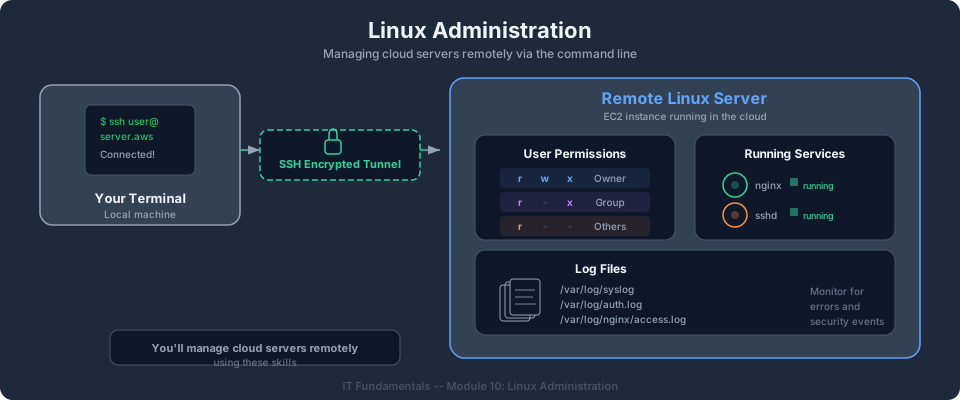
Every file has three permission sets: owner, group, and others. Each set has three permissions: read (r), write (w), execute (x).
ls -la
# -rw-r--r-- 1 jane developers 4096 May 8 10:00 report.txt
#  ↑↑↑↑↑↑↑↑↑
#  │├─┤├─┤├─┤
#  │ │  │  └── Others: read only
#  │ │  └───── Group: read only
#  │ └──────── Owner: read + write
#  └─────────── File type (- = file, d = directory)
# Change permissions: give owner full access, group read, others nothing
chmod 740 script.sh
# 7 = rwx (owner), 4 = r-- (group), 0 = --- (others)

# Make a script executable
chmod +x deploy.sh

# Change file owner
sudo chown jane:developers report.txt
Tip: In the AWS Bootcamp, you'll set file permissions on EC2 instances (e.g., making SSH keys readable only by the owner:
chmod 400 my-key.pem). Understandingchmodis essential.
Process Management
A process is a running program. Linux lets you view, control, and terminate processes.
# List your running processes
ps aux | grep python

# Interactive process viewer (like Task Manager)
top
# Press 'q' to quit

# Better alternative (if installed)
htop

# Find a process by name
pgrep -f "web-server"

# Stop a process gracefully
kill 1234        # Send SIGTERM (polite shutdown)

# Force-kill a stuck process
kill -9 1234     # Send SIGKILL (immediate termination)
Background Processes
# Run a command in the background
python3 server.py &

# List background jobs
jobs

# Bring a background job to the foreground
fg %1
Package Management
Package managers install, update, and remove software. They handle dependencies automatically.
On Amazon Linux / Red Hat (yum/dnf)
# Update all packages
sudo yum update -y

# Install a package
sudo yum install -y httpd    # Apache web server

# Remove a package
sudo yum remove httpd

# Search for packages
yum search nginx
On Ubuntu / Debian (apt)
# Update package list
sudo apt update

# Install a package
sudo apt install -y nginx

# Remove a package
sudo apt remove nginx

# Upgrade all packages
sudo apt upgrade -y
Tip: In EC2 labs, you'll use
yum(Amazon Linux) orapt(Ubuntu) to install web servers, databases, and tools. The-yflag auto-confirms prompts; it's essential for automation scripts.
Service Management (systemctl)
Services are long-running background processes (web servers, databases, etc.). systemctl manages them.
# Start a service
sudo systemctl start httpd

# Stop a service
sudo systemctl stop httpd

# Restart (stop + start)
sudo systemctl restart httpd

# Check if a service is running
sudo systemctl status httpd

# Enable a service to start on boot
sudo systemctl enable httpd

# Disable auto-start on boot
sudo systemctl disable httpd
Example output of systemctl status:
● httpd.service - The Apache HTTP Server
     Loaded: loaded (/usr/lib/systemd/system/httpd.service; enabled)
     Active: active (running) since Thu 2026-05-08 10:00:00 UTC
   Main PID: 1234 (httpd)
     Memory: 12.4M
        CPU: 156ms
Check your understanding: In the VPC lab (Bootcamp Module 03), you'll launch an EC2 instance with a user data script that runs
systemctl start httpdandsystemctl enable httpd. Why both? (Answer:startruns it now;enableensures it starts automatically if the instance reboots.)
Log Files
Linux stores logs in /var/log/. When something breaks, logs tell you why.
# View the last 20 lines of a log
tail -20 /var/log/syslog

# Follow a log in real-time (like a live feed)
tail -f /var/log/httpd/access_log

# Search logs for errors
grep -i "error" /var/log/messages

# View systemd journal (modern logging)
journalctl -u httpd --since "1 hour ago"
Common log locations:
| Log | Location | Contains |
|---|---|---|
| System log | /var/log/syslog or /var/log/messages | General system events |
| Auth log | /var/log/auth.log or /var/log/secure | Login attempts, sudo usage |
| Web server | /var/log/httpd/ or /var/log/nginx/ | HTTP requests, errors |
| Application | /var/log/app-name/ | App-specific logs |
| Cloud-init | /var/log/cloud-init-output.log | EC2 user data script output |
SSH: Secure Remote Access
SSH (Secure Shell) lets you connect to a remote server's command line over an encrypted connection. This is how you'll access EC2 instances.
# Connect to a remote server
ssh username@server-ip-address

# Connect with a key file (AWS EC2 style)
ssh -i my-key.pem ec2-user@54.123.45.67

# Copy a file to a remote server
scp local-file.txt ec2-user@54.123.45.67:/home/ec2-user/

# Copy a file from a remote server
scp ec2-user@54.123.45.67:/var/log/app.log ./local-copy.log
SSH key pairs:
- Private key (
.pemfile): stays on your computer, never shared - Public key: placed on the server you want to access
# Generate a new SSH key pair
ssh-keygen -t rsa -b 4096 -f ~/.ssh/my-key

# Set correct permissions on private key (required!)
chmod 400 ~/.ssh/my-key
Tip: AWS EC2 uses key pairs for SSH access. You'll download a
.pemfile when creating an instance. Guard it like a password: anyone with this file can access your server.
Editing Files in the Terminal
Sometimes you need to edit files directly on a server (no VS Code available).
nano (beginner-friendly)
nano /etc/config.yaml
# Edit the file
# Ctrl+O to save, Ctrl+X to exit
vim (powerful, steeper learning curve)
vim /etc/config.yaml
# Press 'i' to enter insert mode (type normally)
# Press Esc to exit insert mode
# Type ':wq' and Enter to save and quit
# Type ':q!' and Enter to quit without saving
Tip: On EC2 instances,
nanois usually available and easier for quick edits. Use it for modifying config files during labs.
Key Takeaways
- Linux runs 90%+ of cloud workloads; learning it is essential for AWS
- Permissions (chmod/chown) control who can read, write, and execute files
- Package managers (yum/apt) install software; systemctl manages services
- Logs in
/var/log/are your first stop when troubleshooting - SSH provides secure remote access to servers using key pairs
- These skills are used directly in EC2 labs, user data scripts, and troubleshooting throughout the bootcamp
AWS Bootcamp: From Novice to Architect Author: Samuel Ogunti © 2026 Algorithmic Muse Technology LLC. All rights reserved.