
AWS Free Tier Guide 2026: Everything You Get for Free
Starting with AWS does not have to cost a dime. The AWS Free Tier gives you hands-on access to over 100 services so you can learn, experiment, and build without pulling out a credit card (well, you still need one on file, but we will get to that).
AWS revamped its Free Tier in late 2024 and 2025, expanding several Always Free allowances and adding Graviton (ARM) instance options across EC2 and RDS. This guide reflects the current Free Tier as of mid-2026.
I have seen students build entire portfolio projects, pass certification exams, and even run small production workloads without spending a single dollar. I have also seen learners get $400 surprise bills because they forgot about a NAT Gateway running in the background. This guide will help you be the first type of student, not the second.
Prerequisites: You should understand cloud computing basics before starting this article.
What You Will Learn
By the end of this article, you will be able to:
- Differentiate between Always Free, 12-Month Free, and Free Trial categories and identify which services fall into each
- Configure billing alerts and AWS Budgets from the CLI to catch unexpected charges before they accumulate
- Identify the ten most common billing traps (NAT Gateways, orphaned EBS volumes, multi-region drift) and explain how to avoid each one
- Design a post-lab cleanup checklist that verifies no billable resources remain running across all regions
- Evaluate which Always Free services to use for a portfolio project that can run indefinitely at zero cost
Three Types of Free Tier
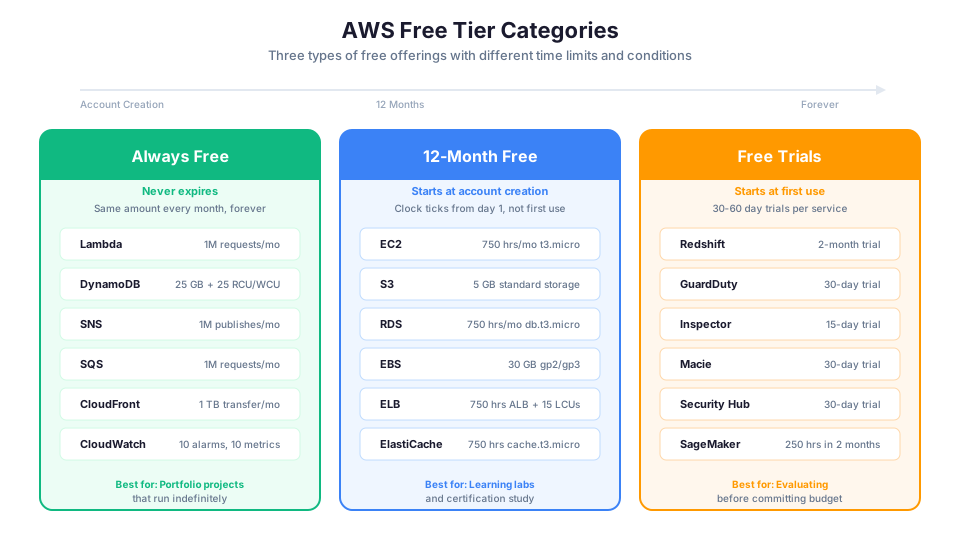
AWS organizes its free offerings into three categories. Understanding which category a service falls into is the single most important thing for avoiding surprise bills. Get this wrong, and you will be checking your credit card statement nervously.
Always Free
Always Free services never expire. You get a set amount every single month, forever, for as long as your account exists. These are not promotional offers. They are permanent allocations designed to let you run small workloads at no cost indefinitely.
The most important Always Free services for learners:
- AWS Lambda: 1 million free requests and 400,000 GB-seconds of compute per month. This now includes ARM/Graviton functions, so you can use the cheaper
arm64architecture at no cost. Enough to run a small API handling thousands of requests daily without paying anything. - Amazon DynamoDB: 25 GB of storage and 25 read/write capacity units (provisioned mode). In on-demand mode, you also get 2.5 million read request units and 1 million write request units per month free. You can build a complete database-backed application and leave it running forever.
- Amazon SNS: 1 million publishes and 100,000 HTTP/S notifications per month. Perfect for notification systems.
- Amazon SQS: 1 million requests per month. Great for message queuing patterns.
- Amazon CloudWatch: 10 custom metrics, 10 alarms, and 1 million API requests per month. Essential for monitoring.
- Amazon CloudFront: 1 TB of data transfer out and 10 million HTTP/HTTPS requests per month. This was expanded in 2024/2025 and is remarkably generous for a CDN. Put CloudFront in front of everything you can.
- Amazon Cognito: 50,000 monthly active users free. This is the authentication backbone for this bootcamp and most serverless apps. You will not pay a cent unless you somehow attract 50K users.
- Amazon SES: 62,000 outbound emails per month when sent from an application hosted on EC2 (or via Lambda). Great for transactional email.
- Amazon EventBridge: All AWS service events are free. You also get 14 million custom events per month at no cost. Useful for event-driven architectures.
- AWS Amplify Hosting: 1,000 build minutes per month, 15 GB served per month, and 5 GB storage. Perfect for hosting a Next.js or React front end at zero cost.
- AWS Budgets: 2 budgets free per account. Use both (we will set them up later in this guide).
- AWS KMS: 20,000 requests per month free. Covers most learning and small-workload encryption needs.
- AWS Step Functions: 4,000 state transitions per month (Standard Workflows). Enough to experiment with orchestration patterns.
- AWS CloudFormation: No additional charge. You only pay for the resources it creates.
The key point: Always Free services are your best friends for portfolio projects. Build something, deploy it, and leave it running. When a hiring manager asks "Can you show me something you built?" you can send them a live URL that actually works.
12-Month Free
12-Month Free services start their countdown clock the moment you create your AWS account. Not when you first use the service. Not when you deploy your first instance. The moment you click "Create Account."
This is the category that catches most people off guard. If you create your account and then wait six months before starting to learn, you have already burned through half your free period.
The most important 12-Month Free services:
- Amazon EC2: 750 hours per month of t2.micro or t3.micro instances (Linux or Windows). That is exactly enough to run one instance 24/7 for the entire month. AWS also offers a t4g.small Graviton trial so you can test ARM-based workloads.
- Amazon S3: 5 GB of standard storage, 20,000 GET requests, and 2,000 PUT requests per month.
- Amazon RDS: 750 hours per month of a db.t3.micro or db.t4g.micro Single-AZ instance. You get 20 GB of General Purpose (SSD) storage and 20 GB of backup storage. The db.t4g.micro option gives you Graviton performance at the same free price.
- Amazon ElastiCache: 750 hours of cache.t2.micro or cache.t3.micro node usage per month.
- Amazon API Gateway: 1 million API calls received per month for the first 12 months.
- Elastic Load Balancing: 750 hours per month of Classic Load Balancer or Application Load Balancer plus 15 LCUs.
- Amazon EBS: 30 GB of General Purpose (SSD) or Magnetic storage.
Critical tip: The 750 hours per month for EC2 is shared across ALL t2.micro/t3.micro instances in your account. If you run two instances simultaneously, you consume 1,500 hours per month but only get 750 free. That second instance will cost you money.
What about ECS and Fargate? Students often assume there is a free tier for containers. There is not. Amazon ECS itself is free (you only pay for the underlying compute), but AWS Fargate has no free tier at all. Every Fargate task incurs charges from the first second. If you want to learn containers without spending money, use EC2-backed ECS with your free tier t3.micro instance, or use local Docker.
Free Trials
Free Trials are short-term offers tied to the first time you activate a specific service. They vary from 30 days to 12 months depending on the service, and they start when you first use the service, not when you create your account (unlike 12-Month Free).
Notable Free Trials:
- Amazon Redshift: 2-month free trial with a dc2.large node
- Amazon GuardDuty: 30-day free trial
- Amazon Inspector: 15-day free trial
- Amazon Macie: 30-day free trial
- AWS Security Hub: 30-day free trial
- Amazon SageMaker: 250 hours of ml.t3.medium notebooks for the first 2 months
Free Trials are perfect for evaluating whether a service meets your needs before committing budget.
Top 25 Free Tier Services: The Complete Table
Here is a complete table of the services you are most likely to use during certification study and portfolio building. Bookmark this page.
| # | Service | Free Tier Allowance | Category | Notes |
|---|---|---|---|---|
| 1 | EC2 | 750 hrs/month t2.micro or t3.micro (+ t4g.small Graviton trial) | 12-Month | Linux or Windows; shared across all micro instances |
| 2 | S3 | 5 GB storage, 20K GET, 2K PUT | 12-Month | Standard storage class only |
| 3 | RDS | 750 hrs/month db.t3.micro or db.t4g.micro, 20 GB | 12-Month | Single-AZ only; MySQL, PostgreSQL, MariaDB |
| 4 | Lambda | 1M requests, 400K GB-sec/month (incl. ARM/Graviton) | Always Free | No cold start charges |
| 5 | DynamoDB | 25 GB, 25 RCU/WCU (provisioned) OR 2.5M reads + 1M writes (on-demand) | Always Free | Both modes have free allowances now |
| 6 | CloudWatch | 10 metrics, 10 alarms, 1M API calls | Always Free | Basic monitoring only (5-min intervals) |
| 7 | SNS | 1M publishes, 100K HTTP notifications/month | Always Free | First 1K emails free, then charges apply |
| 8 | SQS | 1M requests/month | Always Free | Standard and FIFO queues both count |
| 9 | API Gateway | 1M REST API calls/month | 12-Month | WebSocket API has separate pricing |
| 10 | CloudFront | 1 TB transfer out, 10M requests/month | Always Free | Expanded allowance; includes HTTP and HTTPS |
| 11 | EBS | 30 GB of gp2/gp3 or Magnetic | 12-Month | Plus 2M I/O operations for Magnetic |
| 12 | ELB | 750 hrs ALB + 15 LCUs | 12-Month | Classic and ALB only |
| 13 | ElastiCache | 750 hrs cache.t3.micro | 12-Month | Redis or Memcached |
| 14 | Cognito | 50,000 MAUs/month | Always Free | Authentication for web/mobile apps |
| 15 | SES | 62,000 outbound emails/month (from EC2) | Always Free | Great for transactional email |
| 16 | Amplify Hosting | 1,000 build-min, 15 GB served, 5 GB storage | Always Free | Perfect for front-end hosting |
| 17 | EventBridge | All AWS events free + 14M custom events/month | Always Free | Foundation for event-driven architectures |
| 18 | CloudFormation | Always free (pay for resources) | Always Free | No charge for the service itself |
| 19 | CodeBuild | 100 build-minutes/month | Always Free | general1.small compute type |
| 20 | CodePipeline | 1 active pipeline/month | Always Free | Additional pipelines cost $1/month |
| 21 | Step Functions | 4,000 state transitions/month | Always Free | Standard Workflows only |
| 22 | KMS | 20,000 requests/month | Always Free | Covers most learning encryption needs |
| 23 | AWS Budgets | 2 budgets/account | Always Free | Use both: one at $1, one at $10 |
| 24 | X-Ray | 100K traces, 1M trace scans | Always Free | Great for learning distributed tracing |
| 25 | Secrets Manager | 30-day free trial | Trial | After trial: $0.40/secret/month |
Common Billing Traps That Catch Beginners
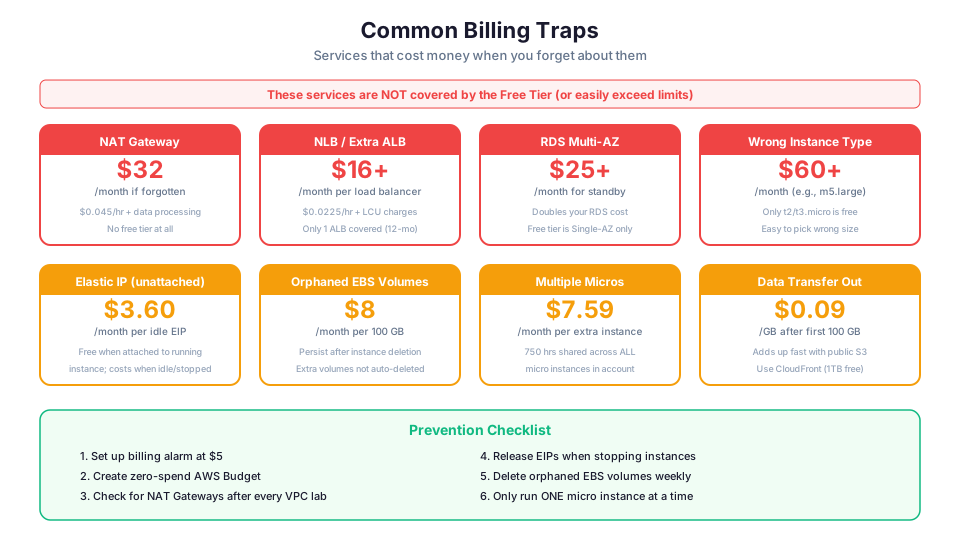
This is the section that will save you money. I have compiled the most common ways students accidentally incur charges. Every single one of these has happened to someone I know personally.
Trap 1: The Forgotten NAT Gateway
NAT Gateways are one of the most expensive resources beginners accidentally leave running. They cost approximately $0.045 per hour ($32.40/month) PLUS $0.045 per GB of data processed. If you create a VPC with private subnets as part of a lab exercise and forget to delete the NAT Gateway, you will see a $30+ charge on your next bill.
How to avoid it: After every VPC lab, explicitly check for and delete NAT Gateways. They are not covered by the Free Tier at all. Not even partially. Any usage costs money from the first second.
# List all NAT Gateways in your account (check all regions!)
aws ec2 describe-nat-gateways --filter "Name=state,Values=available" --region us-east-1

# Delete a NAT Gateway
aws ec2 delete-nat-gateway --nat-gateway-id nat-0123456789abcdef0
Trap 2: Elastic IP Addresses (When Not Attached)
As of February 2024, AWS charges $0.005 per hour ($3.60/month) for ALL public IPv4 addresses, including Elastic IPs. An Elastic IP that is not associated with a running instance costs an additional idle fee on top of that. The bottom line: unattached Elastic IPs are doubly expensive, and even attached ones now have a small cost. This catches people who stop their instance to "save money" but forget about the Elastic IP.
How to avoid it: If you stop an instance permanently, release its Elastic IP. If you terminate an instance, check that its Elastic IP was automatically released. For learning, avoid allocating Elastic IPs unless you specifically need a static address.
# List all Elastic IPs
aws ec2 describe-addresses --region us-east-1

# Release an Elastic IP (after disassociating it)
aws ec2 release-address --allocation-id eipalloc-0123456789abcdef0
Trap 3: EBS Volumes That Outlive Their Instances
When you terminate an EC2 instance, its root EBS volume is deleted by default. But additional volumes (data drives) are NOT deleted by default. They persist and continue to cost money. At $0.08/GB/month for gp2, a forgotten 100 GB volume costs $8/month.
How to avoid it: After terminating instances, check for orphaned EBS volumes.
# Find volumes that are not attached to any instance
aws ec2 describe-volumes \
  --filters "Name=status,Values=available" \
  --query "Volumes[*].[VolumeId,Size,CreateTime]" \
  --output table

# Delete an orphaned volume
aws ec2 delete-volume --volume-id vol-0123456789abcdef0
Trap 4: EBS Snapshots Accumulating Over Time
Every snapshot you create persists until you explicitly delete it. At $0.05/GB/month, snapshots are cheap individually, but they accumulate. If you take daily snapshots during a lab and forget about them, they add up over weeks.
How to avoid it: Regularly check for and delete old snapshots.
# List all snapshots owned by your account
aws ec2 describe-snapshots --owner-ids self \
  --query "Snapshots[*].[SnapshotId,VolumeSize,StartTime,Description]" \
  --output table

# Delete a snapshot
aws ec2 delete-snapshot --snapshot-id snap-0123456789abcdef0
Trap 5: Running Multiple EC2 Instances Simultaneously
Remember: 750 hours per month is the total for ALL t2.micro/t3.micro instances combined. If you launch two instances and run them both 24/7, you use 1,460 hours. Only 750 are free. The remaining 710 hours (one full instance worth) will be billed at on-demand rates (~$7.59/month for t3.micro in us-east-1).
How to avoid it: Only run one micro instance at a time. When you finish a lab, terminate the instance before starting the next one. Do not just stop it (stopped instances still incur EBS charges).
Trap 6: Data Transfer Charges
Data transfer INTO AWS is always free. Data transfer OUT to the internet costs $0.09/GB after the first 100 GB per month (the first 100 GB is free with CloudFront, but direct from EC2/S3 it starts at 1 GB free). Data transfer between regions also costs money. And here is one that surprises people: data transfer between Availability Zones within the same region costs $0.01/GB in each direction. If you set up a Multi-AZ architecture for a lab, traffic between AZs is not free.
Common scenario: A student sets up an S3 bucket with public images for a portfolio site. The site goes viral (or gets indexed aggressively by bots), and suddenly hundreds of gigabytes of data transfer hit the bill.
How to avoid it: Use CloudFront in front of S3 for public content (it has 1 TB/month free transfer). Keep lab resources in a single AZ when possible. Set up a billing alarm so you catch unexpected spikes early.
Trap 7: RDS Multi-AZ and Storage Auto-Scaling
The Free Tier for RDS gives you a Single-AZ db.t3.micro or db.t4g.micro. If you accidentally enable Multi-AZ deployment during setup, you double the instance cost (and Multi-AZ is not free tier eligible). Similarly, if storage auto-scaling kicks in and grows your database beyond 20 GB, you pay for the extra storage.
How to avoid it: When creating RDS instances for learning, explicitly choose Single-AZ and disable storage auto-scaling. Set the maximum allocated storage to 20 GB. Use db.t3.micro or db.t4g.micro specifically (the Graviton option gives better price-performance if you decide to keep it beyond Free Tier).
Trap 8: Forgetting About Multiple Regions
Resources in different regions are completely independent. If you create an EC2 instance in us-east-1 for a lab, then accidentally create another in us-west-2, you are now running two instances. Only 750 hours total are free across ALL regions.
How to avoid it: Pick one region for all your learning (us-east-1 is recommended). After every learning session, switch to each region you might have used and verify no resources are running.
# Check for running instances across common regions
for region in us-east-1 us-west-2 eu-west-1 ap-southeast-1; do
  echo "=== $region ==="
  aws ec2 describe-instances \
    --region $region \
    --filters "Name=instance-state-name,Values=running" \
    --query "Reservations[*].Instances[*].[InstanceId,InstanceType]" \
    --output table
done
Trap 9: AWS Service Limits vs Free Tier Limits
Some services have soft limits that can surprise you. For example, if you accidentally leave CloudWatch detailed monitoring enabled (1-minute intervals instead of 5-minute), that costs extra. If you create more than 10 CloudWatch alarms, the extras cost money.
Trap 10: The "Delete Stack" That Did Not Actually Delete Everything
When you delete a CloudFormation stack, it should remove all resources. But if any resource has a DeletionPolicy of "Retain" or if deletion fails (e.g., a non-empty S3 bucket), resources remain and continue to cost money. Always verify that stack deletion completed successfully.
What is NOT Free (Common Assumptions That Cost Money)
Students frequently assume certain popular services have free tiers. They do not. Here is the definitive list of services that cost money from the very first second of use:
| Service | Why Students Expect It Free | What It Actually Costs |
|---|---|---|
| NAT Gateway | "It is just routing" | $0.045/hr + $0.045/GB (~$32/month idle) |
| Elastic IP (unattached) | "I am not using it" | $0.005/hr ($3.60/month) |
| Public IPv4 addresses | "It used to be free" | $0.005/hr per address (since Feb 2024) |
| Data transfer between AZs | "Same region should be free" | $0.01/GB each direction |
| AWS Fargate | "Containers should be like Lambda" | Per-vCPU and per-GB-memory per second |
| ECS on Fargate | "ECS is free" | ECS is free, but Fargate compute is not |
| AWS WAF | "Security should be free" | $5/month per web ACL + $1/rule + $0.60/M requests |
| Secrets Manager | "It is just key-value storage" | $0.40/secret/month (30-day trial only) |
| VPC Endpoints (Interface) | "Private connectivity" | $0.01/hr per AZ + $0.01/GB |
| Elastic File System (EFS) | "Like S3?" | $0.30/GB-month standard, no free tier |
| Amazon MSK (Kafka) | "It is open source" | Broker instance hours, no free tier |
Rule of thumb: If a service involves persistent network infrastructure (NAT Gateways, VPC Endpoints, Elastic IPs, load balancers beyond free tier hours), it costs money regardless of traffic. Services that charge per-request (Lambda, DynamoDB, SQS) are much safer for learners because zero traffic means zero cost.
How to Set Up Billing Alerts Step by Step
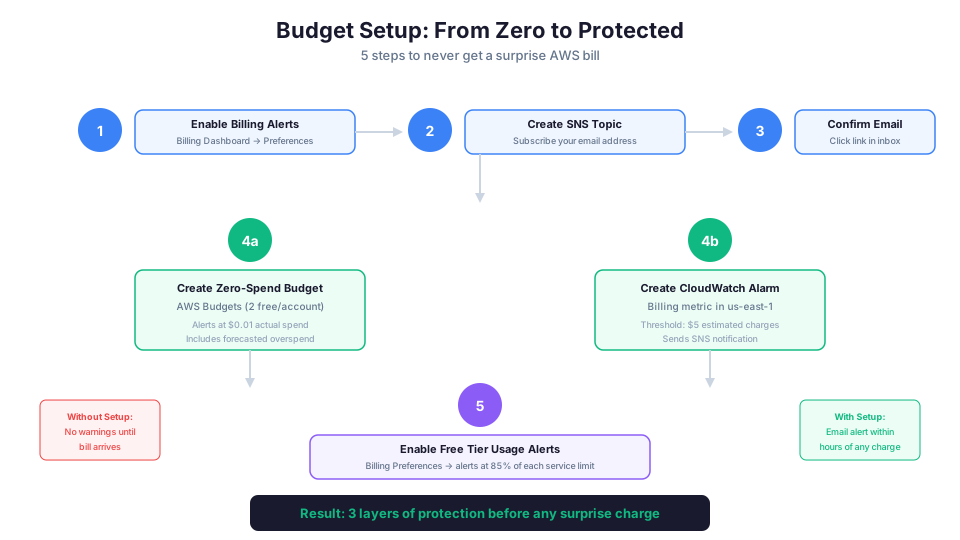
Setting up billing alerts is the single most important action you can take to protect yourself from surprise charges. Do this within 5 minutes of creating your AWS account.
Step 1: Enable Cost Explorer and Billing Alerts
Before you can create alarms, you need to enable billing alerts in your account settings. This only needs to be done once.
# Note: Billing preferences must be enabled in the console first
# Navigate to: Billing Dashboard → Billing Preferences → Check "Receive Free Tier Usage Alerts"
# Also check: "Receive Billing Alerts" (required for CloudWatch billing alarms)
Step 2: Create a Zero-Spend Budget with AWS Budgets
AWS Budgets lets you create up to 2 budgets for free. Use one as a zero-spend alert that fires the moment any charge appears.
# Create a budget JSON file first
cat << 'EOF' > /tmp/budget.json
{
  "BudgetName": "ZeroSpendAlert",
  "BudgetLimit": {
    "Amount": "1",
    "Unit": "USD"
  },
  "BudgetType": "COST",
  "TimeUnit": "MONTHLY",
  "TimePeriod": {
    "Start": "2026-01-01T00:00:00Z",
    "End": "2087-06-15T00:00:00Z"
  }
}
EOF

# Create a notification JSON file
cat << 'EOF' > /tmp/notifications.json
[
  {
    "Notification": {
      "NotificationType": "ACTUAL",
      "ComparisonOperator": "GREATER_THAN",
      "Threshold": 0.01,
      "ThresholdType": "ABSOLUTE_VALUE"
    },
    "Subscribers": [
      {
        "SubscriptionType": "EMAIL",
        "Address": "your-email@example.com"
      }
    ]
  }
]
EOF

# Create the budget
aws budgets create-budget \
  --account-id $(aws sts get-caller-identity --query Account --output text) \
  --budget file:///tmp/budget.json \
  --notifications-with-subscribers file:///tmp/notifications.json
Step 3: Create a CloudWatch Billing Alarm
CloudWatch billing alarms trigger based on your estimated charges. Set one at $5 to catch issues early.
# IMPORTANT: Billing metrics are only available in us-east-1
# You must run this command in us-east-1 regardless of your normal region

# Create the alarm
aws cloudwatch put-metric-alarm \
  --alarm-name "BillingAlarm-5USD" \
  --alarm-description "Alert when estimated charges exceed $5" \
  --metric-name EstimatedCharges \
  --namespace AWS/Billing \
  --statistic Maximum \
  --period 21600 \
  --threshold 5 \
  --comparison-operator GreaterThanThreshold \
  --dimensions Name=Currency,Value=USD \
  --evaluation-periods 1 \
  --alarm-actions arn:aws:sns:us-east-1:ACCOUNT_ID:BillingAlerts \
  --region us-east-1
Note: You need to create an SNS topic first and subscribe your email to it:
# Create the SNS topic for billing alerts
aws sns create-topic --name BillingAlerts --region us-east-1

# Subscribe your email
aws sns subscribe \
  --topic-arn arn:aws:sns:us-east-1:ACCOUNT_ID:BillingAlerts \
  --protocol email \
  --notification-endpoint your-email@example.com \
  --region us-east-1

# Check your email and click the confirmation link!
Step 4: Enable Free Tier Usage Alerts
AWS can email you when your usage approaches 85% of the Free Tier limit for any service. Enable this in the Billing Dashboard.
# This setting is only available through the console:
# 1. Go to Billing Dashboard
# 2. Click "Billing Preferences" in the left sidebar
# 3. Check "Receive Free Tier Usage Alerts"
# 4. Enter your email address
# 5. Click "Save preferences"
Step 5: Set Up a Second Budget at $10 (Your "Stop Everything" Threshold)
Use your second free budget as a higher threshold that tells you something has gone seriously wrong.
cat << 'EOF' > /tmp/budget-high.json
{
  "BudgetName": "StopEverythingAlert",
  "BudgetLimit": {
    "Amount": "10",
    "Unit": "USD"
  },
  "BudgetType": "COST",
  "TimeUnit": "MONTHLY",
  "TimePeriod": {
    "Start": "2026-01-01T00:00:00Z",
    "End": "2087-06-15T00:00:00Z"
  }
}
EOF

aws budgets create-budget \
  --account-id $(aws sts get-caller-identity --query Account --output text) \
  --budget file:///tmp/budget-high.json \
  --notifications-with-subscribers file:///tmp/notifications.json
How to Monitor Free Tier Usage in the Console
AWS provides a dedicated Free Tier usage dashboard. Here is how to access and read it.
Accessing the Free Tier Dashboard
- Log into the AWS Management Console
- Navigate to Billing and Cost Management
- Click Free Tier in the left sidebar
- You will see a table showing every Free Tier service you have used
Understanding the Dashboard Columns
| Column | What It Means |
|---|---|
| Service | The AWS service name |
| Free Tier Usage Limit | Maximum free usage per month |
| Current Usage | How much you have used so far this month |
| MTD Actual Usage (%) | Percentage of free tier consumed |
| Forecasted Usage (%) | Projected usage by end of month based on current rate |
What to Look For
- Forecasted Usage above 100%: This means you are on track to exceed the Free Tier limit before the month ends. Take action now.
- Services you do not recognize: If you see usage on a service you did not intentionally use, investigate immediately. It could be a resource you forgot about or (rarely) unauthorized access.
- Usage in unexpected regions: The dashboard shows all regions. If you see EC2 usage in a region where you do not remember launching instances, check immediately.
Using Cost Explorer for Deeper Analysis
Cost Explorer gives you visual graphs and filtering that the Free Tier dashboard does not:
# Enable Cost Explorer (only needs to be done once)
aws ce get-cost-and-usage \
  --time-period Start=2026-05-01,End=2026-05-31 \
  --granularity MONTHLY \
  --metrics BlendedCost \
  --group-by Type=DIMENSION,Key=SERVICE \
  --query "ResultsByTime[0].Groups[?Metrics.BlendedCost.Amount > '0']"
Real-World Stories of Surprise Bills
These are real situations I have seen or heard about from the AWS learning community. Names are changed, but the scenarios are genuine.
Story 1: The $400 NAT Gateway
A student followed a VPC tutorial that included creating a NAT Gateway. The tutorial was about private subnets and routing. The student completed the exercise, understood the concepts, but forgot to delete the NAT Gateway. Twelve days later: a $17 charge appeared. They did not notice because it was below their alarm threshold. After a full month: $45. After three months (when they finally checked): over $100. The lesson? NAT Gateways should always be at the top of your cleanup checklist.
Story 2: The $200 Idle RDS Instance
A learner created an RDS instance for a database lab, chose a db.m5.large instead of db.t3.micro by accident (the dropdown defaults can be tricky), and then moved on to other topics. A db.m5.large costs $0.171/hour, or about $125/month. Because they had no billing alarm set, they did not discover it for 6 weeks.
Story 3: The $50 EBS Snapshots
A student followed an EC2 automation tutorial that included creating daily snapshots. They set up a Lambda function to create snapshots every day but never built the companion Lambda to delete old snapshots. After 3 months: 90 snapshots of a 100 GB volume = $450 worth of snapshot storage. Fortunately, they caught it after just one month at around $50.
Story 4: The $30 Multi-Region Mistake
A learner was testing CloudFormation templates and accidentally deployed stacks in us-east-1, us-west-2, and eu-west-1. Each stack contained an EC2 instance, an EBS volume, and an Elastic IP. Only one region worth was covered by the Free Tier. The other two regions added up to about $30 for the month.
How AWS Handles Billing Support for Learners
Here is something most people do not know: if you accidentally incur small charges as a genuine learner, AWS Support is often willing to issue a one-time credit. This is not guaranteed and should never be counted on, but it is worth knowing:
- Open a billing support case in the AWS Support Center
- Explain what happened honestly
- Show that you have now deleted the resources and set up billing alerts
- Be polite and specific about the charges
I have seen credits issued for amounts ranging from $5 to $100. But do not abuse this. It works once. Maybe twice. The real solution is prevention through billing alerts and proper cleanup.
What Happens When Free Tier Expires After 12 Months
On the 366th day after your account creation, all 12-Month Free services begin charging at standard on-demand rates. There is no warning period, no grace period, and no automatic shutoff.
What Gets Affected
| Service | Before Expiry (Free) | After Expiry (Cost) |
|---|---|---|
| EC2 t3.micro | $0/month (750 hrs) | ~$7.59/month (running 24/7) |
| EC2 t4g.small | $0/month (Graviton trial) | ~$12.26/month (running 24/7) |
| RDS db.t3.micro | $0/month (750 hrs) | ~$12.41/month (running 24/7) |
| RDS db.t4g.micro | $0/month (750 hrs) | ~$11.52/month (running 24/7) |
| S3 (5 GB) | $0/month | ~$0.12/month |
| EBS (30 GB gp3) | $0/month | ~$2.40/month |
| ELB (ALB) | $0/month | ~$16.43/month (plus LCU charges) |
| ElastiCache | $0/month | ~$11.52/month |
What to Do Before Expiry
- Audit your resources 2 weeks before the anniversary. Set a calendar reminder for day 350.
- Decide what to keep. Some resources (like a portfolio project) might be worth the cost. Others should be terminated.
- Terminate anything you do not need. EC2 instances, RDS databases, load balancers, and ElastiCache nodes are the biggest costs.
- Migrate to Always Free services where possible. Can your API move from EC2 to Lambda? Can your database move from RDS to DynamoDB? These services remain free forever.
- Consider Reserved Instances if keeping EC2/RDS. A 1-year reservation for a t3.micro saves ~30% compared to on-demand.
What Does NOT Expire
Always Free services continue indefinitely. After your 12-month period ends, you still get:
- Lambda: 1M requests + 400K GB-sec/month (including ARM/Graviton)
- DynamoDB: 25 GB + 25 RCU/WCU (or 2.5M reads + 1M writes on-demand)
- CloudFront: 1 TB transfer + 10M requests/month
- Cognito: 50,000 MAUs/month
- SES: 62,000 emails/month (from EC2)
- SNS: 1M publishes/month
- SQS: 1M requests/month
- CloudWatch: 10 metrics, 10 alarms, 1M API requests
- EventBridge: 14M custom events/month
- Amplify Hosting: 1,000 build-min, 15 GB served, 5 GB storage
- Step Functions: 4,000 state transitions/month
- KMS: 20,000 requests/month
- CodeBuild: 100 build-minutes/month
This is why I recommend building portfolio projects on Lambda + DynamoDB + CloudFront + Amplify + Cognito instead of EC2 + RDS. The serverless stack stays free forever, and with the expanded DynamoDB on-demand allowance, you do not even need to worry about provisioned capacity.
Creating Your Free Tier Account
Sign up at aws.amazon.com/free. You will need:
- A credit or debit card (AWS charges $1 temporarily to verify, then refunds it)
- A phone number for identity verification (SMS or voice call)
- An email address (use one you check regularly for billing alerts)
Account Creation Steps
- Go to aws.amazon.com/free and click "Create a Free Account"
- Enter your email address and choose an account name (use something meaningful like "firstname-learning" rather than "test123")
- Verify your email address with the code AWS sends
- Set a strong root password (minimum 12 characters, mix of types)
- Choose "Personal" for account type (unless your employer is paying)
- Enter payment information (required even for free tier)
- Verify your identity via phone
- Choose the "Basic Support" plan (it is free)
Immediately After Creating Your Account
Do these three things within 5 minutes of account creation:
# 1. Enable MFA on root user
# Go to: IAM → Security credentials → MFA → Assign MFA device
# Use a virtual MFA app like Google Authenticator or Authy

# 2. Create an IAM user for daily work (never use root for labs)
aws iam create-user --user-name lab-user
aws iam attach-user-policy \
  --user-name lab-user \
  --policy-arn arn:aws:iam::aws:policy/PowerUserAccess
aws iam create-login-profile \
  --user-name lab-user \
  --password 'ChangeMe123!' \
  --password-reset-required

# 3. Set up billing alerts (see the detailed section above)
The Complete Cleanup Checklist
Run through this checklist after every learning session. It takes 2 minutes and can save you hundreds of dollars.
Priority 1: The Expensive Ones (Check These First)
# NAT Gateways ($32/month each)
aws ec2 describe-nat-gateways \
  --filter "Name=state,Values=available" \
  --query "NatGateways[*].[NatGatewayId,CreateTime]" \
  --output table

# Running instances beyond t3.micro
aws ec2 describe-instances \
  --filters "Name=instance-state-name,Values=running" \
  --query "Reservations[*].Instances[*].[InstanceId,InstanceType,LaunchTime]" \
  --output table

# RDS instances beyond db.t3.micro
aws rds describe-db-instances \
  --query "DBInstances[*].[DBInstanceIdentifier,DBInstanceClass,DBInstanceStatus]" \
  --output table

# Elastic IPs not associated with running instances
aws ec2 describe-addresses \
  --query "Addresses[?AssociationId==null].[AllocationId,PublicIp]" \
  --output table
Priority 2: Medium Cost (Check Weekly)
# Unattached EBS volumes
aws ec2 describe-volumes \
  --filters "Name=status,Values=available" \
  --query "Volumes[*].[VolumeId,Size,CreateTime]" \
  --output table

# Load Balancers
aws elbv2 describe-load-balancers \
  --query "LoadBalancers[*].[LoadBalancerName,Type,CreatedTime]" \
  --output table

# ElastiCache clusters
aws elasticache describe-cache-clusters \
  --query "CacheClusters[*].[CacheClusterId,CacheNodeType,CacheClusterStatus]" \
  --output table
Priority 3: Low Cost (Check Monthly)
# EBS Snapshots
aws ec2 describe-snapshots --owner-ids self \
  --query "Snapshots[*].[SnapshotId,VolumeSize,StartTime]" \
  --output table

# S3 buckets (check for unexpected ones)
aws s3 ls

# CloudWatch log groups (they accumulate data over time)
aws logs describe-log-groups \
  --query "logGroups[*].[logGroupName,storedBytes]" \
  --output table
How This Shows Up in Architecture Decisions
Interviews and architecture reviews frequently test your knowledge of AWS cost management and Free Tier awareness. Here are the key facts to know:
| Topic | What You Should Know |
|---|---|
| Free Tier categories | Know the three types and examples of each |
| Always Free vs 12-Month | Know which services fall in which category |
| Billing alarms | Know that CloudWatch billing metrics are only in us-east-1 |
| AWS Budgets | Know that you get 2 free budgets and how they differ from CloudWatch alarms |
| Cost Explorer | Know it has a 24-hour delay before data appears |
| Free Tier limits | Know that limits are per-account, not per-user or per-region |
| Public IPv4 pricing | Know that all public IPv4 addresses now cost $0.005/hr (since Feb 2024) |
| Fargate pricing | Know that Fargate has NO free tier despite ECS itself being free |
Common scenario: "A company wants to ensure they never exceed Free Tier limits. What should they do?" The answer involves BOTH billing alarms (reactive) AND proper resource management (proactive). Neither alone is sufficient.
Troubleshooting Common Free Tier Issues
| Problem | Likely Cause | How to Fix It |
|---|---|---|
| Unexpected charges after deleting stack | CloudFormation stack deletion left behind resources with a Retain DeletionPolicy, or deletion failed silently on resources like non-empty S3 buckets | Check the CloudFormation Events tab for DELETE_FAILED resources. Manually empty and delete any retained S3 buckets. Run the cleanup checklist above to find orphaned EBS volumes, snapshots, and Elastic IPs. |
| Budget alarm not firing | The budget threshold is set higher than your current spend, or the SNS subscription was never confirmed (check your email for the confirmation link) | Verify the budget exists with aws budgets describe-budgets. Check that the SNS topic has a confirmed subscription with aws sns list-subscriptions-by-topic. Lower the threshold to $0.01 for a zero-spend alert. |
| Free tier usage not showing in console | The Free Tier dashboard has a delay of up to 24 hours, or you are checking in the wrong region (billing data is global but some console views are regional) | Wait 24 hours after first resource usage. Access the Free Tier dashboard from the Billing console, which is region-independent. Also verify you are logged into the correct AWS account. |
Frequently Asked Questions
Can I create multiple accounts to get more Free Tier?
Technically, yes. Each email address can have its own AWS account with its own Free Tier. Some learners create a new account when their 12-month period expires. However, AWS Organizations can consolidate billing across accounts, and AWS has banned accounts suspected of Free Tier abuse. For legitimate learning, one account is plenty.
What if I accidentally go over the Free Tier?
You will be charged at standard on-demand rates for the overage. AWS does not automatically shut down services when you hit the limit. This is why billing alerts are essential.
Do I need a credit card if I only want to use Free Tier?
Yes. AWS requires a valid credit or debit card during account creation. They use it to verify your identity and to charge you if you exceed Free Tier limits. There is no way around this requirement.
Does the Free Tier apply to all AWS Regions?
Yes, Free Tier limits apply globally across your account. Your 750 EC2 hours are shared across all regions, not per-region.
Can I use Free Tier for a production application?
For traditional EC2-based applications, it is risky. Free Tier instances (t3.micro) have limited CPU credits, 1 GB RAM, and shared tenancy. They are not suitable for production workloads with reliability requirements. However, for serverless architectures using Lambda + DynamoDB + CloudFront + Cognito + Amplify, you can genuinely run a small production application for free indefinitely. The Always Free allowances are generous enough for applications with modest traffic (a few thousand users). This bootcamp's own site uses this approach.
What is the difference between AWS Budgets and CloudWatch Billing Alarms?
| Feature | AWS Budgets | CloudWatch Billing Alarms |
|---|---|---|
| Free tier | 2 budgets free | Unlimited alarms within CloudWatch free tier |
| Forecast | Can alert on forecasted spend | Only alerts on actual spend |
| Granularity | Daily, monthly, quarterly, annual | Minimum 6-hour evaluation period |
| Actions | Can trigger automated responses | Only triggers SNS notifications |
| Cost per budget | Free for first 2, then $0.02/day | No additional cost beyond CloudWatch |
| Region | Global (not region-specific) | Must be created in us-east-1 |
Use both. They complement each other.
Quick Knowledge Check
Test yourself on these questions:
- What are the three categories of AWS Free Tier?
- How many hours of EC2 t3.micro do you get per month, and is it per-instance or per-account?
- Name five services that are Always Free (never expire).
- What happens to an Elastic IP address when its EC2 instance is stopped?
- How much does a NAT Gateway cost per hour?
- Where must CloudWatch billing alarms be created (which region)?
- How many free AWS Budgets do you get per account?
- Does AWS Fargate have a free tier?
- What is the DynamoDB free tier for on-demand mode?
- How many MAUs does Cognito give you for free?
- What changed about public IPv4 address pricing in 2024?
- Why is Lambda + DynamoDB + CloudFront + Amplify recommended over EC2 + RDS for portfolio projects?
If you can answer all twelve, you are ready to use the Free Tier confidently.
Pricing note: Costs cited in this article are for us-east-1 and were verified in May 2026. Check the AWS Pricing Calculator for current rates in your Region.
Ready to start building? The AWS Free Tier is your sandbox. With the 2024/2025 expansions (CloudFront's 1 TB free, DynamoDB on-demand free allowance, Cognito's 50K MAUs, and Amplify Hosting), you can run a full-stack serverless application at zero cost indefinitely. The bootcamp begins with Module 01: Cloud Fundamentals which walks you through account setup, security configuration, and your first billing alarm. All using Free Tier resources.