
AWS IAM Guide: Users, Roles, Policies Explained
If cloud computing is renting someone else's computers, then IAM is the lock on the front door. It controls who can get in and what they can do once they are inside.
AWS Identity and Access Management (IAM) is the first service you should learn after creating your AWS account, because every other service depends on it. Misconfigure IAM, and you risk either locking yourself out or leaving the door wide open.
This guide will walk you through IAM from scratch. No prior experience required.
Prerequisites: You should understand cloud computing basics before starting this article.
What You Will Learn
By the end of this article, you will be able to:
- Configure IAM users, groups, and roles from the CLI and explain when to use each one
- Implement least-privilege policies using specific actions, resource ARNs, and conditions (MFA, IP restrictions)
- Troubleshoot "Access Denied" errors by tracing the policy evaluation order through SCPs, permissions boundaries, and identity-based policies
- Explain how IAM role assumption works, including trust policies and temporary credentials, for cross-account and service-to-service access
- Design an IAM strategy for a multi-account organization using groups for team permissions and SCPs for guardrails
Why IAM Matters
When you create an AWS account, you get a single identity called the root user. This user has unrestricted access to everything in the account. Every service, every resource, every billing setting. Think of it as the all-access key to your entire cloud infrastructure.
Using the root user for daily work is like carrying around the all-access key to an office building when you only need to access one room. If someone steals that key, they have access to everything.
IAM solves this problem by letting you create individual identities with limited, specific permissions. Instead of one all-powerful key, you create separate keys that each open only the doors their holder needs.
Authentication vs Authorization
Before diving into IAM components, understand these two distinct concepts:
Authentication answers: "Who are you?" This is the login process. You prove your identity with a username/password, access keys, or MFA token.
Authorization answers: "What are you allowed to do?" After you prove who you are, IAM checks your attached policies to determine which API calls you can make.
| Concept | Question | IAM Mechanism | Example |
|---|---|---|---|
| Authentication | Who are you? | Credentials (password, access keys, MFA) | Logging in to the console |
| Authorization | What can you do? | IAM policies | Allowed to read S3, denied EC2 access |
Every API call to AWS involves both steps. First AWS verifies your identity, then it checks whether your identity has permission for the requested action.
The Four Building Blocks of IAM
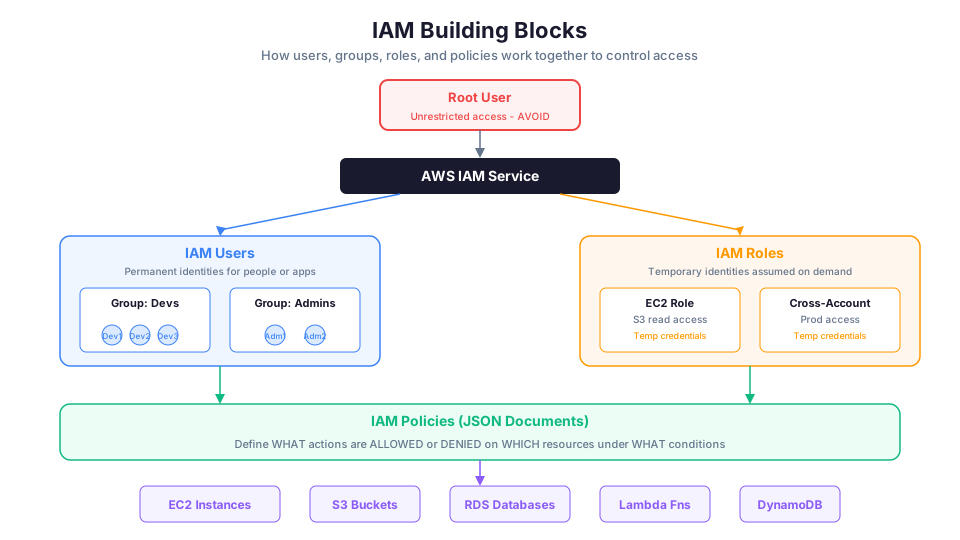
IAM has four core components: users, groups, roles, and policies. Understanding how they fit together is the key to using IAM effectively.
IAM Users
An IAM user represents a single person or application that interacts with AWS. Each user has their own credentials and their own set of permissions.
There are two types of access:
- Console access: A username and password for logging into the AWS Management Console (the web interface)
- Programmatic access: An access key ID and secret access key for using the AWS CLI or SDKs
# Create a new IAM user with the AWS CLI
aws iam create-user --user-name jane.doe

# Create console login credentials
aws iam create-login-profile \
  --user-name jane.doe \
  --password 'TempPassword123!' \
  --password-reset-required
Each person in your organization who needs AWS access should have their own IAM user. Never share credentials between people. If two people use the same account, you cannot tell who did what when something goes wrong.
IAM Users: Important Limits
| Limit | Value |
|---|---|
| Maximum users per account | 5,000 |
| Maximum groups per user | 10 |
| Maximum access keys per user | 2 (for rotation) |
| Maximum managed policies per user | 10 |
| Maximum inline policy size | 2,048 characters |
If you need more than 5,000 identities, use IAM Identity Center (formerly SSO) with federated access instead of creating individual IAM users.
IAM Groups
A group is a collection of IAM users. You attach permissions to the group, and every user in that group inherits those permissions.
This is how you manage permissions at scale. Instead of attaching the same policy to 50 individual developers, you create a "Developers" group, attach the policy once, and add all 50 developers to the group.
# Create a group
aws iam create-group --group-name Developers

# Add a user to the group
aws iam add-user-to-group --group-name Developers --user-name jane.doe

# Attach a policy to the group
aws iam attach-group-policy \
  --group-name Developers \
  --policy-arn arn:aws:iam::aws:policy/AmazonEC2ReadOnlyAccess
Common group examples:
| Group | Typical Permissions |
|---|---|
| Admins | Full access to all services |
| Developers | EC2, S3, Lambda, CloudWatch, CodeCommit |
| ReadOnly | View-only access across all services |
| DBAdmins | RDS and DynamoDB full access |
| BillingTeam | Billing and cost management access |
| SecurityAuditors | Read-only security and compliance tools |
| NetworkAdmins | VPC, Route 53, CloudFront management |
Key rules:
- Groups cannot be nested. You cannot put a group inside another group.
- Groups are for users only. You cannot add a role to a group.
- A user can belong to up to 10 groups.
- Permissions from all groups are combined (union, not intersection).
IAM Roles
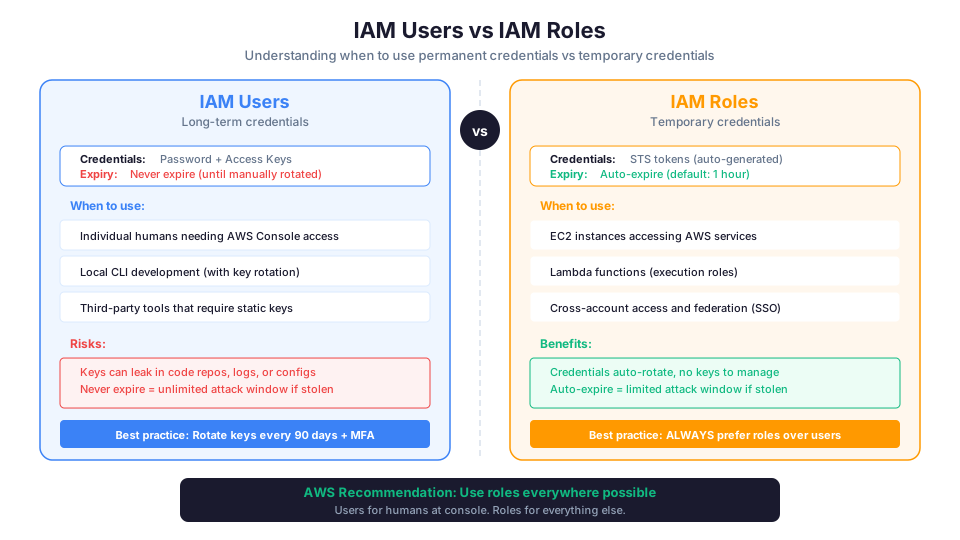
A role is an identity with permissions that is not tied to a specific person. Instead, a role is assumed temporarily by whoever (or whatever) needs it.
Roles are critical because they solve three problems:
1. Granting AWS services permission to act on your behalf.
When an EC2 instance needs to read files from S3, it cannot type in a username and password. Instead, you create a role with S3 read permissions and attach it to the instance. The instance automatically receives temporary credentials.
# Create a role that EC2 instances can assume
aws iam create-role \
  --role-name EC2-S3-ReadOnly \
  --assume-role-policy-document file://trust-policy.json
The trust policy defines who can assume the role:
{
  "Version": "2012-10-17",
  "Statement": [
    {
      "Effect": "Allow",
      "Principal": {
        "Service": "ec2.amazonaws.com"
      },
      "Action": "sts:AssumeRole"
    }
  ]
}
Then attach the permission policy that defines what the role can do:
# Attach a policy that allows reading S3 objects
aws iam attach-role-policy \
  --role-name EC2-S3-ReadOnly \
  --policy-arn arn:aws:iam::aws:policy/AmazonS3ReadOnlyAccess

# Create an instance profile (required to attach a role to EC2)
aws iam create-instance-profile \
  --instance-profile-name EC2-S3-ReadOnly-Profile

aws iam add-role-to-instance-profile \
  --instance-profile-name EC2-S3-ReadOnly-Profile \
  --role-name EC2-S3-ReadOnly
2. Cross-account access.
If your company has a development account and a production account, a developer might need temporary access to production for debugging. A role in the production account can trust the development account, allowing developers to assume the role when needed without creating IAM users in both accounts.
# In the production account: Create a role that trusts the dev account
# Trust policy allows the dev account to assume this role
{
  "Version": "2012-10-17",
  "Statement": [
    {
      "Effect": "Allow",
      "Principal": {
        "AWS": "arn:aws:iam::111122223333:root"
      },
      "Action": "sts:AssumeRole",
      "Condition": {
        "Bool": {
          "aws:MultiFactorAuthPresent": "true"
        }
      }
    }
  ]
}
# In the dev account: Assume the production role
aws sts assume-role \
  --role-arn arn:aws:iam::444455556666:role/ProdReadOnly \
  --role-session-name debug-session
3. Federated access.
If your company uses Active Directory, Okta, or another identity provider, roles let external users access AWS without creating IAM users. The external identity provider authenticates the user, and AWS grants temporary credentials through a role.
Why temporary credentials matter: When a user or service assumes a role, AWS issues credentials that expire automatically (default: 1 hour). This means even if those credentials are stolen, the attacker has a limited window. Compare that to an access key that never expires and you can see why roles are the preferred approach.
Two Types of Policies on a Role
Every role has two distinct policies:
| Policy Type | Purpose | Example |
|---|---|---|
| Trust policy | Who can assume this role | EC2 service, another AWS account, an IdP |
| Permission policy | What the role can do once assumed | Read S3, write DynamoDB |
This distinction trips up many beginners. The trust policy is the lock on the door. The permission policy is what you can touch once you are inside.
IAM Policies
A policy is a JSON document that defines permissions. It specifies what actions are allowed or denied on which resources, under what conditions.
Every permission in AWS is controlled by policies. If there is no policy granting an action, that action is denied by default.
Here is a policy that allows reading objects from a specific S3 bucket:
{
  "Version": "2012-10-17",
  "Statement": [
    {
      "Sid": "AllowReadReportsBucket",
      "Effect": "Allow",
      "Action": [
        "s3:GetObject",
        "s3:ListBucket"
      ],
      "Resource": [
        "arn:aws:s3:::my-reports-bucket",
        "arn:aws:s3:::my-reports-bucket/*"
      ]
    }
  ]
}
Let us break down each element:
| Element | Purpose | Example |
|---|---|---|
| Version | Policy language version (always use "2012-10-17") | "2012-10-17" |
| Sid | Optional statement ID for readability | "AllowReadReportsBucket" |
| Effect | Allow or Deny | "Allow" |
| Action | Which API actions | "s3:GetObject" |
| Resource | Which AWS resources | "arn:aws:s3:::my-bucket/*" |
| Condition (optional) | When the rule applies | IP range, time of day, MFA required |
Understanding ARNs (Amazon Resource Names)
Every resource in AWS has a unique identifier called an ARN. You will use ARNs constantly in IAM policies.
arn:aws:service:region:account-id:resource-type/resource-id

Examples:
arn:aws:s3:::my-bucket                          # S3 bucket (global, no region)
arn:aws:s3:::my-bucket/*                         # All objects in the bucket
arn:aws:ec2:us-east-1:123456789012:instance/i-abc123   # Specific EC2 instance
arn:aws:iam::123456789012:user/jane.doe          # IAM user (global, no region)
arn:aws:dynamodb:us-east-1:123456789012:table/Users    # DynamoDB table
Common ARN gotcha with S3: The bucket itself (arn:aws:s3:::my-bucket) and the objects inside it (arn:aws:s3:::my-bucket/*) are separate resources. If you only specify the bucket ARN, s3:GetObject will not work because GetObject operates on objects, not buckets. You need both ARN formats.
Three Types of Policies
AWS managed policies are created and maintained by AWS. They cover common use cases like AmazonS3ReadOnlyAccess or AdministratorAccess. These are convenient but sometimes grant more permissions than you need.
# List all AWS managed policies (there are hundreds)
aws iam list-policies --scope AWS --max-items 20

# View what a specific managed policy allows
aws iam get-policy-version \
  --policy-arn arn:aws:iam::aws:policy/AmazonS3ReadOnlyAccess \
  --version-id v1
Customer managed policies are policies you write yourself. They give you precise control and can be attached to multiple users, groups, or roles. This is the recommended approach for production environments.
Inline policies are embedded directly in a single user, group, or role. They cannot be reused. Use these only when you need a strict one-to-one relationship between a policy and an identity.
Policy Writing Best Practices
| Practice | Bad Example | Good Example |
|---|---|---|
| Specific actions | "Action": "s3:*" | "Action": ["s3:GetObject", "s3:ListBucket"] |
| Specific resources | "Resource": "*" | "Resource": "arn:aws:s3:::my-bucket/*" |
| Use conditions | No conditions | "Condition": {"IpAddress": {"aws:SourceIp": "10.0.0.0/8"}} |
| Add SIDs | No Sid | "Sid": "AllowReadReports" |
| Use deny sparingly | Multiple deny rules | Deny only for guardrails |
The Principle of Least Privilege
Least privilege is the most important security concept in cloud computing. It means granting only the minimum permissions required to perform a task, nothing more.
Here is why it matters:
Scenario 1: Over-permissioned user. You give a developer AdministratorAccess because it is easy. That developer's access keys get leaked in a public GitHub repository (this happens more often than you think). The attacker now has full control of your AWS account, they can launch crypto-mining instances, delete databases, and access customer data.
Scenario 2: Least privilege user. The same developer has a custom policy that grants only the specific EC2 and S3 permissions their application needs. The leaked keys still get exploited, but the damage is contained. The attacker can access one S3 bucket, not your entire account.
The Blast Radius Concept
Think of permissions as a blast radius. If credentials are compromised, how much damage can the attacker do?
| Permission Level | Blast Radius | Risk |
|---|---|---|
AdministratorAccess | Entire AWS account | Critical |
PowerUserAccess | All services except IAM | High |
AmazonS3FullAccess | All S3 buckets | Medium-High |
AmazonS3ReadOnlyAccess | Read all S3 buckets | Medium |
| Custom: read one bucket | One S3 bucket, read-only | Low |
Every step down the table reduces the blast radius. Least privilege means staying as far down as possible.
How to Apply Least Privilege
- Start with zero permissions. New users and roles should have no permissions by default.
- Add permissions as needed. When someone needs access, grant exactly what they need for their specific task.
- Use specific resource ARNs. Instead of
"Resource": "*"(all resources), specify the exact bucket, table, or instance. - Review regularly. Use IAM Access Analyzer and credential reports to find unused permissions and remove them.
- Use conditions. Require MFA for sensitive actions. Restrict access to specific IP ranges or times.
{
  "Version": "2012-10-17",
  "Statement": [
    {
      "Sid": "AllowReadReportsWithMFA",
      "Effect": "Allow",
      "Action": "s3:GetObject",
      "Resource": "arn:aws:s3:::my-reports-bucket/*",
      "Condition": {
        "Bool": {
          "aws:MultiFactorAuthPresent": "true"
        },
        "IpAddress": {
          "aws:SourceIp": "203.0.113.0/24"
        }
      }
    }
  ]
}
This policy allows reading objects from a specific bucket, but only if the user has authenticated with MFA AND is connecting from a specific IP range. Even if someone steals the password, they cannot access the data without the MFA device and the correct network.
Practical Least Privilege Workflow
Here is how to implement least privilege in practice:
- Start broad, then narrow. Give developers a managed policy like
PowerUserAccessduring initial development. - Enable CloudTrail logging. Record every API call the developer makes.
- After 30-60 days, review actual usage. Use IAM Access Analyzer to see which permissions were actually used.
- Create a custom policy. Write a policy that grants only the permissions the developer actually needed.
- Replace the broad policy. Remove
PowerUserAccessand attach the custom policy. - Monitor and iterate. If the developer gets "access denied" errors, add the specific missing permission.
# Generate a policy based on CloudTrail activity
aws accessanalyzer generate-policy \
  --policy-generation-details '{"principalArn": "arn:aws:iam::123456789012:user/jane.doe"}' \
  --cloud-trail-details '{
    "trails": [{"cloudTrailArn": "arn:aws:cloudtrail:us-east-1:123456789012:trail/management-trail", "allRegions": true}],
    "accessRole": "arn:aws:iam::123456789012:role/AccessAnalyzerRole",
    "startTime": "2026-04-01T00:00:00Z",
    "endTime": "2026-05-01T00:00:00Z"
  }'
How IAM Policy Evaluation Works
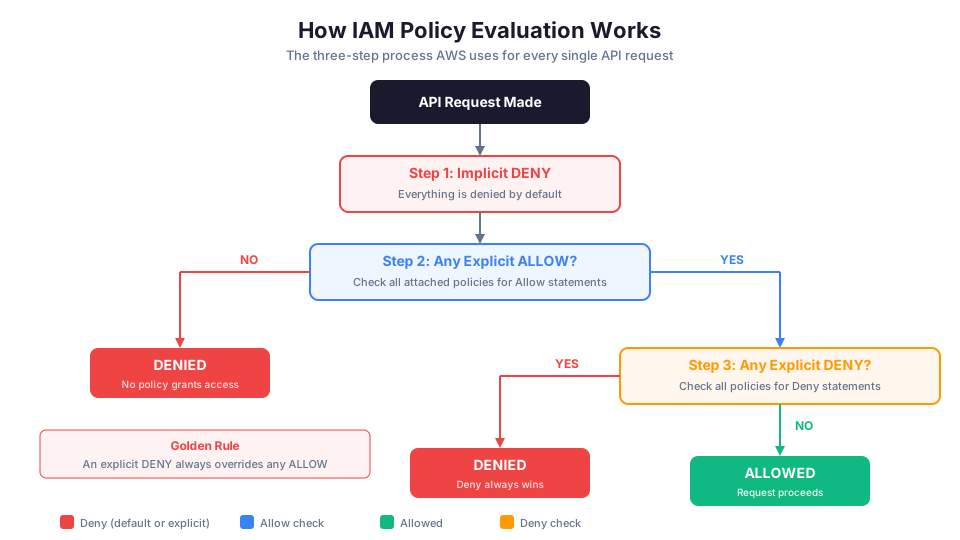
When you make an API request to AWS, IAM evaluates all applicable policies to decide whether to allow or deny the request. The logic follows a specific order.
The Three-Step Evaluation Process
- Everything starts with an implicit deny. By default, all requests are denied.
- An explicit allow overrides the implicit deny. If any attached policy allows the action, the request proceeds (unless step 3 applies).
- An explicit deny always wins. If any policy explicitly denies the action, the request is denied regardless of any allows.
This means a deny always beats an allow. If one policy says "Allow s3:DeleteBucket" and another says "Deny s3:DeleteBucket," the request is denied.
The Full Evaluation Order
In a real AWS environment with organizations, the full evaluation order is:
- Service Control Policies (SCPs) - Set maximum permissions for the account
- Resource-based policies - Attached to the resource (like an S3 bucket policy)
- IAM permissions boundaries - Set maximum permissions for a user/role
- Session policies - Passed when assuming a role
- Identity-based policies - Attached to the user, group, or role
All of these must allow the action for it to succeed. Think of them as concentric circles: each layer can only restrict, never expand, what the outer layer allows.
Policy Evaluation Examples
Example 1: User with one policy that allows S3 read
User policy: Allow s3:GetObject on my-bucket/*
Result: ALLOWED (explicit allow, no deny)
Example 2: User with allow and deny on same action
Group policy: Allow s3:GetObject on *
User policy: Deny s3:GetObject on secret-bucket/*
Request: s3:GetObject on secret-bucket/file.pdf
Result: DENIED (explicit deny wins)
Example 3: No relevant policy
User has no S3 policies
Request: s3:GetObject on any-bucket/file.pdf
Result: DENIED (implicit deny, no policy grants access)
Example 4: SCP restricts what IAM allows
SCP: Deny all actions in us-west-2
User policy: Allow ec2:RunInstances in all regions
Request: ec2:RunInstances in us-west-2
Result: DENIED (SCP blocks even though user policy allows)
Securing the Root User: Your First Priority
The moment you create an AWS account, do these three things:
Step 1: Enable MFA on the Root User
Multi-Factor Authentication adds a second verification step beyond your password. Even if your password is compromised, the attacker needs your physical MFA device.
- Sign in to the AWS Console as the root user
- Go to IAM > Dashboard > Security recommendations
- Click Add MFA for the root user
- Choose a virtual MFA app (like Google Authenticator or Authy) or a hardware key
Step 2: Delete Root User Access Keys
If the root user has access keys, delete them immediately. The root user should never be used for programmatic access.
# Check if root user access keys exist (run as root)
aws iam list-access-keys

# Delete them if they exist
aws iam delete-access-key --access-key-id AKIAEXAMPLE
Step 3: Create an IAM User for Daily Work
Stop using the root user. Create an IAM user with admin permissions and use that instead.
# Create an admin user
aws iam create-user --user-name my-admin

# Add to an admin group
aws iam create-group --group-name Admins
aws iam attach-group-policy \
  --group-name Admins \
  --policy-arn arn:aws:iam::aws:policy/AdministratorAccess
aws iam add-user-to-group --group-name Admins --user-name my-admin

# Create console login credentials
aws iam create-login-profile \
  --user-name my-admin \
  --password 'ChangeMe!2026' \
  --password-reset-required

# Enable MFA on this user too
# (Do this in the console: IAM > Users > my-admin > Security credentials > MFA)
When You MUST Use Root
The root user should only be used for the handful of tasks that specifically require it:
| Task | Why Root Required |
|---|---|
| Change the account email address | Account-level setting |
| Change the account name | Account-level setting |
| Close the AWS account | Irreversible account action |
| Enable MFA on root | Bootstrap security |
| Create first IAM user when locked out | Recovery mechanism |
| Change the AWS support plan | Billing-level setting |
| Restore IAM user permissions | Emergency recovery |
| Configure billing preferences | Account-level billing |
For everything else, use an IAM user or role.
IAM and AWS Organizations
If you manage multiple AWS accounts (which is the recommended approach for production), AWS Organizations adds another layer of access control.
Service Control Policies (SCPs)
SCPs define the maximum permissions for all accounts in an organizational unit. They do not grant permissions, they restrict them. Even if an IAM policy in an account allows an action, an SCP can block it.
{
  "Version": "2012-10-17",
  "Statement": [
    {
      "Sid": "DenyUSWest2",
      "Effect": "Deny",
      "Action": "*",
      "Resource": "*",
      "Condition": {
        "StringNotEquals": {
          "aws:RequestedRegion": [
            "us-east-1",
            "us-east-2"
          ]
        }
      }
    }
  ]
}
This SCP restricts all accounts in the organizational unit to only use us-east-1 and us-east-2. A developer with AdministratorAccess still cannot launch resources in eu-west-1.
Multi-Account Strategy Impact on IAM
| Account | Purpose | IAM Strategy |
|---|---|---|
| Management account | Organization administration | Root + break-glass admin only |
| Security account | CloudTrail, GuardDuty, Config | Security team roles |
| Development account | Dev/test workloads | Broad permissions for developers |
| Production account | Live workloads | Strict least privilege, MFA required |
| Shared services | CI/CD, DNS, logging | Cross-account roles |
Common IAM Mistakes Beginners Make
Mistake 1: Using the Root User for Everything
This is the most dangerous mistake. If your root credentials are compromised, the attacker owns your entire account. Use the root user only for account-level tasks that explicitly require it.
Mistake 2: Granting AdministratorAccess to Everyone
It is tempting to give everyone full access because it is simple. Resist this. Every user with admin access is a potential attack vector. Start with read-only access and add permissions incrementally.
Mistake 3: Hardcoding Access Keys in Code
Never embed access keys in application source code, configuration files, or environment variables on production servers. Use IAM roles instead. If your code runs on EC2, attach a role. If it runs on Lambda, the execution role provides credentials automatically.
# BAD: Hardcoded credentials in code
# aws_access_key_id = "AKIAIOSFODNN7EXAMPLE"
# aws_secret_access_key = "wJalrXUtnFEMI/K7MDENG/bPxRfiCYEXAMPLEKEY"

# GOOD: Use IAM roles - credentials are provided automatically
# On EC2: Instance profile provides temporary credentials
# On Lambda: Execution role provides temporary credentials
# Locally: Use aws configure or environment variables (never commit these)
Mistake 4: Not Rotating Access Keys
If you must use access keys (for local development, for example), rotate them regularly. AWS recommends rotating keys every 90 days.
# Create a new access key
aws iam create-access-key --user-name jane.doe

# Update your local configuration with the new key
aws configure set aws_access_key_id AKIANEWKEYEXAMPLE
aws configure set aws_secret_access_key wJalrNewSecretKeyEXAMPLE

# Then delete the old key
aws iam delete-access-key \
  --user-name jane.doe \
  --access-key-id AKIAOLDKEYEXAMPLE
Mistake 5: Ignoring IAM Access Analyzer
IAM Access Analyzer identifies resources shared with external entities and flags overly permissive policies. Enable it in every Region you use.
# Enable IAM Access Analyzer
aws accessanalyzer create-analyzer \
  --analyzer-name my-account-analyzer \
  --type ACCOUNT

# List findings (externally shared resources)
aws accessanalyzer list-findings \
  --analyzer-arn arn:aws:access-analyzer:us-east-1:123456789012:analyzer/my-account-analyzer
Mistake 6: Forgetting About Service Control Policies
If your organization uses AWS Organizations, Service Control Policies (SCPs) set the maximum permissions boundary for all accounts in an organizational unit. Even if an IAM policy allows an action, an SCP can block it. Always check SCPs when troubleshooting "access denied" errors in multi-account environments.
Mistake 7: Using Wildcards in Resource ARNs
Using "Resource": "*" means the policy applies to ALL resources of that type across your entire account. This is almost always too broad.
// BAD: Allows deleting ANY DynamoDB table
{
  "Effect": "Allow",
  "Action": "dynamodb:DeleteTable",
  "Resource": "*"
}

// GOOD: Allows deleting only the dev-users table
{
  "Effect": "Allow",
  "Action": "dynamodb:DeleteTable",
  "Resource": "arn:aws:dynamodb:us-east-1:123456789012:table/dev-users"
}
Troubleshooting IAM Access Denied Errors
When you get an "Access Denied" error, work through this checklist:
- Check the IAM user/role's attached policies. Does any policy explicitly allow the action?
- Check for explicit denies. Look for deny statements in any attached policy.
- Check SCPs. If using AWS Organizations, SCPs might block the action.
- Check permissions boundaries. If a permissions boundary is set, it limits the effective permissions.
- Check resource-based policies. Some services (S3, SQS, Lambda) have resource-based policies that might deny access.
- Check the resource ARN. Is the policy targeting the right resource? A common issue is missing the
/*for S3 objects. - Check the Region. Policies can restrict actions to specific Regions.
- Check conditions. MFA, IP address, or time conditions might not be met.
# Simulate a policy evaluation (very useful for debugging)
aws iam simulate-principal-policy \
  --policy-source-arn arn:aws:iam::123456789012:user/jane.doe \
  --action-names s3:GetObject \
  --resource-arns arn:aws:s3:::my-bucket/report.pdf
IAM Best Practices Cheat Sheet
| Practice | Why It Matters |
|---|---|
| Enable MFA on root user | Prevents account takeover from password theft |
| Delete root access keys | Eliminates programmatic root access |
| Create individual IAM users | Enables accountability and audit trails |
| Use groups to assign permissions | Simplifies management at scale |
| Use roles for applications | Temporary credentials are safer than long-term keys |
| Apply least privilege | Limits blast radius of compromised credentials |
| Use customer managed policies | Precise control, reusable, versionable |
| Review permissions regularly | Removes permissions that are no longer needed |
| Enable CloudTrail | Logs every API call for audit and forensics |
| Use IAM Access Analyzer | Identifies overly permissive or externally shared resources |
| Set a strong password policy | Prevents weak passwords across all users |
| Use conditions in policies | Adds extra security layers (MFA, IP, time) |
| Tag IAM resources | Enables cost allocation and organization |
| Use permissions boundaries | Set maximum permissions for delegated admin |
IAM Cost: It is Free
IAM is completely free. There is no charge for creating users, groups, roles, or policies. There is no charge for MFA, Access Analyzer, or credential reports. AWS wants you to use IAM properly, so they removed all cost barriers.
The only indirect cost is the time it takes to design and manage your IAM configuration. But the cost of NOT doing IAM properly (a compromised account, a data breach, unauthorized resource usage) is exponentially higher.
Quick Knowledge Check
Test yourself on these questions before moving on:
- What is the difference between authentication and authorization in IAM?
- When should you use a role instead of a user?
- What happens when one policy allows an action and another policy denies it?
- Why should you avoid using
"Resource": "*"in policies? - Name three things you should do to secure the root user.
- What are the two types of policies attached to an IAM role?
- What is an SCP and how does it interact with IAM policies?
- How would you troubleshoot an "Access Denied" error?
- What is the "blast radius" concept and why does it matter?
- Why does AWS recommend IAM roles over IAM users for applications?
If you can answer all ten confidently, you have a solid foundation in IAM.
Troubleshooting Common IAM Issues
| Problem | Likely Cause | How to Fix It |
|---|---|---|
| Access Denied when policy looks correct | The policy may target the wrong resource ARN (common with S3 where bucket and object ARNs differ), an explicit Deny in another policy may override the Allow, or an SCP in AWS Organizations may restrict the action at the account level | Use aws iam simulate-principal-policy to test the exact action and resource. Check all attached policies (user, group, role) for explicit Deny statements. If using Organizations, verify SCPs allow the action in this account and region. |
| Cannot delete IAM user (has resources) | The user still has access keys, MFA devices, login profiles, inline policies, group memberships, or signing certificates attached. IAM requires you to remove all of these before deletion. | Run aws iam list-access-keys, aws iam list-mfa-devices, aws iam list-user-policies, and aws iam list-groups-for-user for the user. Remove each attached resource, then retry the delete. |
| AssumeRole fails | The role's trust policy does not list the calling principal (user, role, or service) in its Principal block, the caller lacks sts:AssumeRole permission for the target role ARN, or a condition (like aws:MultiFactorAuthPresent) is not being met | Check the role's trust policy with aws iam get-role. Verify the caller's identity-based policy grants sts:AssumeRole on the target role ARN. If MFA is required, pass the MFA serial and token code with the assume-role call. |
IAM is one of those areas where most people learn just enough to make things work, then stop. The difference between a junior and senior cloud engineer often comes down to how well they understand IAM policy evaluation, condition keys, and permission boundaries. It is worth investing the time to get this right early because every security incident you prevent is one less 3 AM page.
Build it yourself: This topic is covered hands-on in Module 04: IAM Users and Policies of our AWS Bootcamp, where you write policies from scratch and troubleshoot Access Denied errors.