
AWS Load Balancers: ALB vs NLB Explained
Every popular website you visit, Amazon, Netflix, Google, has one thing in common: no single server handles all the traffic. Instead, traffic is distributed across many servers by a load balancer. This is how services stay fast and available even when millions of users connect at the same time.
On AWS, Elastic Load Balancing (ELB) handles this distribution for you. But there are different types of load balancers, and choosing the wrong one can hurt performance or cost you more than necessary.
This guide explains how load balancing works, walks through the two most important load balancer types on AWS, and shows how DNS with Route 53 sends users to the right place.
Prerequisites: You should understand VPC networking, subnets, and security groups and EC2 instance types before starting this article.
What You Will Learn
By the end of this article, you will be able to:
- Compare ALB and NLB by protocol support, latency, and routing capabilities to select the right load balancer for a given workload
- Configure an Application Load Balancer with path-based routing, HTTPS listeners, and health checks across multiple Availability Zones
- Design a health check endpoint that verifies application dependencies and returns meaningful status codes
- Implement Route 53 Alias records and weighted routing policies to connect a domain name to a load balancer and control traffic distribution
- Troubleshoot common load balancer issues including unhealthy targets, 502 errors, and connection timeouts
What Is a Load Balancer?
A load balancer is a service that distributes incoming traffic across multiple servers (called targets). It sits between your users and your servers, acting as a traffic cop.
Without a load balancer:
Users ──────> Single Server (one failure = total outage)
With a load balancer:
             ┌──> Server 1
Users ──> LB ├──> Server 2
             └──> Server 3
Load balancers solve three critical problems:
1. Availability. If one server fails, the load balancer stops sending traffic to it and distributes requests among the remaining healthy servers. Users never see an error.
2. Scalability. As traffic grows, you add more servers behind the load balancer. As traffic drops, you remove them. The load balancer adapts automatically.
3. Performance. By spreading requests across multiple servers, no single server becomes overwhelmed. Users experience consistent response times.
AWS Elastic Load Balancing: Three Types
AWS offers three load balancer types:
| Type | Layer | Primary Use Case |
|---|---|---|
| Application Load Balancer (ALB) | Layer 7 (HTTP/HTTPS) | Web applications, APIs, microservices |
| Network Load Balancer (NLB) | Layer 4 (TCP/UDP/TLS) | High-performance, low-latency workloads |
| Gateway Load Balancer (GWLB) | Layer 3 (IP) | Third-party network appliances |
For the vast majority of applications, you will use an ALB. For ultra-low-latency or non-HTTP workloads, you will use an NLB. Gateway Load Balancers are specialized and rarely seen outside of network security use cases.
This guide focuses on ALB and NLB since those are the ones you will use most in production architectures.
Application Load Balancer (ALB): The Smart Router
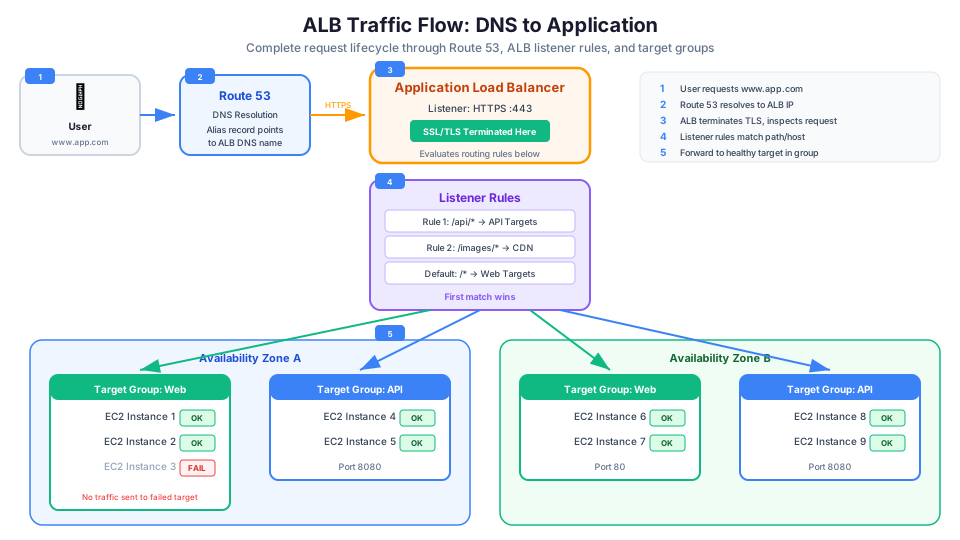
The ALB operates at Layer 7 (the application layer), which means it understands HTTP and HTTPS. It can inspect the content of requests, including URLs, headers, query strings, and HTTP methods, and route traffic based on that content.
How ALB Routing Works
An ALB has three components:
1. Listeners. A listener checks for incoming connections on a specific port and protocol. For a web app, you typically have two listeners: port 80 (HTTP) and port 443 (HTTPS).
2. Rules. Each listener has rules that determine where to send traffic. Rules are evaluated in order, and the first match wins. There is always a default rule that catches anything not matched by other rules.
3. Target Groups. A target group is a set of servers (EC2 instances, containers, Lambda functions, or IP addresses) that receive traffic. Each rule forwards traffic to a specific target group.
ALB Listener (port 443)
├── Rule 1: Path = /api/*     ──> Target Group: API Servers
├── Rule 2: Path = /images/*  ──> Target Group: Image Servers
├── Rule 3: Host = admin.app  ──> Target Group: Admin Servers
└── Default Rule              ──> Target Group: Web Servers
Content-Based Routing Examples
Path-based routing sends traffic to different servers based on the URL path:
# /api/users    → API target group
# /api/products → API target group
# /images/*     → Static content target group
# /*            → Web app target group
Host-based routing sends traffic based on the domain name:
# app.example.com   → Web app target group
# api.example.com   → API target group
# admin.example.com → Admin target group
Header-based routing sends traffic based on HTTP headers:
# User-Agent contains "Mobile" → Mobile-optimized target group
# Custom-Header: "beta"        → Beta version target group
Query string routing sends traffic based on URL parameters:
# ?version=2  → V2 API target group
# ?platform=mobile → Mobile backend target group
Creating an ALB (Complete Example)
# Step 1: Create the ALB
aws elbv2 create-load-balancer \
  --name my-web-alb \
  --subnets subnet-1a subnet-1b \
  --security-groups sg-alb-web \
  --scheme internet-facing \
  --type application

# Step 2: Create a target group
aws elbv2 create-target-group \
  --name web-servers \
  --protocol HTTP \
  --port 80 \
  --vpc-id vpc-abc123 \
  --target-type instance \
  --health-check-path /health \
  --health-check-interval-seconds 30 \
  --healthy-threshold-count 3 \
  --unhealthy-threshold-count 2

# Step 3: Register EC2 instances as targets
aws elbv2 register-targets \
  --target-group-arn arn:aws:elasticloadbalancing:... \
  --targets Id=i-instance1 Id=i-instance2

# Step 4: Create an HTTPS listener with SSL cert
aws elbv2 create-listener \
  --load-balancer-arn arn:aws:elasticloadbalancing:... \
  --protocol HTTPS \
  --port 443 \
  --certificates CertificateArn=arn:aws:acm:... \
  --default-actions Type=forward,TargetGroupArn=arn:aws:elasticloadbalancing:...

# Step 5: Create an HTTP listener that redirects to HTTPS
aws elbv2 create-listener \
  --load-balancer-arn arn:aws:elasticloadbalancing:... \
  --protocol HTTP \
  --port 80 \
  --default-actions '[{
    "Type": "redirect",
    "RedirectConfig": {
      "Protocol": "HTTPS",
      "Port": "443",
      "StatusCode": "HTTP_301"
    }
  }]'

# Step 6: Add a path-based routing rule
aws elbv2 create-rule \
  --listener-arn arn:aws:elasticloadbalancing:... \
  --conditions '[{"Field": "path-pattern", "Values": ["/api/*"]}]' \
  --priority 10 \
  --actions '[{"Type": "forward", "TargetGroupArn": "arn:aws:elasticloadbalancing:..."}]'
ALB Key Features
- SSL/TLS termination: The ALB handles HTTPS encryption and decryption, so your backend servers deal with plain HTTP. This offloads CPU-intensive encryption work.
- Sticky sessions: Route all requests from the same user to the same server using cookies. Useful for stateful applications.
- WebSocket support: Maintains persistent connections for real-time applications.
- HTTP/2 support: Improved performance for modern web clients.
- Authentication integration: The ALB can authenticate users through Amazon Cognito or any OpenID Connect provider before forwarding requests.
- Lambda targets: ALB can invoke Lambda functions directly, eliminating the need for API Gateway in some patterns.
- Request/response logging: Access logs to S3 for debugging and compliance.
ALB Access Logs
Enable access logs to troubleshoot issues and monitor traffic patterns:
# Enable ALB access logs to S3
aws elbv2 modify-load-balancer-attributes \
  --load-balancer-arn arn:aws:elasticloadbalancing:... \
  --attributes '[
    {"Key": "access_logs.s3.enabled", "Value": "true"},
    {"Key": "access_logs.s3.bucket", "Value": "my-alb-logs"},
    {"Key": "access_logs.s3.prefix", "Value": "web-alb"}
  ]'
Access logs include: client IP, request URL, response time, HTTP status code, bytes sent/received, and the target that handled the request.
Network Load Balancer (NLB): The Speed Machine
The NLB operates at Layer 4 (the transport layer), which means it works with TCP, UDP, and TLS connections. It does not inspect the content of requests, it just forwards packets.
When to Use NLB Instead of ALB
| Requirement | Use NLB |
|---|---|
| Ultra-low latency (microseconds) | Yes |
| Millions of requests per second | Yes |
| Non-HTTP protocols (TCP, UDP, gRPC) | Yes |
| Static IP addresses required | Yes |
| Preserving source IP address | Yes |
| Gaming servers, IoT, financial trading | Yes |
NLB Key Features
- Ultra-low latency: NLB adds microseconds of latency, compared to milliseconds for ALB.
- Static IP addresses: Each NLB gets one static IP per Availability Zone. You can also assign Elastic IPs. This is critical when clients need to allow-list specific IPs.
- Preserves source IP: The NLB passes through the client's real IP address. ALB replaces it with its own IP (though ALB adds the original IP to the
X-Forwarded-Forheader). - Scales to millions of requests per second without pre-warming. ALB needs to scale up gradually for sudden traffic spikes.
- TLS passthrough: NLB can pass encrypted traffic directly to the target without decrypting it, for end-to-end encryption.
Creating an NLB
# Create an NLB
aws elbv2 create-load-balancer \
  --name my-tcp-nlb \
  --subnets subnet-1a subnet-1b \
  --scheme internet-facing \
  --type network

# Create a TCP target group
aws elbv2 create-target-group \
  --name tcp-servers \
  --protocol TCP \
  --port 6379 \
  --vpc-id vpc-abc123 \
  --target-type instance \
  --health-check-protocol TCP

# Assign Elastic IPs for static addresses
aws elbv2 create-load-balancer \
  --name my-static-nlb \
  --type network \
  --subnet-mappings \
    SubnetId=subnet-1a,AllocationId=eipalloc-aaa \
    SubnetId=subnet-1b,AllocationId=eipalloc-bbb
ALB vs NLB: Quick Comparison
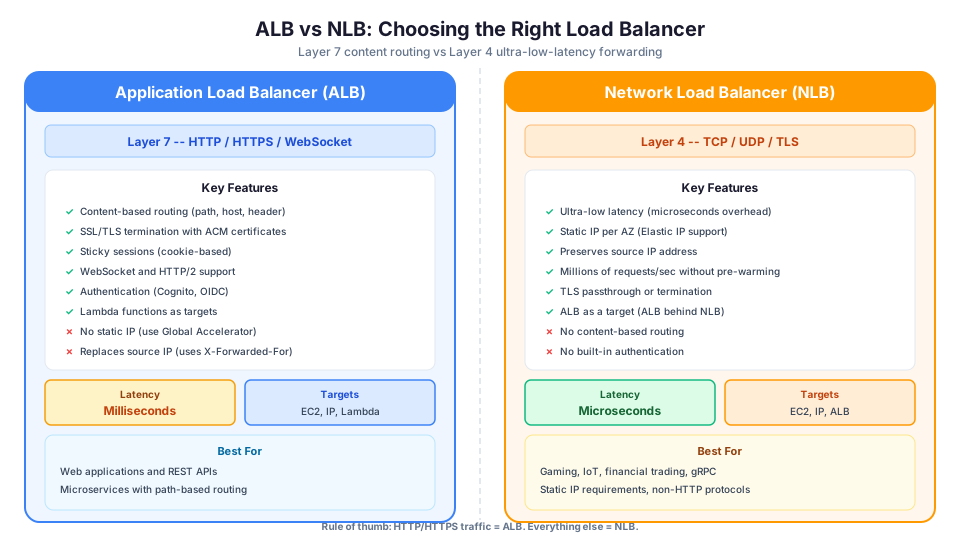
| Feature | ALB | NLB |
|---|---|---|
| OSI Layer | Layer 7 (HTTP/HTTPS) | Layer 4 (TCP/UDP/TLS) |
| Protocols | HTTP, HTTPS, WebSocket | TCP, UDP, TLS |
| Content-based routing | Yes (path, host, header, query) | No |
| Latency | Milliseconds | Microseconds |
| Static IP | No (use Global Accelerator) | Yes (one per AZ) |
| Source IP preservation | No (uses X-Forwarded-For) | Yes |
| SSL termination | Yes | Yes (TLS) |
| Targets | Instances, IPs, Lambda | Instances, IPs, ALB |
| Sticky sessions | Yes (cookie-based) | Yes (flow-based) |
| Pricing | Per LCU (capacity units) | Per NLCU (capacity units) |
Rule of thumb: If your application uses HTTP/HTTPS, start with an ALB. If you need ultra-low latency, static IPs, or non-HTTP protocols, use an NLB.
The NLB + ALB Pattern
Sometimes you need both: static IPs AND content-based routing. The solution is to put an NLB in front of an ALB:
Client → NLB (static IPs) → ALB (content routing) → Targets
This gives you the static IPs from the NLB and the intelligent routing from the ALB. AWS supports this natively by registering an ALB as a target of an NLB.
# Register an ALB as a target of an NLB
aws elbv2 register-targets \
  --target-group-arn arn:aws:elasticloadbalancing:...nlb-tg... \
  --targets Id=arn:aws:elasticloadbalancing:...alb...
Health Checks: Keeping Bad Servers Out
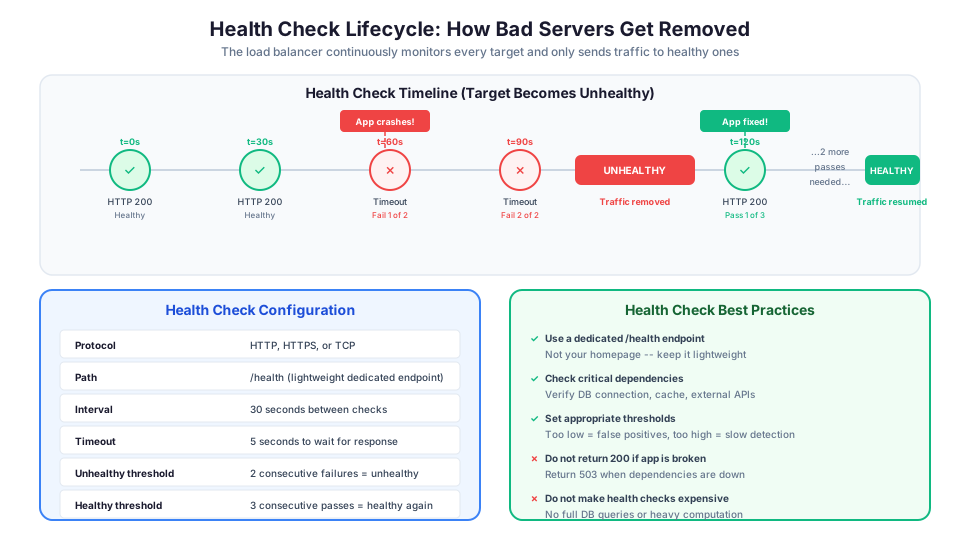
A health check is a periodic test that the load balancer performs on each registered target to determine if it is healthy enough to receive traffic.
How Health Checks Work
- The load balancer sends a request to each target at a regular interval (e.g., every 30 seconds)
- If the target responds with a success status code (e.g., HTTP 200), it is marked healthy
- If the target fails to respond or returns an error after several consecutive checks, it is marked unhealthy
- The load balancer stops sending traffic to unhealthy targets
- When the target starts passing health checks again, the load balancer adds it back to rotation
Configuring Health Checks
# Create a target group with detailed health check settings
aws elbv2 create-target-group \
  --name my-targets \
  --protocol HTTP \
  --port 80 \
  --vpc-id vpc-abc123 \
  --health-check-protocol HTTP \
  --health-check-path /health \
  --health-check-interval-seconds 30 \
  --health-check-timeout-seconds 5 \
  --healthy-threshold-count 3 \
  --unhealthy-threshold-count 2 \
  --matcher HttpCode=200
| Parameter | Description | Typical Value |
|---|---|---|
| Protocol | How to check (HTTP, HTTPS, TCP) | HTTP |
| Path | URL path to check | /health |
| Interval | Seconds between checks | 30 |
| Timeout | Seconds to wait for a response | 5 |
| Healthy threshold | Consecutive successes before marking healthy | 3 |
| Unhealthy threshold | Consecutive failures before marking unhealthy | 2 |
| Success codes | HTTP status codes that mean healthy | 200 |
Writing a Good Health Check Endpoint
A health check endpoint should be lightweight but meaningful. Here is a good example in Python:
from flask import Flask, jsonify
import boto3

app = Flask(__name__)
dynamodb = boto3.client('dynamodb')

@app.route('/health')
def health_check():
    checks = {}

    # Check database connectivity
    try:
        dynamodb.describe_table(TableName='my-table')
        checks['database'] = 'ok'
    except Exception:
        checks['database'] = 'failed'
        return jsonify(checks), 503

    # Check disk space (optional)
    import shutil
    total, used, free = shutil.disk_usage('/')
    if free / total < 0.10:  # Less than 10% free
        checks['disk'] = 'low'
        return jsonify(checks), 503
    checks['disk'] = 'ok'

    return jsonify(checks), 200
And the equivalent in Node.js:
app.get('/health', async (req, res) => {
  const checks = {};

  try {
    // Check database
    await dynamodb.describeTable({ TableName: 'my-table' }).promise();
    checks.database = 'ok';
  } catch (err) {
    checks.database = 'failed';
    return res.status(503).json(checks);
  }

  // Check memory usage
  const memUsage = process.memoryUsage();
  checks.memory_mb = Math.round(memUsage.rss / 1024 / 1024);

  res.status(200).json(checks);
});
Health Check Best Practices
1. Create a dedicated health check endpoint. Do not use your homepage (/) because it is heavy and slow. Create a lightweight /health endpoint that checks critical dependencies (database connection, cache connection) and returns a fast 200 response.
2. Include dependency checks. If your app cannot function without a database, have the health check verify the database connection. This way, if the database goes down, the health check fails, and the load balancer routes traffic to servers that can still reach the database.
3. Set appropriate thresholds. Two consecutive failures to mark unhealthy is reasonable. Setting it to one can cause false positives from brief network blips. Setting it too high means unhealthy servers stay in rotation too long.
4. Keep it fast. Health checks should respond in under 1 second. If your check takes too long, reduce the timeout or simplify the check.
5. Return meaningful status codes. Return 200 when healthy, 503 when unhealthy. Do not return 200 regardless of state -- this defeats the purpose.
DNS with Route 53: Getting Users to Your Load Balancer
Your load balancer has a DNS name like my-alb-123456789.us-east-1.elb.amazonaws.com. Users cannot type that. They type www.example.com. Route 53 connects the two.
What Route 53 Does
Amazon Route 53 is AWS's DNS (Domain Name System) service. DNS translates human-readable domain names into IP addresses. When you type www.example.com, DNS resolves it to an IP address like 54.231.0.1, and your browser connects to that IP.
Route 53 does three things:
- Domain registration: Buy domain names directly through Route 53
- DNS hosting: Create DNS records that map domain names to resources
- Health checking and routing: Direct traffic based on health, location, latency, or weighted rules
Connecting a Domain to Your Load Balancer
The most common setup is creating an Alias record that points your domain to the load balancer:
# Create an alias record pointing to an ALB
aws route53 change-resource-record-sets \
  --hosted-zone-id Z1234567890 \
  --change-batch '{
    "Changes": [{
      "Action": "CREATE",
      "ResourceRecordSet": {
        "Name": "www.example.com",
        "Type": "A",
        "AliasTarget": {
          "HostedZoneId": "Z35SXDOTRQ7X7K",
          "DNSName": "my-alb-123456789.us-east-1.elb.amazonaws.com",
          "EvaluateTargetHealth": true
        }
      }
    }]
  }'
An Alias record is special to Route 53. Unlike a regular CNAME record, an Alias record works at the zone apex (e.g., example.com without www), resolves to an IP address (so it is transparent to the client), and is free of charge for queries to AWS resources.
Route 53 Routing Policies
Route 53 offers several routing policies that control how traffic is distributed:
| Policy | Description | Use Case |
|---|---|---|
| Simple | Single resource, no special routing | Basic website with one load balancer |
| Weighted | Distribute traffic by percentage | Blue/green deployments (90% old, 10% new) |
| Latency | Route to the Region with lowest latency | Multi-Region applications |
| Failover | Route to a backup if the primary is unhealthy | Disaster recovery |
| Geolocation | Route based on user's geographic location | Content localization, compliance |
| Geoproximity | Route based on geographic distance with bias | Fine-tuned geographic routing |
| Multivalue answer | Return multiple healthy IP addresses | Simple load balancing with health checks |
Weighted Routing for Blue/Green Deployments
One of the most practical uses of Route 53 is weighted routing for gradual deployments:
# Send 90% of traffic to the production ALB
aws route53 change-resource-record-sets \
  --hosted-zone-id Z1234567890 \
  --change-batch '{
    "Changes": [{
      "Action": "CREATE",
      "ResourceRecordSet": {
        "Name": "app.example.com",
        "Type": "A",
        "SetIdentifier": "production",
        "Weight": 90,
        "AliasTarget": {
          "HostedZoneId": "Z35SXDOTRQ7X7K",
          "DNSName": "prod-alb.us-east-1.elb.amazonaws.com",
          "EvaluateTargetHealth": true
        }
      }
    }]
  }'

# Send 10% of traffic to the new version
aws route53 change-resource-record-sets \
  --hosted-zone-id Z1234567890 \
  --change-batch '{
    "Changes": [{
      "Action": "CREATE",
      "ResourceRecordSet": {
        "Name": "app.example.com",
        "Type": "A",
        "SetIdentifier": "canary",
        "Weight": 10,
        "AliasTarget": {
          "HostedZoneId": "Z35SXDOTRQ7X7K",
          "DNSName": "canary-alb.us-east-1.elb.amazonaws.com",
          "EvaluateTargetHealth": true
        }
      }
    }]
  }'
Common Architecture: Route 53 + ALB + EC2
Here is how all the pieces fit together:
User types www.example.com
    │
    ▼
Route 53 (DNS)
    │ Resolves to ALB DNS name
    ▼
Application Load Balancer (HTTPS:443)
    │ Terminates SSL
    │ Routes based on path/host
    ├──> Target Group: Web (port 80)
    │    ├── EC2 Instance 1 (AZ-a) ✓ healthy
    │    ├── EC2 Instance 2 (AZ-b) ✓ healthy
    │    └── EC2 Instance 3 (AZ-a) ✗ unhealthy (no traffic sent)
    │
    └──> Target Group: API (port 8080)
         ├── EC2 Instance 4 (AZ-a) ✓ healthy
         └── EC2 Instance 5 (AZ-b) ✓ healthy
Traffic flow:
- User's browser asks Route 53 "what is the IP for www.example.com?"
- Route 53 returns the ALB's IP address
- Browser connects to the ALB on port 443 (HTTPS)
- ALB terminates SSL and inspects the request
- ALB evaluates routing rules (path, host, headers)
- ALB forwards the request to a healthy target in the matching target group
- The target processes the request and sends the response back through the ALB
Load Balancing + Auto Scaling: The Power Combo
Load balancers and Auto Scaling groups are designed to work together. The Auto Scaling group automatically adjusts the number of EC2 instances based on demand, and the load balancer distributes traffic across whatever instances currently exist.
# Create a launch template
aws ec2 create-launch-template \
  --launch-template-name web-server \
  --launch-template-data '{
    "ImageId": "ami-0abcdef1234567890",
    "InstanceType": "t3.small",
    "SecurityGroupIds": ["sg-web-server"],
    "UserData": "IyEvYmluL2Jhc2gKeXVtIHVwZGF0ZSAteQp5dW0gaW5zdGFsbCAteSBodHRwZAo="
  }'

# Create an Auto Scaling group attached to the ALB target group
aws autoscaling create-auto-scaling-group \
  --auto-scaling-group-name web-asg \
  --launch-template LaunchTemplateName=web-server,Version='$Latest' \
  --min-size 2 \
  --max-size 10 \
  --desired-capacity 2 \
  --vpc-zone-identifier "subnet-1a,subnet-1b" \
  --target-group-arns arn:aws:elasticloadbalancing:...

# Add a scaling policy based on CPU
aws autoscaling put-scaling-policy \
  --auto-scaling-group-name web-asg \
  --policy-name cpu-target-tracking \
  --policy-type TargetTrackingScaling \
  --target-tracking-configuration '{
    "PredefinedMetricSpecification": {
      "PredefinedMetricType": "ASGAverageCPUUsage"
    },
    "TargetValue": 70.0
  }'

# Or scale based on ALB request count per target
aws autoscaling put-scaling-policy \
  --auto-scaling-group-name web-asg \
  --policy-name request-count-tracking \
  --policy-type TargetTrackingScaling \
  --target-tracking-configuration '{
    "PredefinedMetricSpecification": {
      "PredefinedMetricType": "ALBRequestCountPerTarget",
      "ResourceLabel": "app/my-web-alb/xxx/targetgroup/web-servers/yyy"
    },
    "TargetValue": 1000.0
  }'
When traffic increases, the Auto Scaling group launches new instances. The load balancer automatically discovers them (through the target group), runs health checks, and starts sending traffic to them. When traffic decreases, the Auto Scaling group terminates instances, and the load balancer stops routing to them. The whole cycle is automatic.
Security Best Practices
Security Group Configuration
The most important security practice: your EC2 instances should only accept traffic FROM the load balancer, not directly from the internet.
# ALB security group: allow internet traffic on 80 and 443
aws ec2 create-security-group \
  --group-name alb-sg \
  --description "ALB - allow HTTP/HTTPS from internet"

aws ec2 authorize-security-group-ingress \
  --group-id sg-alb \
  --protocol tcp --port 443 --cidr 0.0.0.0/0

aws ec2 authorize-security-group-ingress \
  --group-id sg-alb \
  --protocol tcp --port 80 --cidr 0.0.0.0/0

# Instance security group: only allow traffic FROM the ALB
aws ec2 create-security-group \
  --group-name instance-sg \
  --description "Instances - allow traffic from ALB only"

aws ec2 authorize-security-group-ingress \
  --group-id sg-instance \
  --protocol tcp --port 80 --source-group sg-alb
SSL/TLS Best Practices
- Always use HTTPS (port 443) for internet-facing listeners
- Use AWS Certificate Manager (ACM) for free, auto-renewing certificates
- Redirect HTTP to HTTPS automatically
- Choose a modern security policy (TLS 1.2 or 1.3)
# Check available SSL policies
aws elbv2 describe-ssl-policies \
  --query 'SslPolicies[].Name'

# Use a modern policy (TLS 1.2 minimum)
aws elbv2 modify-listener \
  --listener-arn arn:aws:elasticloadbalancing:... \
  --ssl-policy ELBSecurityPolicy-TLS13-1-2-2021-06
Common Load Balancing Mistakes
Mistake 1: Putting Everything in One Availability Zone
A load balancer should span at least two AZs. If all your targets are in a single AZ and that AZ goes down, your entire application is offline. Always register subnets in multiple AZs.
Mistake 2: Health Check Path Returns 200 Even When the App Is Broken
If your health check endpoint returns 200 regardless of application state, the load balancer thinks everything is fine when it is not. Make the health check meaningful: verify database connectivity, check critical dependencies, and return a non-200 status when something is wrong.
Mistake 3: Using NLB When ALB Would Work Better
NLB is tempting because it sounds faster, but for HTTP/HTTPS workloads, ALB provides content-based routing, SSL termination, and simpler configuration. Only use NLB when you specifically need its advantages (static IPs, ultra-low latency, non-HTTP protocols).
Mistake 4: Not Enabling Cross-Zone Load Balancing
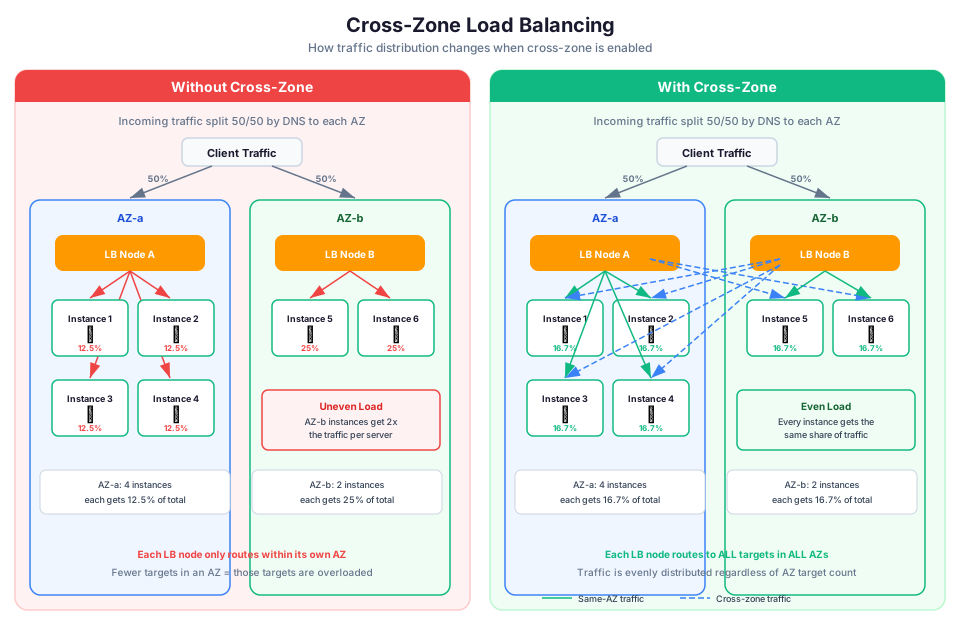
By default, each load balancer node distributes traffic only to targets in its own AZ. If AZ-a has 4 instances and AZ-b has 2, the 2 instances in AZ-b get a disproportionate share of traffic. Enable cross-zone load balancing to distribute evenly across all targets in all AZs.
# Enable cross-zone load balancing
aws elbv2 modify-load-balancer-attributes \
  --load-balancer-arn arn:aws:elasticloadbalancing:... \
  --attributes Key=load_balancing.cross_zone.enabled,Value=true
Mistake 5: Forgetting to Restrict Security Groups
Your EC2 instances should only accept traffic from the load balancer, not from the internet directly. Set the instance security group to allow inbound traffic only from the load balancer's security group.
Mistake 6: Not Setting Up Connection Draining
When an instance is deregistered (e.g., during a deployment), existing connections should be allowed to complete. Connection draining (called "deregistration delay") keeps the target registered for a period before removing it:
# Set deregistration delay to 30 seconds (default is 300)
aws elbv2 modify-target-group-attributes \
  --target-group-arn arn:aws:elasticloadbalancing:... \
  --attributes Key=deregistration_delay.timeout_seconds,Value=30
Troubleshooting Common Errors
All targets show "unhealthy" in the target group
Start by verifying that the health check path (e.g., /health) actually returns HTTP 200 when you curl it directly from the instance. Then confirm the instance's security group allows inbound traffic from the load balancer's security group on the health check port. If the targets are in a private subnet, make sure the route table has the correct routes. Also check that the health check timeout is shorter than the health check interval.
502 Bad Gateway
A 502 from the ALB means the load balancer connected to the target but received an invalid response. Common causes: the target closed the connection before sending a response (check your application logs for crashes or timeouts), the target is returning a response the ALB cannot parse, or the target's security group allows traffic on a different port than what the target group expects. Verify that the port in the target group registration matches the port your application listens on.
Connection timeout to targets (504 Gateway Timeout)
A 504 means the ALB sent the request to the target but never received a response within the idle timeout (default 60 seconds). Your application may be taking too long to process the request, or the target may be overloaded. Check CPU and memory usage on the targets. If your application legitimately needs more time for long-running requests, increase the ALB idle timeout with aws elbv2 modify-load-balancer-attributes (up to 4000 seconds).
Pricing Overview
| Component | ALB | NLB |
|---|---|---|
| Hourly charge | $0.0225/hour (~$16.20/month) | $0.0225/hour (~$16.20/month) |
| Capacity charge | Per LCU-hour ($0.008) | Per NLCU-hour ($0.006) |
An LCU (Load Balancer Capacity Unit) is measured across four dimensions: new connections, active connections, processed bytes, and rule evaluations. You pay for the highest dimension.
For most small applications, the total load balancer cost is $20-30/month. The cost scales with traffic.
What to Do Next
- Create an ALB in the AWS Console. Walk through the wizard: choose two subnets in different AZs, create a target group, and register a couple of EC2 instances.
- Test the health check. Stop one of your EC2 instances and watch the load balancer mark it unhealthy and stop routing traffic to it.
- Set up a Route 53 Alias record pointing to your ALB. Access your application using a domain name instead of the ALB DNS.
- Attach an Auto Scaling group to the target group. Watch instances launch and register automatically as traffic increases.
- Enable access logs and review the log format to understand the traffic flowing through your ALB.
These five exercises will give you hands-on experience with the entire request flow from DNS to load balancer to application server, which is exactly the kind of end-to-end understanding you need for production architecture work.
How This Shows Up in Architecture Decisions
| Scenario | Recommended Approach |
|---|---|
| Path-based routing for microservices | ALB |
| Static IP for firewall allow-listing | NLB |
| Client needs to know the source IP | NLB (preserves source IP) |
| Authenticate users at the load balancer | ALB with Cognito |
| Millions of requests per second, gaming traffic | NLB |
| Lambda functions as web backend | ALB with Lambda targets |
| WebSocket connections for real-time app | ALB |
| Need both static IP and content routing | NLB in front of ALB |
| Zone apex domain pointing to load balancer | Route 53 Alias record |
| Gradual traffic shift for deployment | Route 53 weighted routing |
Hands-On Challenge
Deploy an Application Load Balancer with health checks across two Availability Zones. Verify each of the following success criteria:
- An ALB is created in two subnets spanning two different Availability Zones
- A target group is configured with a health check path of
/health, a 30-second interval, and a healthy threshold of 3 - At least two EC2 instances are registered as targets (one in each AZ) and both show a "healthy" status
- An HTTPS listener on port 443 is configured with an ACM certificate (or an HTTP listener on port 80 for testing)
- An HTTP-to-HTTPS redirect rule is in place (if using HTTPS)
- Stopping one EC2 instance causes the load balancer to mark it unhealthy and route all traffic to the remaining healthy instance
- Cross-zone load balancing is enabled on the ALB
Pricing note: Load balancer costs (for example, $0.0225/hour for ALB and NLB, plus capacity-based charges) cited in this article are for us-east-1 and were verified in May 2026. Check the AWS Pricing Calculator for current rates in your Region.
One last thing. Not every application needs a load balancer on day one. If you are running a single EC2 instance for a small internal tool, an ALB adds cost without much benefit. But the moment you have two or more instances, or you need high availability, a load balancer stops being optional. When you do set one up, the first thing to monitor is your target health check status in CloudWatch. If healthy host count drops to zero, everything else in this article stops mattering. Start there, and build outward.
This topic is also covered in Module 35: Application Load Balancer of our free AWS Bootcamp.