
AWS Security Best Practices 2026
Security on AWS is not one thing. It is not a single service you turn on and forget about. It is layers. Like an onion, or a castle with walls, a moat, guards, and locked doors. If an attacker gets past one layer, the next layer stops them. This approach is called defense in depth, and it is the foundation of everything we will cover in this guide.
If you take one thing from this article, let it be this: security is not a feature you add at the end. It is a practice you build into every decision from day one.
Prerequisites: You should understand IAM and VPC networking before starting this article.
What You Will Learn
By the end of this article, you will be able to:
- Explain the shared responsibility model and evaluate which security controls you own for each AWS service type
- Design a defense-in-depth architecture using WAF, Shield, GuardDuty, and Security Hub across network, edge, and detection layers
- Configure data protection controls including encryption at rest, encryption in transit, and S3 Block Public Access
- Implement automated security response patterns that contain threats using EventBridge and Lambda
- Evaluate your AWS account against a practical security checklist and remediate the highest-priority gaps
The Shared Responsibility Model
Before we talk about security services, you need to understand who is responsible for what. AWS calls this the Shared Responsibility Model.
AWS is responsible for security OF the cloud:
- Physical data center security (locks, cameras, guards)
- Hardware and networking infrastructure
- Hypervisor and virtualization layer
- Managed service infrastructure (RDS engine patching, Lambda runtime updates)
You are responsible for security IN the cloud:
- IAM users, roles, and permissions
- Operating system patches (on EC2)
- Application code and dependencies
- Network configuration (security groups, NACLs, VPC design)
- Data encryption (at rest and in transit)
- Logging and monitoring
The key insight: the more managed a service is, the less you are responsible for. With Lambda, AWS manages the OS, runtime, and scaling. With EC2, you manage everything above the hypervisor. Choose managed services when you can, and you inherit more of AWS's security posture.
Responsibility by Service Type
| Service Type | AWS Manages | You Manage |
|---|---|---|
| IaaS (EC2) | Hardware, hypervisor, network fabric | OS, patches, firewall, app code, data |
| PaaS (Elastic Beanstalk, RDS) | Above + OS, engine patching | App code, data, network config |
| SaaS (S3, DynamoDB) | Above + scaling, availability | Data, access policies, encryption config |
| Serverless (Lambda, Fargate) | Above + runtime, compute | Function code, IAM permissions, data |
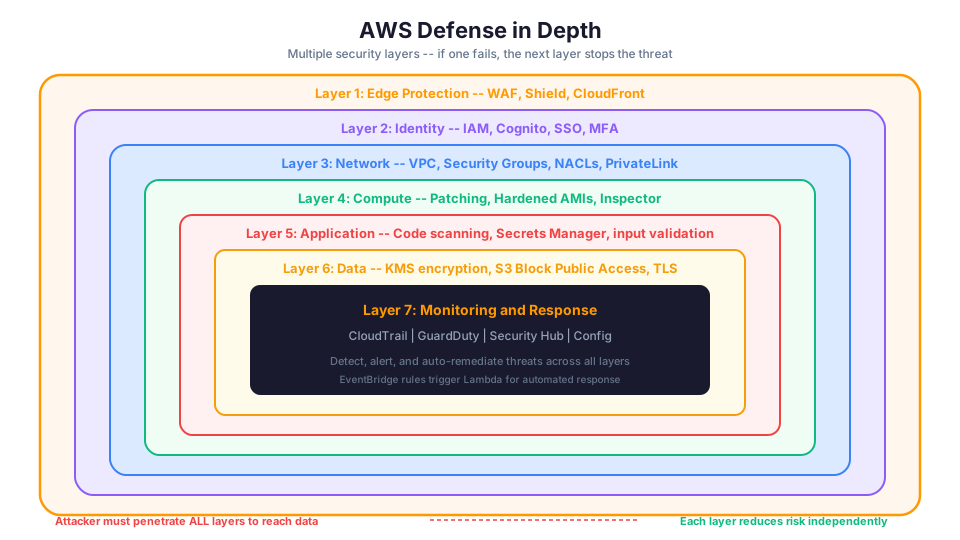
Layer 1: Identity and Access Management (IAM)
IAM is the front door to your AWS account. Get it wrong, and nothing else matters. Get it right, and you eliminate the most common attack vector.
IAM Best Practices
1. Never use the root user for daily tasks.
The root user has unrestricted access to everything. It cannot be limited by IAM policies. Use it only for account setup tasks that specifically require root (like changing your account settings or closing the account). Enable MFA on root immediately.
# Check if root user has MFA enabled
aws iam get-account-summary \
  --query 'SummaryMap.AccountMFAEnabled'
2. Follow the principle of least privilege.
Every user, role, and service should have only the permissions it needs to do its job and nothing more. Start with zero permissions and add as needed. Never start with AdministratorAccess and "plan to tighten it later." You will not.
3. Use IAM roles instead of long-lived credentials.
IAM roles provide temporary credentials that expire automatically. Use roles for:
- EC2 instances (instance profiles)
- Lambda functions (execution roles)
- ECS tasks (task roles)
- Cross-account access (assume role)
Never create IAM access keys for services running on AWS. Roles are more secure and easier to manage.
4. Enable MFA for all human users.
Multi-factor authentication prevents account compromise even if passwords are stolen. Require MFA for console access and for sensitive API operations.
# List users without MFA
aws iam generate-credential-report
aws iam get-credential-report \
  --query 'Content' --output text | base64 -d | \
  awk -F, '$4 == "false" && $1 != "<root_account>" {print $1, "NO MFA"}'
5. Rotate credentials regularly.
If you must use access keys (for tools running outside AWS), rotate them every 90 days. Use aws iam create-access-key and aws iam delete-access-key to rotate programmatically.
# Find access keys older than 90 days
aws iam list-users --query 'Users[*].UserName' --output text | \
  while read user; do
    aws iam list-access-keys --user-name "$user" \
      --query "AccessKeyMetadata[?CreateDate<='$(date -v-90d +%Y-%m-%d)'].{User:UserName,Key:AccessKeyId,Created:CreateDate}" \
      --output table
  done
6. Use IAM Access Analyzer.
Access Analyzer continuously monitors your policies and identifies resources shared with external accounts. It catches overly permissive policies before they cause problems.
# Enable IAM Access Analyzer
aws accessanalyzer create-analyzer \
  --analyzer-name my-account-analyzer \
  --type ACCOUNT

# View findings (external access to your resources)
aws accessanalyzer list-findings \
  --analyzer-arn arn:aws:access-analyzer:us-east-1:123456789012:analyzer/my-account-analyzer
IAM Policy Structure
Understanding IAM policy JSON is essential. Every policy has the same structure:
{
  "Version": "2012-10-17",
  "Statement": [
    {
      "Sid": "AllowS3ReadOnly",
      "Effect": "Allow",
      "Action": [
        "s3:GetObject",
        "s3:ListBucket"
      ],
      "Resource": [
        "arn:aws:s3:::my-bucket",
        "arn:aws:s3:::my-bucket/*"
      ],
      "Condition": {
        "IpAddress": {
          "aws:SourceIp": "10.0.0.0/8"
        }
      }
    }
  ]
}
| Element | Purpose |
|---|---|
| Effect | Allow or Deny |
| Action | Which API calls (s3:GetObject, ec2:RunInstances) |
| Resource | Which resources (specific ARN or wildcard) |
| Condition | When this policy applies (IP range, time, MFA) |
The golden rule: an explicit Deny always wins over an Allow. Use this for guardrails.
Layer 2: Network Security
Your VPC is your private network in the cloud. Configuring it correctly is your second line of defense.
Security Groups (Instance-Level Firewall)
Security groups are stateful firewalls attached to ENIs (elastic network interfaces). They control inbound and outbound traffic at the instance level.
Best practices:
- Default deny: Security groups deny all inbound traffic by default. Only open ports you need.
- Restrict source IPs: Never use
0.0.0.0/0(all traffic) for SSH or RDP. Restrict to your office IP or VPN CIDR. - Use security group references: Instead of allowing a CIDR block, reference another security group. This way, when instances change IPs, the rule still works.
# Create a security group that only allows HTTPS
aws ec2 create-security-group \
  --group-name web-server-sg \
  --description "Allow HTTPS only" \
  --vpc-id vpc-xxxxx

aws ec2 authorize-security-group-ingress \
  --group-id sg-xxxxx \
  --protocol tcp \
  --port 443 \
  --cidr 0.0.0.0/0

# Reference another security group instead of IP range
aws ec2 authorize-security-group-ingress \
  --group-id sg-database \
  --protocol tcp \
  --port 5432 \
  --source-group sg-application
Network ACLs (Subnet-Level Firewall)
NACLs are stateless firewalls at the subnet level. They process rules in order (lowest number first) and apply to all instances in the subnet.
| Feature | Security Groups | Network ACLs |
|---|---|---|
| Level | Instance (ENI) | Subnet |
| Stateful | Yes (return traffic automatic) | No (must allow return traffic explicitly) |
| Rules | Allow only | Allow and Deny |
| Default | Deny all inbound | Allow all inbound and outbound |
| Evaluation | All rules evaluated | Rules processed in order |
Use security groups as your primary firewall. Use NACLs as a secondary layer for broad subnet-level rules (like blocking a known malicious IP range).
VPC Design
- Use private subnets for databases, application servers, and anything that does not need direct internet access.
- Use NAT Gateways for private subnet instances that need to reach the internet (for updates, API calls) without being reachable from the internet.
- Use VPC endpoints to access AWS services (S3, DynamoDB, SQS) without sending traffic over the internet.
- Enable VPC Flow Logs to capture network traffic information for monitoring and troubleshooting.
# Enable VPC Flow Logs
aws ec2 create-flow-logs \
  --resource-type VPC \
  --resource-ids vpc-xxxxx \
  --traffic-type ALL \
  --log-destination-type cloud-watch-logs \
  --log-group-name vpc-flow-logs

# Query flow logs for rejected traffic (potential attacks)
# In CloudWatch Logs Insights:
# fields @timestamp, srcAddr, dstAddr, dstPort, action
# | filter action = "REJECT"
# | stats count(*) as rejectedCount by srcAddr
# | sort rejectedCount desc
# | limit 20
VPC Endpoint Types
| Type | Services | Cost |
|---|---|---|
| Gateway Endpoint | S3, DynamoDB | Free |
| Interface Endpoint | 100+ services (SQS, SNS, KMS, etc.) | $0.01/hr + data processing |
Gateway endpoints for S3 and DynamoDB are free and should always be used. They also eliminate NAT Gateway data processing charges for those services.
Layer 3: Edge Protection (WAF and Shield)
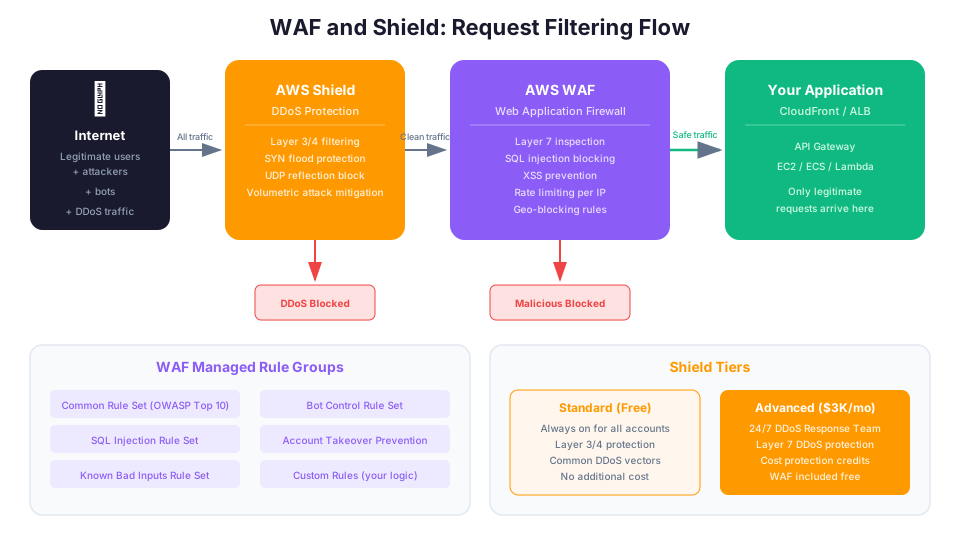
Edge protection stops attacks before they reach your application.
AWS WAF (Web Application Firewall)
WAF inspects HTTP/HTTPS requests and blocks malicious traffic based on rules. It sits in front of CloudFront, ALB, or API Gateway.
WAF protects against:
- SQL injection: Malicious SQL in form fields or URLs
- Cross-site scripting (XSS): Injecting JavaScript into web pages
- Bad bots: Scrapers, scanners, and credential-stuffing bots
- Rate limiting: Too many requests from a single IP
- Geo-blocking: Traffic from specific countries
# Create a WAF Web ACL with rate limiting
aws wafv2 create-web-acl \
  --name my-app-waf \
  --scope REGIONAL \
  --default-action '{"Allow":{}}' \
  --rules '[
    {
      "Name": "RateLimit",
      "Priority": 1,
      "Action": {"Block": {}},
      "Statement": {
        "RateBasedStatement": {
          "Limit": 2000,
          "AggregateKeyType": "IP"
        }
      },
      "VisibilityConfig": {
        "SampledRequestsEnabled": true,
        "CloudWatchMetricsEnabled": true,
        "MetricName": "RateLimit"
      }
    }
  ]' \
  --visibility-config SampledRequestsEnabled=true,CloudWatchMetricsEnabled=true,MetricName=MyAppWAF
AWS Managed Rules are pre-built rule groups maintained by AWS. They cover common threats without requiring you to write rules:
| Managed Rule Group | Protects Against |
|---|---|
| AWSManagedRulesCommonRuleSet | OWASP Top 10 vulnerabilities |
| AWSManagedRulesSQLiRuleSet | SQL injection |
| AWSManagedRulesKnownBadInputsRuleSet | Known malicious inputs |
| AWSManagedRulesBotControlRuleSet | Bad bots |
| AWSManagedRulesATPRuleSet | Account takeover (credential stuffing) |
Start with the Common Rule Set and add others based on your application's needs.
AWS Shield
Shield protects against DDoS (Distributed Denial of Service) attacks.
Shield Standard is free and enabled automatically for all AWS accounts. It protects against the most common network and transport layer DDoS attacks (Layer 3/4).
Shield Advanced ($3,000/month) provides:
- Protection against larger and more sophisticated DDoS attacks
- Real-time visibility into attacks
- Access to the AWS DDoS Response Team (DRT)
- Cost protection (AWS credits you for scaling charges caused by DDoS)
- Integration with WAF (WAF rules are free when using Shield Advanced)
For most learning and small production workloads, Shield Standard is sufficient.
Layer 4: Threat Detection (GuardDuty)
Amazon GuardDuty is an intelligent threat detection service. It continuously monitors your AWS environment and identifies suspicious activity.
GuardDuty analyzes:
- VPC Flow Logs for unusual network traffic patterns
- CloudTrail logs for suspicious API activity
- DNS logs for communication with known malicious domains
- S3 data events for unusual data access patterns
- EKS audit logs for container-related threats
- Lambda network activity for serverless threats
- RDS login activity for database access anomalies
What GuardDuty Detects
| Finding Type | Example |
|---|---|
| Recon | Port scanning from an EC2 instance |
| Unauthorized access | API calls from an unusual IP or region |
| Credential compromise | Access keys used from a known Tor exit node |
| Crypto mining | EC2 instance communicating with Bitcoin mining pools |
| Data exfiltration | Unusual S3 data transfer patterns |
| Malware | EC2 instance communicating with known C2 servers |
| Privilege escalation | IAM user creating new admin-level policies |
Enabling GuardDuty
# Enable GuardDuty (one command)
aws guardduty create-detector --enable

# Enable additional protection features
aws guardduty update-detector \
  --detector-id YOUR_DETECTOR_ID \
  --data-sources '{
    "S3Logs": {"Enable": true},
    "MalwareProtection": {"ScanEc2InstanceWithFindings": {"EbsVolumes": true}}
  }'

# List findings
aws guardduty list-findings --detector-id YOUR_DETECTOR_ID

# Get finding details
aws guardduty get-findings \
  --detector-id YOUR_DETECTOR_ID \
  --finding-ids FINDING_ID
GuardDuty has a 30-day free trial. After that, pricing is based on the volume of data analyzed. For most small accounts, it costs a few dollars per month. Considering what it protects against, this is one of the highest-value security investments you can make.
Automating Responses
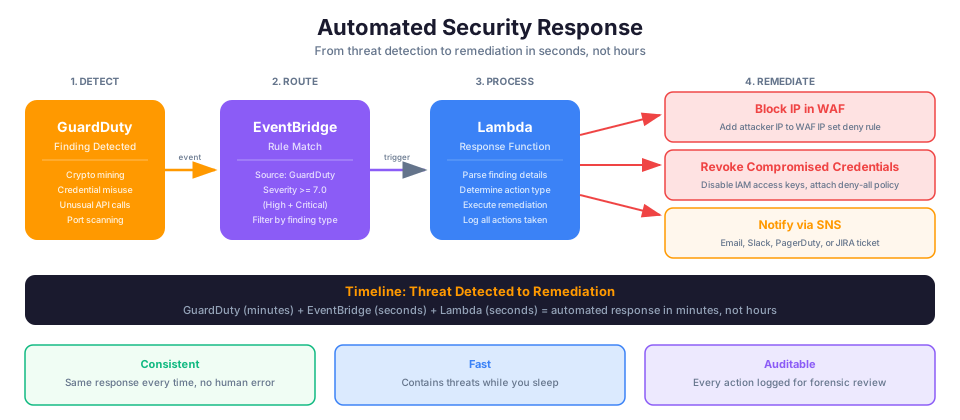
GuardDuty findings flow to EventBridge, so you can automate responses:
GuardDuty Finding -> EventBridge Rule -> Lambda Function -> Block IP in WAF
                                                        -> Send Slack alert
                                                        -> Create JIRA ticket
                                                        -> Isolate compromised instance
Example EventBridge rule for high-severity findings:
{
  "source": ["aws.guardduty"],
  "detail-type": ["GuardDuty Finding"],
  "detail": {
    "severity": [{"numeric": [">=", 7]}]
  }
}
This triggers your response Lambda only for high and critical severity findings (7.0+), avoiding noise from low-severity informational findings.
Troubleshooting Common Errors
GuardDuty finding not triggering Lambda This usually means the EventBridge rule pattern does not match the finding format. GuardDuty findings use detail-type of "GuardDuty Finding" (note the capitalization). Double-check your rule pattern matches exactly, and verify the Lambda function has a resource-based policy allowing EventBridge to invoke it. Run aws events list-rules and then aws events list-targets-by-rule to confirm the rule exists and has your Lambda ARN as a target.
WAF rule blocking legitimate traffic Start by switching the rule action from Block to Count mode so you can observe what the rule catches without affecting users. Review the sampled requests in the WAF console or via aws wafv2 get-sampled-requests to identify false positives. For managed rule groups, you can override individual rules within the group to Count while keeping the rest in Block. Gradually move rules back to Block once you have confirmed they are not hitting legitimate requests.
KMS key access denied KMS access requires both the IAM policy on the caller AND the key policy on the KMS key to allow the action. Check the key policy with aws kms get-key-policy --key-id <key-id> --policy-name default. The most common cause is a key policy that does not grant the calling role kms:Decrypt or kms:GenerateDataKey. If the key is in a different account, both the key policy and the caller's IAM policy must explicitly allow cross-account access.
Layer 5: Centralized Security Management (Security Hub)
AWS Security Hub aggregates security findings from multiple services into a single dashboard. It pulls findings from:
- GuardDuty (threat detection)
- Inspector (vulnerability scanning)
- Macie (sensitive data discovery)
- Firewall Manager (WAF/Shield management)
- IAM Access Analyzer (permission analysis)
- Third-party tools (Prowler, Qualys, etc.)
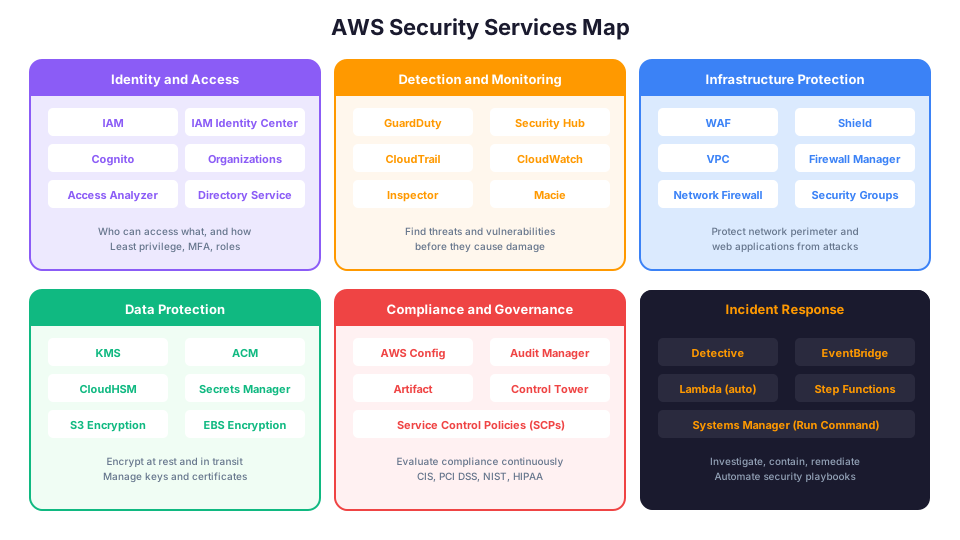
Security Standards
Security Hub evaluates your account against industry security standards and shows you what is compliant and what is not:
| Standard | What It Checks |
|---|---|
| AWS Foundational Security Best Practices | AWS-specific security controls |
| CIS AWS Foundations Benchmark | Center for Internet Security recommendations |
| PCI DSS | Payment Card Industry requirements |
| NIST 800-53 | Federal government security controls |
# Enable Security Hub
aws securityhub enable-security-hub \
  --enable-default-standards

# View your security score
aws securityhub get-insight-results \
  --insight-arn "arn:aws:securityhub:::insight/securityhub/default/1"

# Get compliance summary
aws securityhub get-standards-compliance-summary
Security Hub gives you a security score for your account. It is humbling at first. Nobody scores 100% on their first check. That is okay. Use it as a prioritized to-do list and improve your score over time.
Security Hub Finding Severity Levels
| Severity | Score | Action Required |
|---|---|---|
| Critical | 90-100 | Fix immediately (active compromise) |
| High | 70-89 | Fix within 24 hours |
| Medium | 40-69 | Fix within 1 week |
| Low | 1-39 | Fix during next maintenance window |
| Informational | 0 | No action, awareness only |
Layer 6: Data Protection
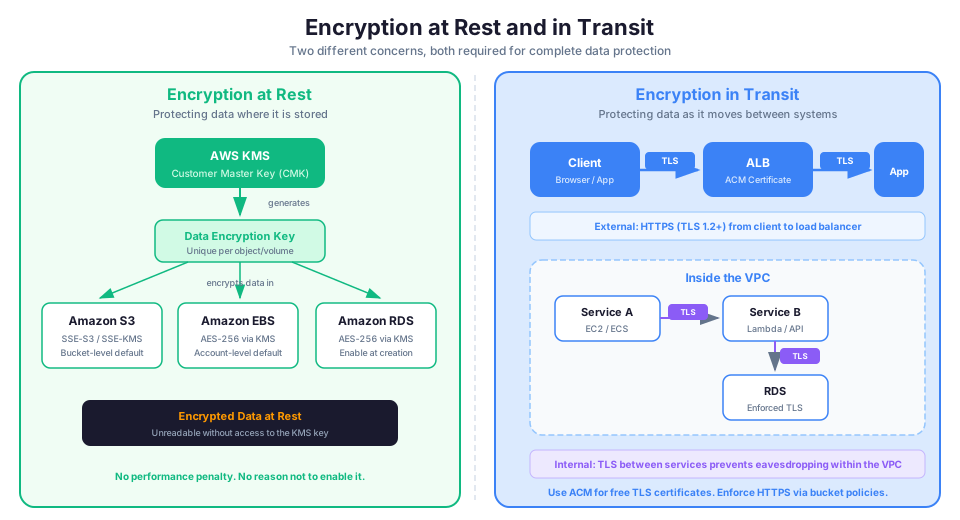
Encryption at Rest
Encrypt all data stored in AWS. Most services support encryption with minimal effort:
| Service | Encryption Method |
|---|---|
| S3 | SSE-S3, SSE-KMS, or SSE-C |
| EBS | AES-256 via KMS |
| RDS | AES-256 via KMS |
| DynamoDB | AWS-owned or customer-managed KMS keys |
| SQS | SSE-KMS |
| EFS | AES-256 via KMS |
| Redshift | AES-256 via KMS |
Enable default encryption for S3 buckets and EBS volumes. There is no performance penalty and no reason not to.
# Enable default encryption on an S3 bucket
aws s3api put-bucket-encryption \
  --bucket my-bucket \
  --server-side-encryption-configuration '{
    "Rules": [{"ApplyServerSideEncryptionByDefault": {"SSEAlgorithm": "AES256"}}]
  }'

# Enable default EBS encryption for the account
aws ec2 enable-ebs-encryption-by-default

# Verify EBS default encryption is on
aws ec2 get-ebs-encryption-by-default
Encryption in Transit
Use TLS (HTTPS) for all data in transit:
- Use HTTPS endpoints for all AWS API calls (the CLI and SDKs do this by default)
- Terminate TLS at your load balancer with an ACM (AWS Certificate Manager) certificate
- Enforce HTTPS on S3 buckets with a bucket policy
- Use TLS for database connections (RDS supports enforced TLS)
S3 Block Public Access
The single most important S3 security setting. Enable it at the account level:
# Block public access for the entire account
aws s3control put-public-access-block \
  --account-id YOUR_ACCOUNT_ID \
  --public-access-block-configuration \
    BlockPublicAcls=true,IgnorePublicAcls=true,BlockPublicPolicy=true,RestrictPublicBuckets=true
This prevents anyone from accidentally making an S3 bucket public, regardless of bucket policies or ACLs.
AWS KMS (Key Management Service)
KMS manages encryption keys for you. Use customer-managed keys (CMKs) when you need:
- Fine-grained access control over who can use a key
- Key rotation policies
- Audit trail of key usage in CloudTrail
- Cross-account encryption/decryption
Layer 7: Logging and Auditing
You cannot secure what you cannot see. Logging provides the visibility needed to detect, investigate, and respond to security incidents.
CloudTrail
CloudTrail records every API call made in your account. Who did what, when, and from where.
# Create a trail that logs all management events
aws cloudtrail create-trail \
  --name my-security-trail \
  --s3-bucket-name my-cloudtrail-bucket \
  --is-multi-region-trail \
  --enable-log-file-validation

aws cloudtrail start-logging --name my-security-trail
Always enable CloudTrail with log file validation and multi-region coverage. It is your forensic evidence if something goes wrong.
Useful CloudTrail Queries
Use CloudWatch Logs Insights to search CloudTrail for suspicious activity:
-- Find console logins without MFA
fields @timestamp, userIdentity.userName, sourceIPAddress
| filter eventName = "ConsoleLogin"
  and additionalEventData.MFAUsed = "No"
| sort @timestamp desc
| limit 50

-- Find IAM policy changes
fields @timestamp, userIdentity.userName, eventName, requestParameters
| filter eventSource = "iam.amazonaws.com"
  and eventName like /Put|Attach|Create|Delete/
| sort @timestamp desc
| limit 50

-- Find failed API calls (possible recon)
fields @timestamp, userIdentity.userName, eventName, errorCode
| filter errorCode like /Unauthorized|AccessDenied|Forbidden/
| stats count(*) as failedCalls by userIdentity.userName
| sort failedCalls desc
| limit 20
AWS Config
AWS Config continuously monitors and records your resource configurations. It can evaluate configurations against rules and alert you when resources are non-compliant.
Example rules:
- All S3 buckets must have encryption enabled
- All security groups must not allow SSH from 0.0.0.0/0
- All EBS volumes must be encrypted
- All IAM users must have MFA enabled
- All RDS instances must not be publicly accessible
# Enable AWS Config
aws configservice put-configuration-recorder \
  --configuration-recorder name=default,roleARN=arn:aws:iam::123456789012:role/config-role

# Add a managed rule: S3 buckets must have encryption
aws configservice put-config-rule --config-rule '{
  "ConfigRuleName": "s3-bucket-server-side-encryption-enabled",
  "Source": {
    "Owner": "AWS",
    "SourceIdentifier": "S3_BUCKET_SERVER_SIDE_ENCRYPTION_ENABLED"
  }
}'
The Security Checklist
Here is a practical checklist you can apply to any AWS account. Start at the top and work your way down.
Account Level
- Enable MFA on the root user
- Create IAM users for daily work (never use root)
- Set up a billing alarm
- Enable CloudTrail in all regions
- Enable GuardDuty
- Enable Security Hub
- Enable AWS Config with recommended rules
- Enable IAM Access Analyzer
- Block public S3 access at the account level
Network Level
- Use private subnets for databases and application servers
- Restrict security group inbound rules to necessary ports and sources
- Enable VPC Flow Logs
- Use VPC endpoints for AWS service access
- Never open SSH (port 22) to 0.0.0.0/0
- Use NAT Gateways for outbound-only internet access
Data Level
- Enable default encryption for S3 buckets
- Enable default EBS encryption
- Enable encryption for RDS instances
- Enforce HTTPS with bucket policies
- Enable S3 bucket versioning for critical data
- Block public access on S3 buckets (unless specifically needed)
Application Level
- Use IAM roles for EC2, Lambda, and ECS (no hardcoded credentials)
- Store secrets in Secrets Manager or Parameter Store
- Deploy WAF in front of public-facing applications
- Scan dependencies for known vulnerabilities
- Enable access logging for ALBs and CloudFront
Operational Level
- Set up automated alerts for GuardDuty findings
- Review IAM Access Analyzer findings monthly
- Review Security Hub score monthly and address high-severity findings
- Rotate credentials every 90 days
- Conduct periodic access reviews (who has access to what)
How This Shows Up in Architecture Decisions
- Shared Responsibility Model defines your scope of work. Know exactly what AWS manages vs what you manage for each service type (IaaS, PaaS, SaaS).
- Least privilege is almost always the right starting point for IAM decisions.
- GuardDuty detects threats. Security Hub aggregates findings. Inspector scans for vulnerabilities. Macie finds sensitive data. Know the difference.
- WAF protects web applications (Layer 7). Shield protects against DDoS (Layer 3/4).
- CloudTrail logs API calls. VPC Flow Logs capture network traffic. CloudWatch Logs store application logs.
- KMS manages encryption keys. ACM manages TLS certificates. They are different services.
- S3 Block Public Access is the first control to apply when preventing accidental public exposure.
- IAM Access Analyzer identifies resources shared with external accounts.
- AWS Config evaluates resource configurations against compliance rules.
- An explicit Deny in IAM always wins over an Allow.
Start Securing Your Account Today
You do not need to implement everything at once. Start with these five actions that take less than 30 minutes:
- Enable MFA on your root user (5 minutes)
- Enable GuardDuty (2 minutes)
- Enable default EBS encryption (1 minute)
- Enable S3 Block Public Access at the account level (2 minutes)
- Create a CloudTrail trail (5 minutes)
These five steps eliminate the most common attack vectors and give you visibility into your account. Build from there.
One honest note before you go: security is never finished. It is iterative. You will enable a control, realize it blocks a legitimate workflow, adjust it, and repeat. Every layer of security adds some operational friction, whether that is MFA prompts slowing down your morning, least-privilege policies requiring you to request new permissions for a new feature, or WAF rules occasionally blocking legitimate traffic that looks suspicious. That friction is the cost of protection, and learning to balance it, knowing when to tighten and when a control is creating more pain than the risk it mitigates, is what separates a secure environment from a locked-down one that nobody can actually use. Start with the basics, measure what breaks, and improve from there.
Pricing note: Shield Advanced ($3,000/month), WAF web ACL pricing, and GuardDuty data analysis costs cited in this article are for us-east-1 and were verified in May 2026. Check the AWS Pricing Calculator for current rates in your Region.
Hands-On Challenge
Implement defense in depth on a sample web application running on AWS. Use an S3-hosted static site or a simple EC2-based app as your starting point.
Success criteria:
- IAM roles follow least privilege: no policies use wildcard (
*) actions or resources - Security groups restrict inbound traffic to only necessary ports and source ranges (no 0.0.0.0/0 for SSH)
- WAF is deployed in front of the application with at least the Common Rule Set enabled
- GuardDuty is enabled with an EventBridge rule that sends high-severity findings to an SNS topic
- S3 Block Public Access is enabled at the account level
- Default encryption is enabled for both S3 buckets and EBS volumes
- Security Hub is enabled and your initial compliance score is recorded as a baseline
Build it yourself: This topic is covered hands-on in Module 52: AWS Organizations of our AWS Bootcamp.