
AWS VPC Networking Explained Simply
Prerequisites: You should understand what cloud computing is and be familiar with IAM basics before starting this article.
Networking is the topic that makes most cloud beginners nervous. IP addresses, CIDR blocks, routing tables... it sounds like it belongs in a university computer science course, not a beginner bootcamp. But here is the truth: VPC networking on AWS is more straightforward than traditional networking, and once you understand the mental model, everything clicks.
This guide will take you from "what is a VPC" to "I can design a secure network architecture" without assuming any prior networking knowledge.
What You Will Learn
By the end of this article, you will be able to:
- Design a multi-AZ VPC with public and private subnets using a consistent CIDR addressing scheme
- Implement a complete VPC from scratch using AWS CLI commands, including subnets, route tables, gateways, and security groups
- Explain why a subnet is public or private based on its route table configuration (not its name)
- Configure security groups and NACLs to enforce defense in depth at both the instance and subnet level
- Evaluate VPC connectivity options (peering, Transit Gateway, endpoints) and recommend the right one for a given architecture
What Is a VPC?
A Virtual Private Cloud (VPC) is your own isolated section of the AWS cloud. Think of it as your private neighborhood within a massive city. Other AWS customers have their own neighborhoods, and nobody can see into yours unless you explicitly allow it.
Every resource you launch on AWS, whether it is an EC2 instance, an RDS database, or a Lambda function, lives inside a VPC. You control the network configuration: the IP address range, how traffic flows, and who can communicate with whom.
When you create an AWS account, you get a default VPC in every Region. This default VPC is pre-configured with public subnets, an internet gateway, and sensible defaults so you can launch resources immediately. But for production workloads, you will create custom VPCs with network designs tailored to your security and performance requirements.
Default VPC vs Custom VPC
| Feature | Default VPC | Custom VPC |
|---|---|---|
| Created automatically | Yes (one per Region) | No (you create it) |
| CIDR block | 172.31.0.0/16 | You choose (e.g., 10.0.0.0/16) |
| Subnets | One public per AZ | You design |
| Internet gateway | Pre-attached | You attach |
| Route tables | Pre-configured | You configure |
| Best for | Quick testing, learning | Production workloads |
| Security posture | Permissive defaults | You define from scratch |
Production best practice: Always create a custom VPC for production workloads. The default VPC's permissive settings (public subnets, auto-assign public IPs) are convenient for learning but not secure enough for real applications.
IP Addresses and CIDR Blocks: The Foundation
Before we build a VPC, you need to understand how IP addresses work in private networks. Do not worry, we will keep it practical.
Every device on a network needs an IP address, like a street address for your house. In AWS, you define the range of available addresses for your VPC using something called a CIDR block.
A CIDR block looks like this: 10.0.0.0/16
The number after the slash tells you how many addresses are available:
| CIDR Block | Number of IPs | Use Case |
|---|---|---|
10.0.0.0/16 | 65,536 | Large VPC (most common choice) |
10.0.0.0/20 | 4,096 | Medium subnet |
10.0.0.0/24 | 256 | Single subnet |
10.0.0.0/28 | 16 | Tiny subnet (minimum for most services) |
The smaller the number after the slash, the more addresses you get. A /16 gives you 65,536 addresses. A /24 gives you 256. A /28 gives you 16.
For most VPCs, start with a /16 CIDR block. This gives you plenty of room to create subnets without running out of addresses later.
AWS uses three private IP ranges (defined by RFC 1918):
10.0.0.0/8(10.0.0.0 to 10.255.255.255)172.16.0.0/12(172.16.0.0 to 172.31.255.255)192.168.0.0/16(192.168.0.0 to 192.168.255.255)
Your VPC CIDR block must fall within one of these ranges.
CIDR Cheat Sheet for Subnet Planning
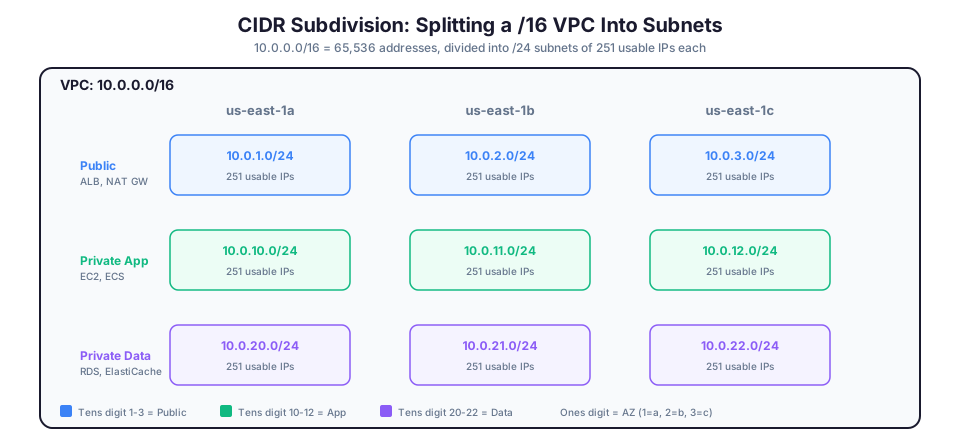
When dividing a /16 VPC into subnets, here is a practical approach:
| Subnet CIDR | IPs Available | Common Use |
|---|---|---|
| 10.0.1.0/24 | 251 usable | Public subnet (AZ1) |
| 10.0.2.0/24 | 251 usable | Public subnet (AZ2) |
| 10.0.3.0/24 | 251 usable | Public subnet (AZ3) |
| 10.0.10.0/24 | 251 usable | Private app subnet (AZ1) |
| 10.0.11.0/24 | 251 usable | Private app subnet (AZ2) |
| 10.0.12.0/24 | 251 usable | Private app subnet (AZ3) |
| 10.0.20.0/24 | 251 usable | Private data subnet (AZ1) |
| 10.0.21.0/24 | 251 usable | Private data subnet (AZ2) |
| 10.0.22.0/24 | 251 usable | Private data subnet (AZ3) |
This pattern uses the tens digit to indicate the tier (1-3 = public, 10-12 = private app, 20-22 = private data) and the ones digit to indicate the AZ. It is clean, predictable, and leaves room for growth.
Subnets: Dividing Your Network
A subnet is a subdivision of your VPC. If the VPC is your neighborhood, subnets are individual streets within it.
Every subnet lives in exactly one Availability Zone. This is a critical design point because it means you need subnets in multiple AZs for high availability.
# Create a VPC
aws ec2 create-vpc --cidr-block 10.0.0.0/16 --tag-specifications \
  'ResourceType=vpc,Tags=[{Key=Name,Value=production-vpc}]'

# Create subnets in two Availability Zones
aws ec2 create-subnet \
  --vpc-id vpc-abc123 \
  --cidr-block 10.0.1.0/24 \
  --availability-zone us-east-1a \
  --tag-specifications 'ResourceType=subnet,Tags=[{Key=Name,Value=public-1a}]'

aws ec2 create-subnet \
  --vpc-id vpc-abc123 \
  --cidr-block 10.0.2.0/24 \
  --availability-zone us-east-1b \
  --tag-specifications 'ResourceType=subnet,Tags=[{Key=Name,Value=public-1b}]'
Important: AWS reserves five IP addresses in every subnet. In a /24 subnet with 256 addresses, only 251 are usable. The reserved addresses are:
| Address | Purpose |
|---|---|
| .0 | Network address |
| .1 | VPC router |
| .2 | DNS server |
| .3 | Reserved for future use |
| .255 | Broadcast address (not supported in VPC but still reserved) |
Public vs. Private Subnets
This distinction is one of the most important concepts in VPC networking.
A public subnet has a route to an internet gateway, which means resources in it can send and receive traffic from the internet. Web servers, load balancers, and bastion hosts typically live in public subnets.
A private subnet does not have a route to an internet gateway. Resources in it cannot be reached from the internet. Databases, application servers, and backend services live in private subnets for security.
The subnet itself is not inherently public or private. What makes it public or private is the route table attached to it.
Route Tables: Traffic Directions
A route table is a set of rules that determines where network traffic is directed. Every subnet must be associated with a route table.
Think of route tables as GPS directions for your network traffic. When a packet of data leaves an EC2 instance, the route table tells it where to go.
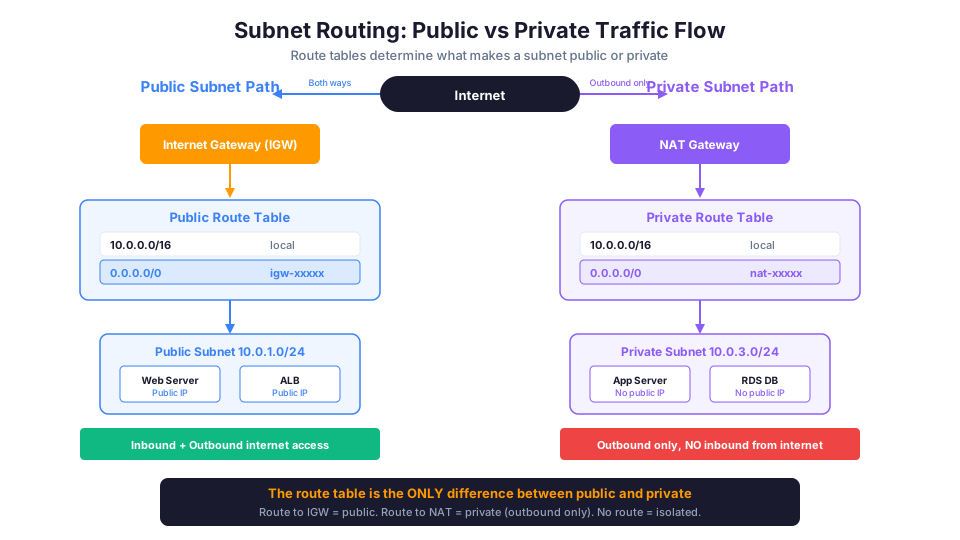
Every route table has a local route that you cannot remove. This route enables communication between all subnets within the VPC.
# Default route table for any VPC
Destination     Target
10.0.0.0/16     local       <-- All VPC traffic stays within the VPC
To make a subnet public, you add a route that sends internet-bound traffic to the internet gateway:
# Public subnet route table
Destination     Target
10.0.0.0/16     local
0.0.0.0/0       igw-abc123  <-- Internet traffic goes to the internet gateway
The 0.0.0.0/0 route is a "catch-all" that matches any traffic not going to another address within the VPC.
Route Table Best Practices
- Create separate route tables for public and private subnets. Never use the main route table for production traffic.
- Tag your route tables clearly:
public-rt,private-rt-az1,private-rt-az2. - Use the most specific route. Routes are evaluated from most specific to least specific. A route for
10.0.1.0/24takes precedence over10.0.0.0/16. - One route table per private subnet (per AZ) if you have separate NAT gateways in each AZ.
# Create a route table
aws ec2 create-route-table --vpc-id vpc-abc123 \
  --tag-specifications 'ResourceType=route-table,Tags=[{Key=Name,Value=public-rt}]'

# Add a route to the internet gateway
aws ec2 create-route \
  --route-table-id rtb-abc123 \
  --destination-cidr-block 0.0.0.0/0 \
  --gateway-id igw-abc123

# Associate the route table with a subnet
aws ec2 associate-route-table \
  --route-table-id rtb-abc123 \
  --subnet-id subnet-abc123
Internet Gateway: The Front Door
An internet gateway (IGW) is a VPC component that allows communication between your VPC and the internet. It is horizontally scaled, redundant, and highly available. AWS manages it completely.
Key facts about internet gateways:
- One internet gateway per VPC
- It is free (no hourly charge or data processing fee)
- You attach it to the VPC, then add a route pointing to it from your public subnets
- Resources in public subnets also need a public IP address (or Elastic IP) to communicate with the internet
# Create and attach an internet gateway
aws ec2 create-internet-gateway \
  --tag-specifications 'ResourceType=internet-gateway,Tags=[{Key=Name,Value=prod-igw}]'

aws ec2 attach-internet-gateway \
  --internet-gateway-id igw-abc123 \
  --vpc-id vpc-abc123
Three Requirements for Internet Access
A resource needs ALL three of these to communicate with the internet:
- Internet gateway attached to the VPC
- Route in the subnet's route table pointing
0.0.0.0/0to the IGW - Public IP address (or Elastic IP) assigned to the resource
Missing any one of these means no internet access. This is the most common troubleshooting issue for beginners.
# Enable auto-assign public IP for a subnet
aws ec2 modify-subnet-attribute \
  --subnet-id subnet-abc123 \
  --map-public-ip-on-launch
NAT Gateway: Outbound-Only Internet Access
Sometimes resources in a private subnet need to reach the internet, for downloading software updates, calling external APIs, or pushing logs to an external service, but you do not want the internet to be able to reach them.
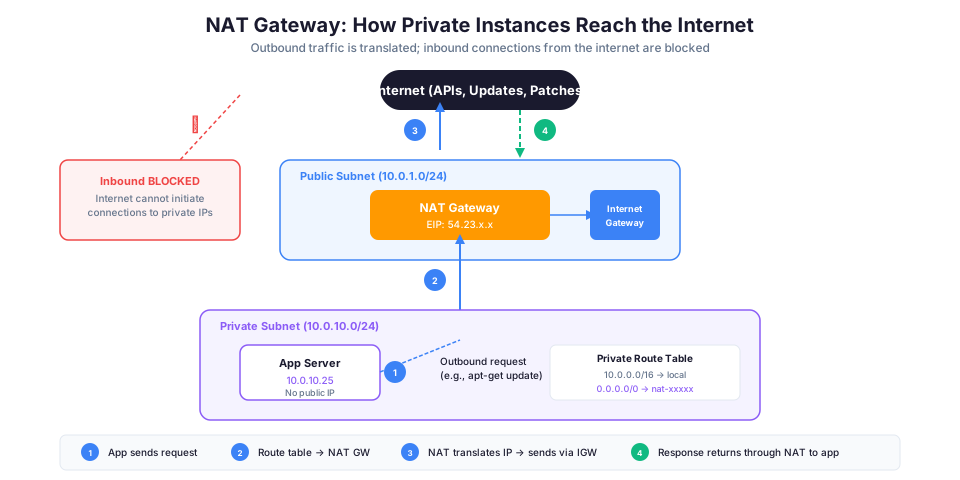
A NAT (Network Address Translation) gateway solves this. It lives in a public subnet and acts as an intermediary. Private subnet resources send their outbound traffic to the NAT gateway, which forwards it to the internet using its own public IP address. Return traffic comes back through the NAT gateway to the private subnet. But nobody on the internet can initiate a connection to the private subnet.
# Allocate an Elastic IP for the NAT gateway
aws ec2 allocate-address --domain vpc

# Create a NAT gateway in a public subnet
aws ec2 create-nat-gateway \
  --subnet-id subnet-public-1a \
  --allocation-id eipalloc-abc123 \
  --tag-specifications 'ResourceType=natgateway,Tags=[{Key=Name,Value=nat-az1}]'

# Add a route in the private subnet's route table
aws ec2 create-route \
  --route-table-id rtb-private-az1 \
  --destination-cidr-block 0.0.0.0/0 \
  --nat-gateway-id nat-abc123
Important cost considerations for NAT gateways:
| Cost Component | Price (us-east-1) |
|---|---|
| Hourly charge | $0.045/hour (~$32.40/month) |
| Data processing | $0.045/GB |
| One per AZ for HA | $32.40/month x 3 AZs = $97.20/month |
NAT gateways are one of the most commonly overlooked costs in AWS. For high availability, deploy one NAT gateway in each Availability Zone so that if one AZ goes down, private subnets in other AZs still have outbound access.
NAT Gateway Alternatives
| Option | Cost | HA | Use Case |
|---|---|---|---|
| NAT Gateway | ~$32/mo + data | Yes (per AZ) | Production workloads |
| NAT Instance (EC2) | Instance cost | Manual | Dev/test, cost optimization |
| VPC Endpoints | $0.01/hr + data | Yes | AWS service access (S3, DynamoDB) |
| No internet access | $0 | N/A | Fully isolated workloads |
Cost tip: Use VPC Gateway Endpoints for S3 and DynamoDB. These are free and eliminate the need for NAT Gateway data processing charges for traffic to those services.
# Create a free VPC endpoint for S3 (eliminates NAT charges for S3 traffic)
aws ec2 create-vpc-endpoint \
  --vpc-id vpc-abc123 \
  --service-name com.amazonaws.us-east-1.s3 \
  --route-table-ids rtb-private-az1 rtb-private-az2
Security Groups: Instance-Level Firewalls
A security group acts as a virtual firewall for your resources. It controls inbound (incoming) and outbound (outgoing) traffic at the instance level.
Key characteristics:
- Stateful: If you allow an inbound request, the response is automatically allowed. You do not need a separate outbound rule for return traffic.
- Allow rules only: You specify what traffic to allow. Everything else is denied by default.
- Evaluated as a whole: All rules are evaluated before deciding whether to allow traffic.
# Create a security group for a web server
aws ec2 create-security-group \
  --group-name web-server-sg \
  --description "Allow HTTP and HTTPS" \
  --vpc-id vpc-abc123

# Allow HTTP from anywhere
aws ec2 authorize-security-group-ingress \
  --group-id sg-abc123 \
  --protocol tcp \
  --port 80 \
  --cidr 0.0.0.0/0

# Allow HTTPS from anywhere
aws ec2 authorize-security-group-ingress \
  --group-id sg-abc123 \
  --protocol tcp \
  --port 443 \
  --cidr 0.0.0.0/0
Security Group Best Practice: Reference Other Security Groups
Instead of allowing traffic from specific IP addresses, reference another security group. This automatically adapts as instances are added or removed.
For example, your database security group should allow traffic only from the application security group:
# Allow MySQL traffic from the app-server security group
aws ec2 authorize-security-group-ingress \
  --group-id sg-database \
  --protocol tcp \
  --port 3306 \
  --source-group sg-app-server
Now any EC2 instance with the sg-app-server security group can connect to the database on port 3306. No IP addresses to manage, no rules to update when instances change.
Common Security Group Configurations
| Resource | Inbound Rules | Outbound Rules |
|---|---|---|
| ALB (public) | TCP 80, 443 from 0.0.0.0/0 | All traffic (default) |
| Web server | TCP 80 from ALB SG | All traffic (default) |
| App server | TCP 8080 from web SG | All traffic (default) |
| Database | TCP 3306 from app SG | All traffic (default) |
| Bastion host | TCP 22 from your IP only | All traffic (default) |
| Cache (Redis) | TCP 6379 from app SG | All traffic (default) |
Network ACLs: Subnet-Level Firewalls
Network Access Control Lists (NACLs) are an optional layer of security at the subnet level.
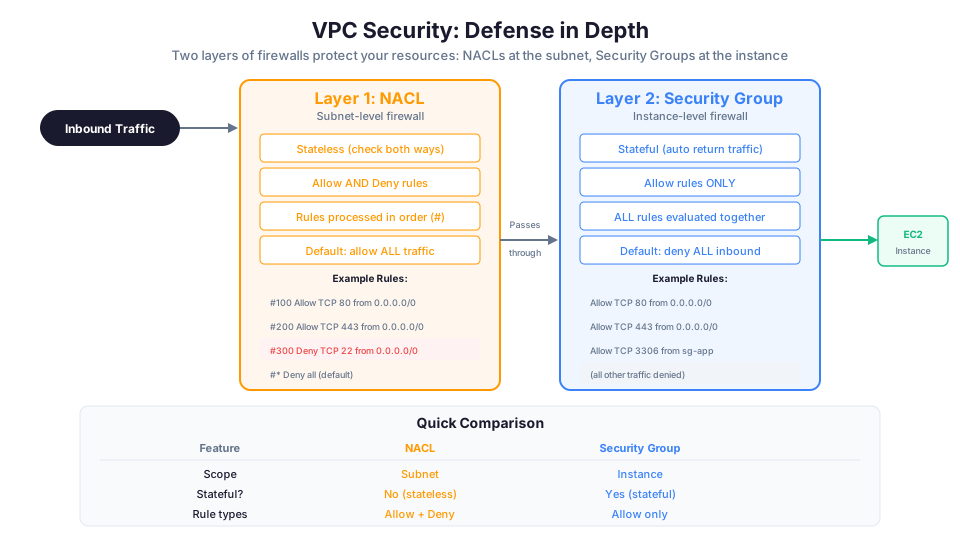
| Feature | Security Groups | NACLs |
|---|---|---|
| Level | Instance (resource) | Subnet |
| State | Stateful | Stateless |
| Rules | Allow only | Allow and Deny |
| Evaluation | All rules evaluated | Rules evaluated in number order |
| Default | Denies all inbound, allows all outbound | Allows all inbound and outbound |
NACLs are stateless, meaning you must create rules for both inbound and outbound traffic, including return traffic on ephemeral ports (1024-65535). Most architectures rely on security groups as the primary firewall and use NACLs as an additional defense layer.
When to Use NACLs
NACLs are most useful for:
- Blocking specific IP addresses or CIDR ranges at the subnet level (something security groups cannot do since they only support allow rules)
- Adding a deny rule for known malicious IPs
- Compliance requirements that mandate subnet-level filtering
- Defense in depth as a second layer behind security groups
# Create a NACL
aws ec2 create-network-acl --vpc-id vpc-abc123

# Add a rule to block a specific IP (rule number 50, evaluated before rule 100)
aws ec2 create-network-acl-entry \
  --network-acl-id acl-abc123 \
  --rule-number 50 \
  --protocol tcp \
  --port-range From=0,To=65535 \
  --cidr-block 198.51.100.0/24 \
  --rule-action deny \
  --ingress
VPC Connectivity Options
As your architecture grows, you will need to connect VPCs to each other, to on-premises networks, or to AWS services directly.
VPC Peering
Connects two VPCs so they can communicate using private IP addresses. Traffic stays on the AWS backbone network, never crossing the public internet.
# Create a peering connection between two VPCs
aws ec2 create-vpc-peering-connection \
  --vpc-id vpc-abc123 \
  --peer-vpc-id vpc-def456

# Accept the peering connection (run in the peer VPC's account)
aws ec2 accept-vpc-peering-connection \
  --vpc-peering-connection-id pcx-abc123

# Add routes in both VPCs pointing to the peering connection
aws ec2 create-route \
  --route-table-id rtb-abc123 \
  --destination-cidr-block 10.1.0.0/16 \
  --vpc-peering-connection-id pcx-abc123
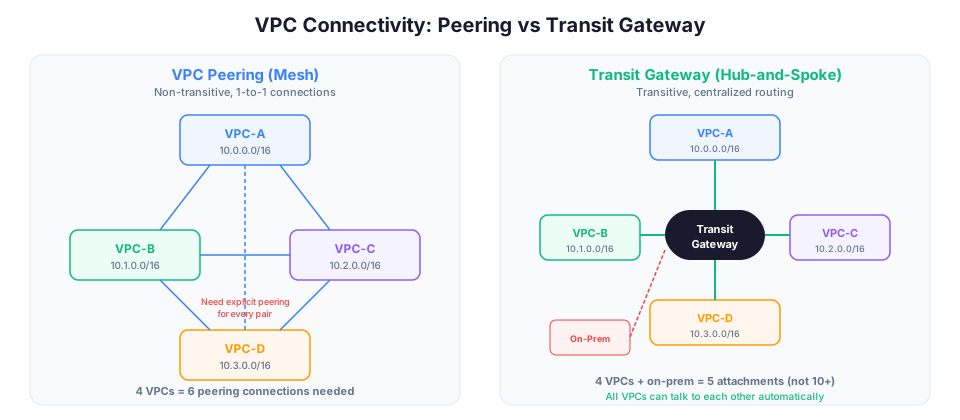
Limitation: VPC peering is not transitive. If VPC-A peers with VPC-B and VPC-B peers with VPC-C, VPC-A cannot talk to VPC-C through VPC-B. You need a separate peering connection between A and C, or use Transit Gateway.
Transit Gateway
A central hub that connects multiple VPCs and on-premises networks. Think of it as a cloud router.
| Feature | VPC Peering | Transit Gateway |
|---|---|---|
| Connections | 1-to-1 | Hub and spoke (many) |
| Transitive routing | No | Yes |
| Cost | Free (data transfer only) | $0.05/hr + data |
| Max connections | 125 per VPC | 5,000 attachments |
| Best for | 2-3 VPCs | 10+ VPCs, hybrid |
VPC Endpoints
Privately connect your VPC to AWS services without going through the internet, NAT gateway, or VPN.
Two types:
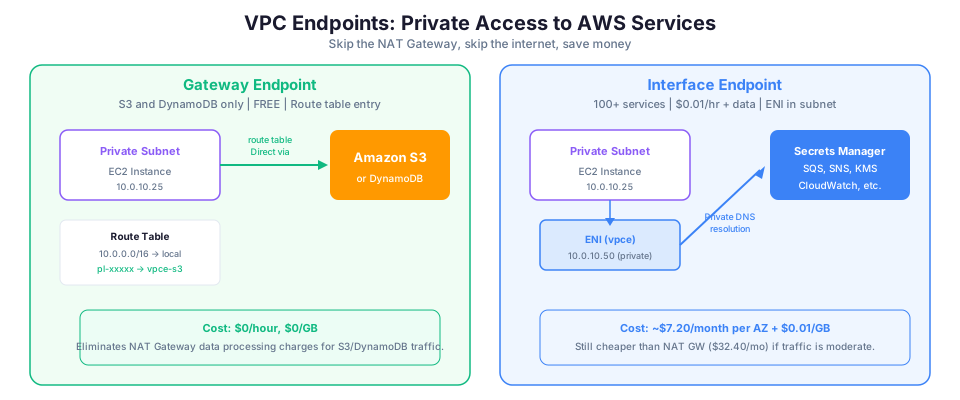
Gateway endpoints (free): S3 and DynamoDB only. Added as a route in your route table.
Interface endpoints ($0.01/hr + data): Most other AWS services. Creates an elastic network interface (ENI) in your subnet.
# Gateway endpoint for S3 (free, saves NAT costs)
aws ec2 create-vpc-endpoint \
  --vpc-id vpc-abc123 \
  --service-name com.amazonaws.us-east-1.s3 \
  --route-table-ids rtb-private

# Interface endpoint for Secrets Manager
aws ec2 create-vpc-endpoint \
  --vpc-id vpc-abc123 \
  --service-name com.amazonaws.us-east-1.secretsmanager \
  --vpc-endpoint-type Interface \
  --subnet-ids subnet-private-1a subnet-private-1b \
  --security-group-ids sg-endpoint
Putting It All Together: A Two-Tier Architecture
Here is what a typical production VPC looks like:
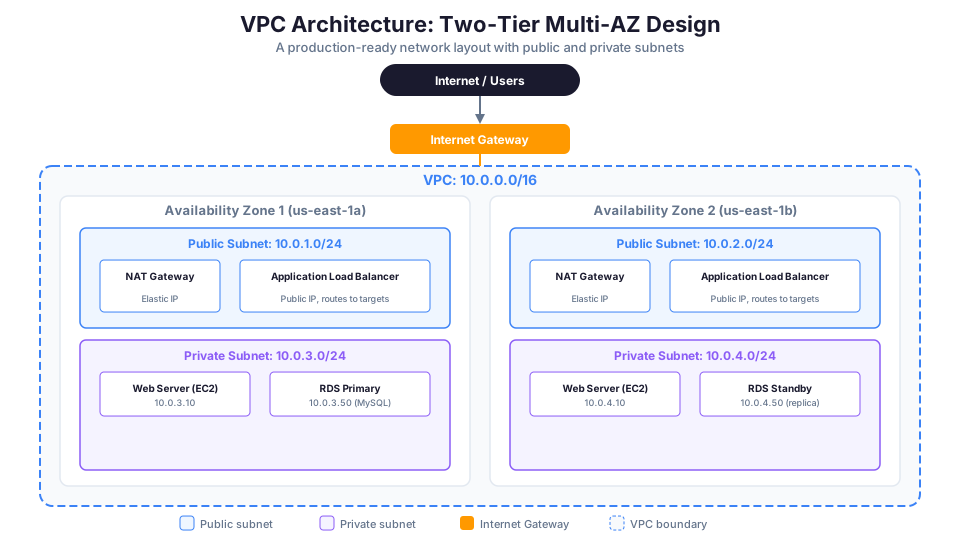
VPC: 10.0.0.0/16
├── AZ us-east-1a
│   ├── Public Subnet (10.0.1.0/24)
│   │   ├── NAT Gateway
│   │   └── Application Load Balancer (node)
│   └── Private Subnet (10.0.3.0/24)
│       ├── Web Server (EC2)
│       └── RDS Primary
│
├── AZ us-east-1b
│   ├── Public Subnet (10.0.2.0/24)
│   │   ├── NAT Gateway
│   │   └── Application Load Balancer (node)
│   └── Private Subnet (10.0.4.0/24)
│       ├── Web Server (EC2)
│       └── RDS Standby
│
└── Internet Gateway (attached to VPC)
Traffic flow:
- Users connect to the Application Load Balancer through the internet gateway
- The ALB forwards requests to web servers in private subnets
- Web servers connect to RDS databases in the same private subnets
- When web servers need to download updates, traffic goes through the NAT gateway
Security groups:
- ALB security group: Allow inbound HTTP/HTTPS from
0.0.0.0/0 - Web server security group: Allow inbound HTTP from the ALB security group only
- Database security group: Allow inbound MySQL (3306) from the web server security group only
This layered approach means even if someone compromises the load balancer, they cannot reach the database directly.
Building This VPC Step by Step
Here is the complete sequence of CLI commands to build this architecture:
# Step 1: Create the VPC
VPC_ID=$(aws ec2 create-vpc --cidr-block 10.0.0.0/16 \
  --query 'Vpc.VpcId' --output text)

# Step 2: Enable DNS hostnames
aws ec2 modify-vpc-attribute --vpc-id $VPC_ID --enable-dns-hostnames

# Step 3: Create the internet gateway
IGW_ID=$(aws ec2 create-internet-gateway \
  --query 'InternetGateway.InternetGatewayId' --output text)
aws ec2 attach-internet-gateway --internet-gateway-id $IGW_ID --vpc-id $VPC_ID

# Step 4: Create public subnets
PUB_1A=$(aws ec2 create-subnet --vpc-id $VPC_ID \
  --cidr-block 10.0.1.0/24 --availability-zone us-east-1a \
  --query 'Subnet.SubnetId' --output text)

PUB_1B=$(aws ec2 create-subnet --vpc-id $VPC_ID \
  --cidr-block 10.0.2.0/24 --availability-zone us-east-1b \
  --query 'Subnet.SubnetId' --output text)

# Step 5: Create private subnets
PRIV_1A=$(aws ec2 create-subnet --vpc-id $VPC_ID \
  --cidr-block 10.0.3.0/24 --availability-zone us-east-1a \
  --query 'Subnet.SubnetId' --output text)

PRIV_1B=$(aws ec2 create-subnet --vpc-id $VPC_ID \
  --cidr-block 10.0.4.0/24 --availability-zone us-east-1b \
  --query 'Subnet.SubnetId' --output text)

# Step 6: Create and configure public route table
PUB_RT=$(aws ec2 create-route-table --vpc-id $VPC_ID \
  --query 'RouteTable.RouteTableId' --output text)
aws ec2 create-route --route-table-id $PUB_RT \
  --destination-cidr-block 0.0.0.0/0 --gateway-id $IGW_ID
aws ec2 associate-route-table --route-table-id $PUB_RT --subnet-id $PUB_1A
aws ec2 associate-route-table --route-table-id $PUB_RT --subnet-id $PUB_1B

# Step 7: Create NAT gateway (in public subnet)
EIP_ALLOC=$(aws ec2 allocate-address --domain vpc \
  --query 'AllocationId' --output text)
NAT_ID=$(aws ec2 create-nat-gateway --subnet-id $PUB_1A \
  --allocation-id $EIP_ALLOC --query 'NatGateway.NatGatewayId' --output text)

# Step 8: Create and configure private route table
PRIV_RT=$(aws ec2 create-route-table --vpc-id $VPC_ID \
  --query 'RouteTable.RouteTableId' --output text)
# Wait for NAT gateway to be available, then:
aws ec2 create-route --route-table-id $PRIV_RT \
  --destination-cidr-block 0.0.0.0/0 --nat-gateway-id $NAT_ID
aws ec2 associate-route-table --route-table-id $PRIV_RT --subnet-id $PRIV_1A
aws ec2 associate-route-table --route-table-id $PRIV_RT --subnet-id $PRIV_1B
Troubleshooting Common Errors
An error occurred (UnauthorizedOperation) Your IAM user or role needs the AmazonVPCFullAccess managed policy, or at minimum: ec2:CreateVpc, ec2:CreateSubnet, ec2:CreateInternetGateway, ec2:CreateRouteTable, ec2:CreateRoute, ec2:CreateNatGateway, ec2:AllocateAddress, and their Associate/Attach counterparts.
An error occurred (InvalidParameterValue): Value for cidr block is not valid Your CIDR block is either malformed or overlaps with an existing subnet in the VPC. Run aws ec2 describe-subnets --filters Name=vpc-id,Values=$VPC_ID to see what is already allocated.
NAT Gateway stuck in "pending" for more than 5 minutes The most common cause is that the subnet you specified is a private subnet (no internet gateway route). NAT gateways must be placed in a public subnet with an existing route to the IGW.
VPC Flow Logs: Network Monitoring
VPC Flow Logs capture information about IP traffic going to and from network interfaces in your VPC. They are essential for troubleshooting connectivity issues, monitoring traffic patterns, and detecting suspicious activity.
# Enable flow logs for the entire VPC (send to CloudWatch Logs)
aws ec2 create-flow-logs \
  --resource-type VPC \
  --resource-ids vpc-abc123 \
  --traffic-type ALL \
  --log-destination-type cloud-watch-logs \
  --log-group-name vpc-flow-logs \
  --deliver-logs-permission-arn arn:aws:iam::123456789012:role/FlowLogsRole
A flow log entry looks like this:
2 123456789012 eni-abc123 10.0.1.5 203.0.113.50 443 49152 6 25 5000 1620000000 1620000060 ACCEPT OK
| Field | Value | Meaning |
|---|---|---|
| Version | 2 | Flow log version |
| Account | 123456789012 | AWS account ID |
| Interface | eni-abc123 | Network interface |
| Source IP | 10.0.1.5 | Where traffic came from |
| Dest IP | 203.0.113.50 | Where traffic went |
| Dest port | 443 | HTTPS |
| Source port | 49152 | Ephemeral port |
| Protocol | 6 | TCP |
| Packets | 25 | Number of packets |
| Bytes | 5000 | Data volume |
| Action | ACCEPT | Security group/NACL result |
Flow logs help answer questions like: "Why can this instance not connect to the database?" (Look for REJECT entries.)
Common Networking Mistakes
Mistake 1: Putting Databases in Public Subnets
Databases should never be directly accessible from the internet. Always place them in private subnets and allow access only from your application security group.
Mistake 2: One NAT Gateway for Multiple AZs
A single NAT gateway is a single point of failure. If the AZ containing your NAT gateway goes down, all private subnets in other AZs lose outbound internet access. Deploy one NAT gateway per AZ.
Mistake 3: Using 0.0.0.0/0 for SSH Access
Allowing SSH (port 22) from 0.0.0.0/0 means the entire internet can attempt to connect. Restrict SSH access to your specific IP address or use AWS Systems Manager Session Manager, which requires no inbound ports at all.
# BAD: SSH from anywhere
aws ec2 authorize-security-group-ingress \
  --group-id sg-abc123 --protocol tcp --port 22 --cidr 0.0.0.0/0

# GOOD: SSH from your IP only
aws ec2 authorize-security-group-ingress \
  --group-id sg-abc123 --protocol tcp --port 22 --cidr 203.0.113.50/32

# BEST: Use Session Manager (no inbound ports needed)
# Attach the AmazonSSMManagedInstanceCore policy to the instance role
Mistake 4: Forgetting the Route Table
Creating a subnet and an internet gateway is not enough. You must add a route in the subnet's route table pointing to the gateway. Without the route, traffic has nowhere to go.
Mistake 5: Overlapping CIDR Blocks
If you plan to connect multiple VPCs (via VPC peering or Transit Gateway) or connect to an on-premises network, their CIDR blocks must not overlap. Plan your address space carefully before creating VPCs.
| VPC | CIDR | Status |
|---|---|---|
| Production | 10.0.0.0/16 | Works |
| Development | 10.1.0.0/16 | Works (no overlap) |
| Staging | 10.0.0.0/16 | CONFLICT with Production! |
| On-premises | 172.16.0.0/16 | Works (different range) |
Mistake 6: Not Using VPC Endpoints
Every request from a private subnet to S3 or DynamoDB goes through the NAT gateway by default, incurring data processing charges. A free VPC Gateway Endpoint eliminates these charges completely.
Mistake 7: Ignoring DNS Resolution
If DNS resolution and DNS hostnames are not enabled in your VPC, some AWS services will not work correctly. Always enable both on custom VPCs.
aws ec2 modify-vpc-attribute --vpc-id vpc-abc123 --enable-dns-support
aws ec2 modify-vpc-attribute --vpc-id vpc-abc123 --enable-dns-hostnames
Key Terms Quick Reference
| Term | Definition |
|---|---|
| VPC | Your isolated virtual network in AWS |
| Subnet | A subdivision of a VPC within one Availability Zone |
| CIDR block | IP address range notation (e.g., 10.0.0.0/16) |
| Route table | Rules that direct network traffic |
| Internet gateway | Connects your VPC to the public internet |
| NAT gateway | Enables outbound-only internet access for private subnets |
| Security group | Stateful, instance-level firewall (allow rules only) |
| NACL | Stateless, subnet-level firewall (allow and deny rules) |
| Elastic IP | A static public IP address you control |
| Public subnet | Subnet with a route to an internet gateway |
| Private subnet | Subnet without a route to an internet gateway |
| VPC peering | Private connection between two VPCs |
| Transit Gateway | Central hub connecting multiple VPCs |
| VPC endpoint | Private connection to AWS services without internet |
| Flow logs | Network traffic logs for monitoring and troubleshooting |
Hands-On Challenge
Build a complete two-tier VPC using only the CLI (no Console). Your success criteria:
- Create a VPC with a /16 CIDR block and at least 2 AZs
- Create public subnets (with internet gateway route) and private subnets (with NAT gateway route)
- Launch an EC2 instance in the public subnet and verify you can SSH to it
- Launch an EC2 instance in the private subnet and verify it can reach the internet (for updates) but cannot be reached from the internet
- Configure security groups so the private instance only accepts connections from the public instance
- Create a VPC Gateway Endpoint for S3 and confirm the private instance can reach S3 without going through the NAT gateway
- Enable Flow Logs and read at least one ACCEPT and one REJECT entry
If you can complete all seven steps, you understand VPC networking better than most engineers who have been working with AWS for years.
One thing worth acknowledging: VPC networking has rough edges that even experienced engineers trip over. The interaction between NACLs, security groups, and route tables can produce surprising behavior when they conflict. If something is not working, start with VPC Flow Logs and work backward from the REJECT entries. Nine times out of ten, the problem is a missing route or a security group that references the wrong source.
Pricing note: NAT Gateway costs ($0.045/hr, $0.045/GB), Elastic IP charges ($0.005/hr), and data transfer rates cited in this article are for us-east-1 and were verified in May 2026. Check the AWS Pricing Calculator for current rates in your Region.
Build it yourself: This topic is covered hands-on in Module 06: VPC Fundamentals of our AWS Bootcamp, where you build a production-grade VPC from scratch using only the CLI.