
CloudWatch Monitoring: Metrics, Alarms, Logs
Your application is live. Users are signing up. Everything looks great in the console. Then one morning you wake up to angry emails: the site has been down for four hours and nobody noticed. No alerts fired. No dashboards showed anything wrong. Because you never set up monitoring.
Monitoring is not optional. It is the difference between finding out about problems from your users and finding out before they do. This guide will teach you how to monitor your AWS applications properly using CloudWatch, from basic metrics to production-ready dashboards.
Prerequisites: You should understand EC2 instance types and Lambda before starting this article.
What You Will Learn
By the end of this article, you will be able to:
- Explain the Three Pillars of Observability and the Four Golden Signals, and evaluate which metrics matter most for a given workload
- Configure CloudWatch alarms with appropriate thresholds, evaluation periods, and composite logic to catch real problems without alert fatigue
- Design structured logging for your applications and troubleshoot production issues using CloudWatch Logs Insights queries
- Implement a CloudWatch dashboard that surfaces the Four Golden Signals at a glance for any web application
- Compare CloudWatch, X-Ray, Synthetics, and Contributor Insights, and decide which observability tool fits each use case
The Three Pillars of Observability
Before we dive into CloudWatch, let us establish the framework. Observability is the ability to understand what is happening inside your system by looking at its outputs. There are three pillars:
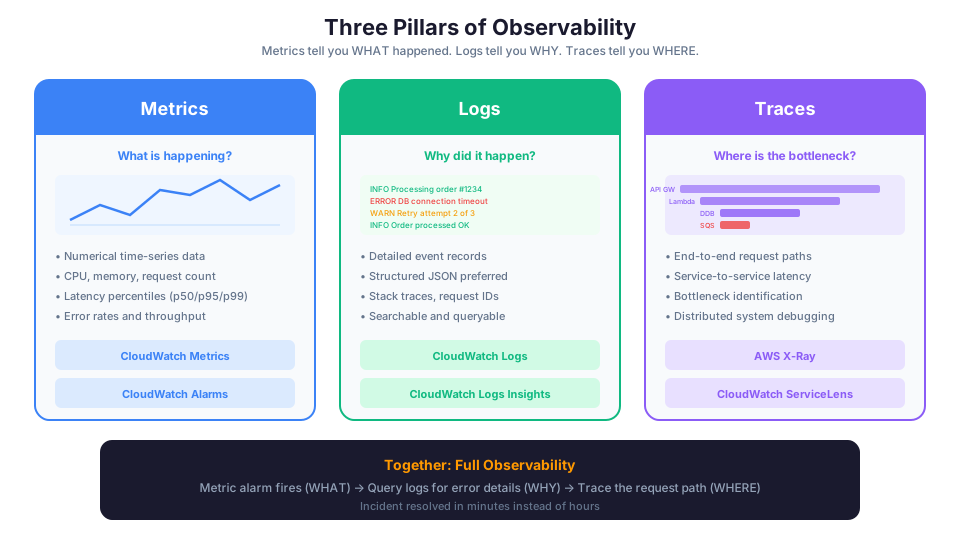
Metrics tell you WHAT is happening. CPU is at 95%. Error rate jumped to 5%. Latency doubled.
Logs tell you WHY it happened. The database connection pool is exhausted. A third-party API is returning 503 errors. A configuration change broke the authentication flow.
Traces tell you WHERE the problem is. The request spent 200ms in the API Gateway, 50ms in the Lambda function, and 3,000ms waiting for the database. The bottleneck is clear.
Together, these three pillars give you complete visibility into your system. CloudWatch handles metrics and logs natively. AWS X-Ray handles traces.
The Four Golden Signals
Before we touch CloudWatch, let us talk about what to monitor. Google's Site Reliability Engineering book popularized the Four Golden Signals. These four metrics tell you the health of any system:
1. Latency
How long does it take to serve a request? Track both successful request latency and failed request latency. A failed request that returns an error in 10 milliseconds is very different from one that times out after 30 seconds.
What to watch: Average response time, p50, p95, p99 percentiles.
Why it matters: Users notice latency before anything else. A slow page feels broken even if it is technically working.
Percentiles explained:
| Percentile | Meaning | Why It Matters |
|---|---|---|
| p50 (median) | Half of requests are faster than this | Your typical user experience |
| p95 | 95% of requests are faster than this | Your slow-but-not-extreme user experience |
| p99 | 99% of requests are faster than this | Your worst-case user experience |
| Average | Sum of all times / count | Hides outliers; use percentiles instead |
Always alert on p95 or p99, never on average. An average of 200ms can hide the fact that 5% of your users are waiting 10 seconds.
2. Traffic
How many requests is your system handling? This tells you the demand on your system and helps you spot anomalies.
What to watch: Requests per second, concurrent users, messages processed per minute.
Why it matters: Sudden spikes might indicate a marketing campaign (good) or a DDoS attack (bad). Sudden drops might mean your DNS is broken or a deployment went wrong.
3. Errors
How many requests are failing? Track both explicit errors (HTTP 500s) and implicit errors (HTTP 200 responses that return wrong data).
What to watch: Error rate (errors / total requests), error count by type, HTTP status code distribution.
Why it matters: A 2% error rate might be acceptable. A 50% error rate means half your users are having a bad time. A sudden jump from 0.1% to 5% means something just broke.
4. Saturation
How full is your system? What percentage of capacity are you using? This is the early warning signal that tells you to add resources before things break.
What to watch: CPU usage, memory usage, disk usage, queue depth, connection pool usage.
Why it matters: A server at 95% CPU is one traffic spike away from falling over. A database at 90% disk is one log rotation away from crashing.
CloudWatch: The Monitoring Foundation
Amazon CloudWatch is the core monitoring service on AWS. It collects metrics, stores logs, triggers alarms, and displays dashboards. Almost every AWS service sends metrics to CloudWatch automatically.
CloudWatch Metrics
Metrics are the numerical data points that represent the behavior of your resources over time. Every AWS service publishes metrics to CloudWatch.
Built-in metrics (free, no setup required):
| Service | Key Metrics |
|---|---|
| EC2 | CPUUsage, NetworkIn, NetworkOut, DiskReadOps |
| ALB | RequestCount, TargetResponseTime, HTTPCode_Target_5XX_Count |
| RDS | CPUUsage, FreeStorageSpace, DatabaseConnections, ReadLatency |
| Lambda | Invocations, Duration, Errors, Throttles, ConcurrentExecutions |
| SQS | NumberOfMessagesSent, ApproximateNumberOfMessagesVisible, ApproximateAgeOfOldestMessage |
| DynamoDB | ConsumedReadCapacityUnits, ConsumedWriteCapacityUnits, ThrottledRequests |
| API Gateway | Count, Latency, 4XXError, 5XXError |
| CloudFront | Requests, BytesDownloaded, 4xxErrorRate, 5xxErrorRate |
| NAT Gateway | BytesOutToDestination, PacketsDropCount, ErrorPortAllocation |
Important: EC2 does NOT send memory or disk usage metrics by default. You need the CloudWatch Agent for those:
# Install the CloudWatch Agent on an EC2 instance
sudo yum install -y amazon-cloudwatch-agent

# Configure the agent (creates a config wizard)
sudo /opt/aws/amazon-cloudwatch-agent/bin/amazon-cloudwatch-agent-config-wizard

# Start the agent
sudo systemctl start amazon-cloudwatch-agent
The CloudWatch Agent configuration file specifies which metrics to collect:
{
  "metrics": {
    "metrics_collected": {
      "mem": {
        "measurement": ["mem_used_percent"],
        "metrics_collection_interval": 60
      },
      "disk": {
        "measurement": ["disk_used_percent"],
        "resources": ["*"],
        "metrics_collection_interval": 60
      }
    }
  }
}
Custom metrics: You can publish your own metrics for application-specific data:
# Publish a custom metric
aws cloudwatch put-metric-data \
  --namespace "MyApp" \
  --metric-name "OrdersProcessed" \
  --value 42 \
  --unit Count

# Publish with dimensions (to track per-environment)
aws cloudwatch put-metric-data \
  --namespace "MyApp" \
  --metric-name "OrdersProcessed" \
  --value 42 \
  --unit Count \
  --dimensions Environment=prod,Service=order-api

# Publish from application code (Python example)
# import boto3
# cloudwatch = boto3.client('cloudwatch')
# cloudwatch.put_metric_data(
#     Namespace='MyApp',
#     MetricData=[{
#         'MetricName': 'OrdersProcessed',
#         'Value': 42,
#         'Unit': 'Count',
#         'Dimensions': [
#             {'Name': 'Environment', 'Value': 'prod'},
#             {'Name': 'Service', 'Value': 'order-api'}
#         ]
#     }]
# )
Metric resolution:
- Standard resolution: Data points at 1-minute intervals (free for basic metrics)
- High resolution: Data points at 1-second intervals (for custom metrics, costs more)
For most applications, standard resolution is sufficient. Use high resolution only for time-sensitive metrics like trading systems or real-time gaming.
CloudWatch Alarms
Alarms watch a single metric and take action when it crosses a threshold. This is how you get notified before users do.
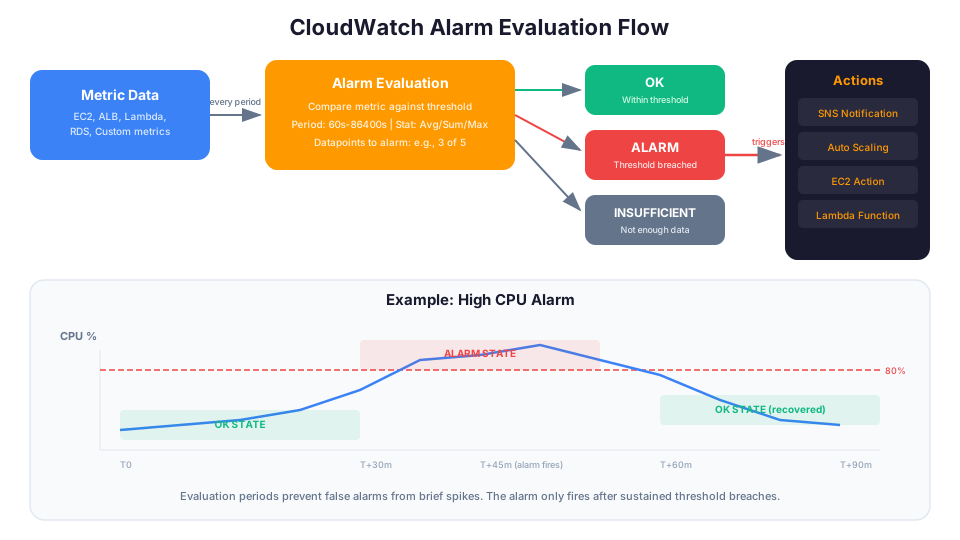
Alarm states:
- OK: The metric is within the threshold
- ALARM: The metric has breached the threshold
- INSUFFICIENT_DATA: Not enough data to determine the state
Setting Up Your First Alarm
Create an alarm that notifies you when EC2 CPU exceeds 80%:
# Create an SNS topic for notifications
aws sns create-topic --name monitoring-alerts
aws sns subscribe \
  --topic-arn arn:aws:sns:us-east-1:123456789012:monitoring-alerts \
  --protocol email \
  --notification-endpoint your-email@example.com

# Create the alarm
aws cloudwatch put-metric-alarm \
  --alarm-name "High-CPU-Alarm" \
  --alarm-description "CPU usage exceeds 80% for 5 minutes" \
  --metric-name CPUUsage \
  --namespace AWS/EC2 \
  --statistic Average \
  --period 300 \
  --threshold 80 \
  --comparison-operator GreaterThanThreshold \
  --evaluation-periods 2 \
  --alarm-actions arn:aws:sns:us-east-1:123456789012:monitoring-alerts \
  --ok-actions arn:aws:sns:us-east-1:123456789012:monitoring-alerts \
  --dimensions Name=InstanceId,Value=i-xxxxx
This alarm triggers when average CPU exceeds 80% for two consecutive 5-minute periods (10 minutes total). This prevents false alarms from brief spikes. The --ok-actions parameter also sends a notification when the alarm recovers, so you know the problem is resolved.
Alarm Math: Understanding Evaluation
The evaluation logic is critical to getting alarms right:
| Setting | Value | Meaning |
|---|---|---|
| Period | 300 seconds | Each evaluation window is 5 minutes |
| Evaluation Periods | 2 | Must breach for 2 consecutive periods |
| Datapoints to Alarm | 2 (default = evaluation periods) | 2 of 2 periods must breach |
| Total detection time | 10 minutes | 2 periods x 5 minutes each |
For faster detection, reduce the period. For fewer false positives, increase evaluation periods. Find the balance that works for your application.
Alarms Every Application Should Have
Here are the essential alarms for a typical web application:
| Alarm | Metric | Threshold | Why |
|---|---|---|---|
| High CPU | CPUUsage | > 80% for 10 min | Server is struggling |
| High error rate | HTTPCode_Target_5XX_Count | > 10 in 5 min | Application is failing |
| High latency | TargetResponseTime | p95 > 2 seconds | Users are waiting |
| Low disk space | FreeStorageSpace (RDS) | < 20% remaining | Database will crash |
| Queue backing up | ApproximateAgeOfOldestMessage | > 300 seconds | Processing is falling behind |
| Lambda errors | Errors (Lambda) | > 5 in 5 min | Functions are failing |
| Lambda throttles | Throttles (Lambda) | > 0 in 5 min | Hitting concurrency limits |
| Billing | EstimatedCharges | > $10 (or your budget) | Cost protection |
| Healthy hosts | HealthyHostCount (ALB) | < 2 | Losing capacity |
Composite Alarms
Sometimes a single metric is not enough context. Composite alarms combine multiple alarms with AND/OR logic:
# Alarm only when BOTH high CPU AND high error rate
aws cloudwatch put-composite-alarm \
  --alarm-name "Critical-App-Health" \
  --alarm-rule "ALARM(High-CPU-Alarm) AND ALARM(High-Error-Rate)" \
  --alarm-actions arn:aws:sns:us-east-1:123456789012:critical-alerts
This reduces alert fatigue. High CPU alone might be fine (batch processing). High CPU plus high errors means something is wrong.
Anomaly Detection Alarms
For metrics without obvious fixed thresholds, use anomaly detection:
aws cloudwatch put-metric-alarm \
  --alarm-name "Unusual-Request-Count" \
  --metric-name RequestCount \
  --namespace AWS/ApplicationELB \
  --statistic Sum \
  --period 300 \
  --evaluation-periods 3 \
  --threshold-metric-id "ad1" \
  --comparison-operator LessThanLowerOrGreaterThanUpperThreshold \
  --metrics '[
    {
      "Id": "m1",
      "MetricStat": {
        "Metric": {
          "Namespace": "AWS/ApplicationELB",
          "MetricName": "RequestCount",
          "Dimensions": [{"Name": "LoadBalancer", "Value": "app/my-alb/xxxxx"}]
        },
        "Period": 300,
        "Stat": "Sum"
      },
      "ReturnData": true
    },
    {
      "Id": "ad1",
      "Expression": "ANOMALY_DETECTION_BAND(m1, 2)",
      "ReturnData": true
    }
  ]'
CloudWatch learns the normal pattern (daily cycles, weekend drops) and alerts when the metric deviates significantly.
CloudWatch Logs
Logs are the narrative of what happened in your application. Metrics tell you something is wrong. Logs tell you why.
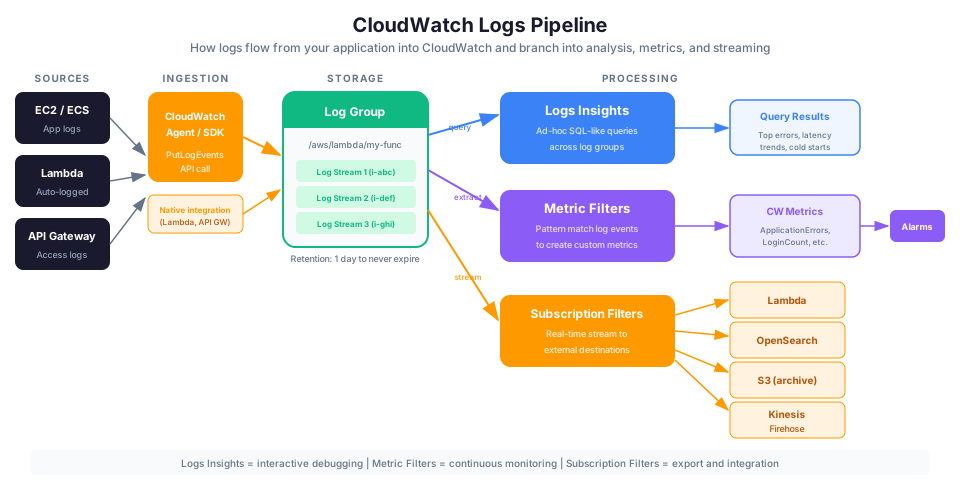
Log Concepts
Log Group: A collection of log streams with the same retention, monitoring, and access settings. Usually one per application or service. Example: /aws/lambda/my-function or /my-app/production.
Log Stream: A sequence of log events from a single source. Usually one per instance or function invocation. Example: i-xxxxx or 2026/05/12/[$LATEST]abc123.
Log Event: A single log entry with a timestamp and a message.
Structured Logging
Do not log unstructured text. Log structured JSON. This makes searching, filtering, and analyzing logs dramatically easier.
Bad (unstructured):
Processing order 12345 for user john@example.com, total $99.99
Good (structured JSON):
{
  "level": "INFO",
  "message": "Processing order",
  "orderId": "12345",
  "userId": "john@example.com",
  "total": 99.99,
  "timestamp": "2026-05-12T14:30:00Z",
  "requestId": "abc-123-def",
  "service": "order-processor"
}
With structured logs, you can use CloudWatch Logs Insights to query:
fields @timestamp, orderId, total
| filter level = "ERROR"
| sort @timestamp desc
| limit 20
CloudWatch Logs Insights
Logs Insights lets you run SQL-like queries across your log groups. This is enormously powerful for debugging.
Find the most common errors:
fields @message
| filter level = "ERROR"
| stats count(*) as errorCount by @message
| sort errorCount desc
| limit 10
Calculate p95 response time from application logs:
fields @timestamp, responseTime
| filter path = "/api/users"
| stats avg(responseTime) as avg,
        percentile(responseTime, 95) as p95,
        percentile(responseTime, 99) as p99
  by bin(5m)
Find slow requests:
fields @timestamp, path, responseTime, userId
| filter responseTime > 3000
| sort responseTime desc
| limit 50
Identify error patterns over time:
fields @timestamp, level
| filter level = "ERROR"
| stats count(*) as errors by bin(15m)
| sort @timestamp asc
Find Lambda cold starts:
fields @timestamp, @duration, @initDuration
| filter ispresent(@initDuration)
| stats count(*) as coldStarts,
        avg(@initDuration) as avgColdStartMs,
        max(@initDuration) as maxColdStartMs
  by bin(1h)
Metric Filters
Metric filters extract metrics from log data automatically. This is how you create custom metrics from application logs without changing your code:
# Create a metric filter that counts ERROR logs
aws logs put-metric-filter \
  --log-group-name /my-app/production \
  --filter-name ErrorCount \
  --filter-pattern '{ $.level = "ERROR" }' \
  --metric-transformations \
    metricName=ApplicationErrors,metricNamespace=MyApp,metricValue=1

# Now you can alarm on this custom metric
aws cloudwatch put-metric-alarm \
  --alarm-name "High-Application-Errors" \
  --metric-name ApplicationErrors \
  --namespace MyApp \
  --statistic Sum \
  --period 300 \
  --threshold 10 \
  --comparison-operator GreaterThanThreshold \
  --evaluation-periods 1 \
  --alarm-actions arn:aws:sns:us-east-1:123456789012:monitoring-alerts
Log Retention
CloudWatch Logs never expire by default. Set a retention policy to control costs:
aws logs put-retention-policy \
  --log-group-name /my-app/production \
  --retention-in-days 30
| Retention | Use Case |
|---|---|
| 1-7 days | Development, debugging |
| 30 days | Standard production |
| 90 days | Compliance requirements |
| 365 days | Audit and regulatory |
| Never expire | Legal hold |
For cost optimization, export old logs to S3 where storage is much cheaper ($0.023/GB vs $0.50/GB in CloudWatch Logs).
CloudWatch Dashboards
Dashboards are visual displays of your metrics. A good dashboard tells a story at a glance: is the system healthy, and if not, where is the problem?
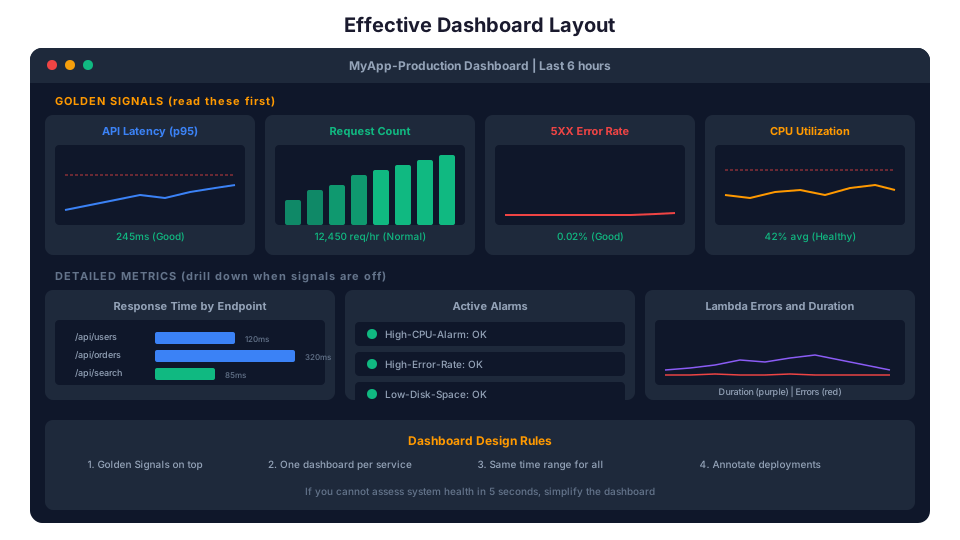
Building an Effective Dashboard
Rule 1: One dashboard per service or application. Do not cram everything into one screen. Create separate dashboards for your API, your database, your queue processing, and your overall account health.
Rule 2: Put the Four Golden Signals at the top. Latency, traffic, errors, saturation. If these are all green, your system is healthy.
Rule 3: Use consistent time ranges. All widgets on a dashboard should show the same time range. Mixed time ranges make correlation impossible.
Rule 4: Add annotations for deployments. Mark when deployments happened so you can correlate changes in metrics with code changes.
Rule 5: Include alarm status widgets. Show current alarm states so you can see at a glance if anything needs attention.
# Create a dashboard
aws cloudwatch put-dashboard \
  --dashboard-name MyApp-Production \
  --dashboard-body '{
    "widgets": [
      {
        "type": "metric",
        "x": 0, "y": 0, "width": 12, "height": 6,
        "properties": {
          "title": "API Latency (p95)",
          "metrics": [
            ["AWS/ApplicationELB", "TargetResponseTime", "LoadBalancer", "app/my-alb/xxxxx",
             {"stat": "p95"}]
          ],
          "period": 60,
          "view": "timeSeries"
        }
      },
      {
        "type": "metric",
        "x": 12, "y": 0, "width": 12, "height": 6,
        "properties": {
          "title": "Request Count",
          "metrics": [
            ["AWS/ApplicationELB", "RequestCount", "LoadBalancer", "app/my-alb/xxxxx",
             {"stat": "Sum"}]
          ],
          "period": 60,
          "view": "timeSeries"
        }
      },
      {
        "type": "metric",
        "x": 0, "y": 6, "width": 12, "height": 6,
        "properties": {
          "title": "5XX Errors",
          "metrics": [
            ["AWS/ApplicationELB", "HTTPCode_Target_5XX_Count", "LoadBalancer", "app/my-alb/xxxxx",
             {"stat": "Sum"}]
          ],
          "period": 60,
          "view": "timeSeries"
        }
      },
      {
        "type": "metric",
        "x": 12, "y": 6, "width": 12, "height": 6,
        "properties": {
          "title": "CPU Usage",
          "metrics": [
            ["AWS/EC2", "CPUUsage", "AutoScalingGroupName", "my-asg",
             {"stat": "Average"}]
          ],
          "period": 60,
          "view": "timeSeries"
        }
      }
    ]
  }'
Beyond CloudWatch: The Observability Ecosystem
CloudWatch is the foundation, but AWS offers additional observability tools:
AWS X-Ray (Distributed Tracing)
X-Ray traces requests as they flow through your distributed application. If a request hits API Gateway, then Lambda, then DynamoDB, then SQS, X-Ray shows you the entire path and where time was spent.
Use X-Ray when:
- You have a microservices architecture
- You need to identify which service in the chain is slow
- You want to understand the flow of requests
CloudWatch Synthetics (Canary Tests)
Synthetics runs scripted tests against your endpoints at regular intervals. Think of it as a robot that continuously checks if your website is working.
Canary runs every 5 minutes -> Loads your homepage -> Checks for expected content -> Alerts if it fails
Use Synthetics to catch problems before users report them, especially for public-facing websites and APIs.
CloudWatch Application Insights
Application Insights automatically detects and sets up monitoring for common application patterns (.NET, SQL Server, IIS, etc.). It reduces the manual work of configuring metrics and alarms.
CloudWatch Contributor Insights
Contributor Insights analyzes log data and creates time-series data showing the top contributors. For example: which IP addresses are generating the most 5XX errors, or which API endpoints are the slowest.
# Create a contributor insights rule
aws cloudwatch put-insight-rule \
  --rule-name "TopSlowEndpoints" \
  --rule-state ENABLED \
  --rule-definition '{
    "Schema": {"Name": "CloudWatchLogRule", "Version": 1},
    "LogGroupNames": ["/my-app/production"],
    "LogFormat": "JSON",
    "Contribution": {
      "Keys": ["$.path"],
      "ValueOf": "$.responseTime",
      "Filters": [{"Match": "$.level", "EqualTo": "INFO"}]
    },
    "AggregateOn": "Sum"
  }'
Troubleshooting Common Errors
Custom metric not appearing After calling put-metric-data, custom metrics can take up to 15 minutes to appear in the CloudWatch console. Verify your namespace, metric name, and dimensions are spelled exactly as you published them (they are case-sensitive). A common mistake is publishing to namespace MyApp but searching in myapp. Run aws cloudwatch list-metrics --namespace MyApp to confirm your metric exists. Also check that the IAM role or user has cloudwatch:PutMetricData permission.
Alarm stuck in INSUFFICIENT_DATA This state means CloudWatch is not receiving enough data points to evaluate the alarm. The most common causes: the metric has no data during the evaluation period (for example, an EC2 instance that is stopped), the period is shorter than the metric's reporting interval, or the dimensions on the alarm do not match the dimensions on the metric. Run aws cloudwatch describe-alarms --alarm-names "Your-Alarm-Name" and compare the Namespace, MetricName, and Dimensions fields against the actual metric. For metrics that are sometimes absent, set TreatMissingData to notBreaching or missing instead of the default.
Logs Insights query returns empty First confirm you selected the correct log group and time range. Then verify that your filter pattern matches the log format. If your logs are JSON, use the $.fieldName syntax (for example, filter $.level = "ERROR"). If your logs are plain text, use filter @message like /pattern/. Also check log retention: if the retention policy is shorter than the time range you are querying, older logs will already be deleted.
Monitoring Cost on AWS
CloudWatch pricing can add up if you are not careful:
| Feature | Free Tier | Pricing After |
|---|---|---|
| Basic metrics | 10 metrics | Free (built-in service metrics) |
| Detailed monitoring | None | $0.30/metric/month (1-minute EC2 metrics) |
| Custom metrics | None | $0.30/metric/month |
| Alarms | 10 alarms | $0.10/alarm/month |
| Logs ingestion | 5 GB/month | $0.50/GB |
| Logs storage | 5 GB/month | $0.03/GB/month |
| Dashboard | 3 dashboards | $3/dashboard/month |
| Logs Insights queries | None | $0.005/GB scanned |
Cost optimization tips:
- Use standard resolution metrics unless you need 1-second granularity
- Set log retention policies aggressively (30 days covers most needs)
- Export old logs to S3 for long-term storage
- Use metric filters instead of Logs Insights for repeated queries
- Delete unused dashboards and alarms
- Reduce verbose logging in production (debug logs cost money)
The Monitoring Checklist
Here is what to set up for any production application:
Day 1 (Essential)
- Enable CloudTrail for API activity logging
- Create a billing alarm ($5 or $10 threshold)
- Enable detailed monitoring for EC2 instances (1-minute metrics)
- Set up an SNS topic for alarm notifications
- Create alarms for CPU, errors, and disk space
Week 1 (Important)
- Enable VPC Flow Logs
- Configure application logs to CloudWatch Logs (structured JSON)
- Set log retention policies
- Build a dashboard with the Four Golden Signals
- Create alarms for latency p95 and error rates
- Install CloudWatch Agent for memory and disk metrics
Month 1 (Production-Ready)
- Set up CloudWatch Synthetics for endpoint health checks
- Enable X-Ray tracing for distributed applications
- Create composite alarms to reduce alert fatigue
- Set up log-based metric filters for business metrics
- Export logs to S3 for long-term retention
- Review and tune alarm thresholds based on baseline data
- Set up Contributor Insights for top-N analysis
Common Monitoring Anti-Patterns
Alert fatigue. Too many alarms firing for non-critical issues. People start ignoring them, and then they miss the real ones. Be selective. Only alert on things that require action.
Dashboard overload. A dashboard with 50 widgets is useless. If you cannot understand the system's health in 5 seconds of looking at the dashboard, simplify it.
Monitoring only infrastructure. CPU and memory tell you about the server, not the user experience. Always include application-level metrics: response time, error rate, and business metrics (orders processed, sign-ups completed).
No baselines. An alarm that fires when CPU exceeds 80% is meaningless if your normal CPU is 75%. Observe your system under normal conditions first, then set thresholds based on deviations from normal.
Ignoring logs. Metrics tell you something is wrong. Logs tell you why. Without good logging, you will spend hours guessing during an incident.
Alerting on averages. Average latency of 200ms sounds fine. But if 5% of users experience 10-second latency, that is terrible. Alert on percentiles (p95, p99), not averages.
How This Shows Up in Architecture Decisions
- CloudWatch collects metrics and logs. CloudTrail records API calls. They are different services with different purposes.
- Basic monitoring is free (5-minute intervals for EC2). Detailed monitoring costs extra (1-minute intervals).
- Custom metrics use
put-metric-data. You publish them from your application. - Metric filters extract metrics from log data (e.g., count the number of ERROR lines).
- CloudWatch Logs agent or the unified CloudWatch agent sends logs and custom metrics from EC2 instances to CloudWatch.
- Alarms can trigger Auto Scaling, SNS, or EC2 actions (stop, terminate, reboot).
- Logs Insights is for ad-hoc querying. Metric filters are for continuous monitoring.
- CloudWatch does NOT collect memory or disk metrics by default. You need the CloudWatch Agent.
- Anomaly detection uses machine learning to identify unusual metric behavior.
- Composite alarms combine multiple alarms with AND/OR logic.
Start Monitoring Today
Here is the honest truth about monitoring: most teams set up too many alarms and act on too few of them. Dashboards get built during an incident, then never looked at again. Logs pile up with no retention policy until someone notices the bill.
Do not be that team. Set up one alarm today. Just one. A billing alarm for $5, a CPU alarm on your busiest instance, whatever makes sense for your workload. Get the SNS notification flowing to your inbox. Then tomorrow, add structured logging to one service. The day after, build a single dashboard with the Four Golden Signals.
Small, consistent steps beat a massive monitoring overhaul that never actually ships.
Pricing note: CloudWatch alarm, custom metric, log ingestion, and dashboard costs cited in this article are for us-east-1 and were verified in May 2026. Check the AWS Pricing Calculator for current rates in your Region.
Hands-On Challenge
Set up a complete observability stack for a running AWS application (an EC2 instance, Lambda function, or ECS service).
Success criteria:
- Publish at least one custom metric from your application using
put-metric-data(for example, orders processed or request count) - Create a CloudWatch alarm on that custom metric with appropriate threshold and evaluation periods, connected to an SNS topic that emails you
- Build a CloudWatch dashboard with at least four widgets covering the Four Golden Signals: latency, traffic, errors, and saturation
- Configure structured JSON logging from your application to a CloudWatch log group with a 30-day retention policy
- Write a Logs Insights query that returns the top 10 most frequent errors from your log group in the past 24 hours
- Create a composite alarm that combines two or more individual alarms with AND logic to reduce false positives
Build it yourself: This topic is covered hands-on in Module 61: CloudWatch Metrics of our AWS Bootcamp.