
Docker on AWS: Beginner's Guide to ECS and Fargate
Containers are everywhere. Job postings list Docker experience as a requirement. AWS certifications test you on ECS and Fargate. Conference talks assume you already know what a Dockerfile is. If you are a beginner looking at all of this and feeling overwhelmed, take a breath. Containers are simpler than they seem, and this guide will walk you through everything from the ground up.
Prerequisites: You should understand EC2 instance types and when to use them and be comfortable with basic Linux command line operations before starting this article.
What You Will Learn
By the end of this article, you will be able to:
- Explain how containers differ from virtual machines and Lambda functions, and evaluate which compute model fits a given workload
- Implement a multi-stage Dockerfile that follows production best practices for layer caching, security, and image size
- Configure an ECS Fargate service by building a Docker image, pushing it to ECR, and deploying it with health checks and auto scaling
- Compare ECS and EKS to determine which orchestrator matches your team's experience and portability requirements
- Troubleshoot common container deployment failures using CloudWatch logs, stopped task diagnostics, and health check configuration
The Problem Containers Solve
Imagine you build a web application on your laptop. It works perfectly. You hand it to your teammate, and it crashes. "It works on my machine," you say. Your teammate has a different operating system, a different version of Python, a different version of a library. Same code, different results.
Now multiply this by dozens of developers, staging environments, and production servers. Keeping everything consistent is a nightmare.
Containers solve this by packaging your application together with everything it needs to run: the code, the runtime, the libraries, the system tools, and the configuration. The container runs identically everywhere, whether that is your laptop, your colleague's laptop, a CI/CD pipeline, or an AWS production server.
Containers vs Virtual Machines
You might be thinking: "That sounds like a virtual machine." Containers and VMs solve a similar problem, but they work very differently.
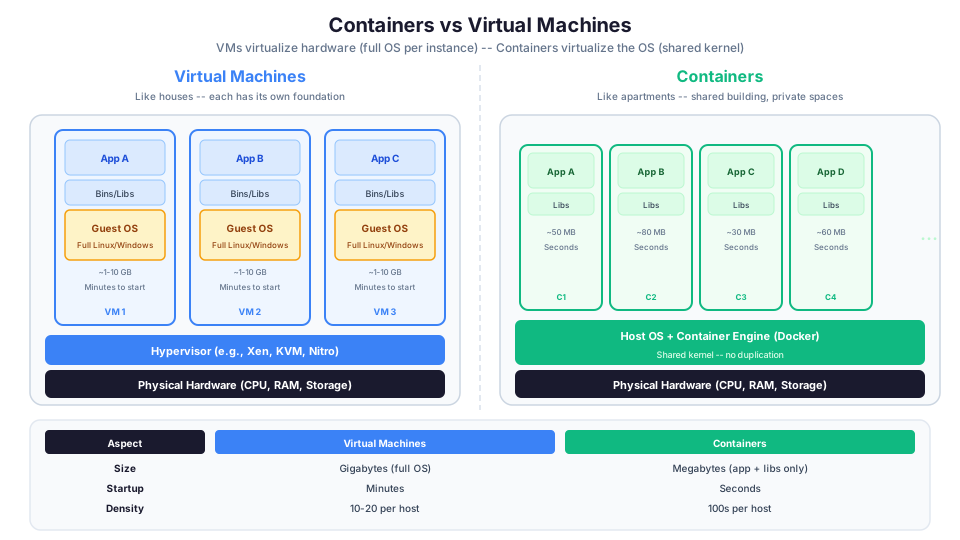
| Aspect | Virtual Machine | Container |
|---|---|---|
| What is packaged | Full OS + application | Application + dependencies only |
| Size | Gigabytes | Megabytes |
| Startup time | Minutes | Seconds |
| Isolation | Complete (separate kernel) | Process-level (shared kernel) |
| Resource overhead | Heavy (each VM runs its own OS) | Light (shares the host OS kernel) |
| Density | 10-20 VMs per host | 100s of containers per host |
A virtual machine is like a house. It has its own foundation, walls, plumbing, and electrical system. A container is like an apartment. It shares the building's foundation and utilities but has its own private space inside.
Because containers share the host operating system kernel, they start in seconds instead of minutes and use a fraction of the resources. This means you can run many more containers on the same hardware compared to VMs.
When VMs Are Still Better
Containers are not always the right choice. Use VMs (EC2) when you need:
- Complete isolation. Containers share the kernel. For multi-tenant environments with strict security requirements, VM-level isolation may be required.
- Different operating systems. You cannot run a Windows container on a Linux host (without a VM layer).
- Kernel-level access. If your application needs custom kernel modules or system-level configurations.
- Legacy applications. Some older applications assume they have full OS access and do not containerize easily.
How Docker Works
Docker is the most popular container platform. Here is the mental model:
- Dockerfile - A recipe that describes how to build your container image. It lists the base image, your code, your dependencies, and the startup command.
- Image - The built artifact. Think of it as a snapshot of your application and everything it needs. Images are read-only.
- Container - A running instance of an image. You can run many containers from the same image, just like you can print many copies of a document.
- Registry - A storage service for images. Amazon Elastic Container Registry (ECR) is the AWS-native registry. Docker Hub is the public one.
A Simple Dockerfile
Here is a Dockerfile for a Python web application:
# Start from the official Python image
FROM python:3.12-slim

# Set the working directory inside the container
WORKDIR /app

# Copy dependency list and install
COPY requirements.txt .
RUN pip install --no-cache-dir -r requirements.txt

# Copy the application code
COPY . .

# Expose port 8080
EXPOSE 8080

# Command to run when the container starts
CMD ["python", "app.py"]
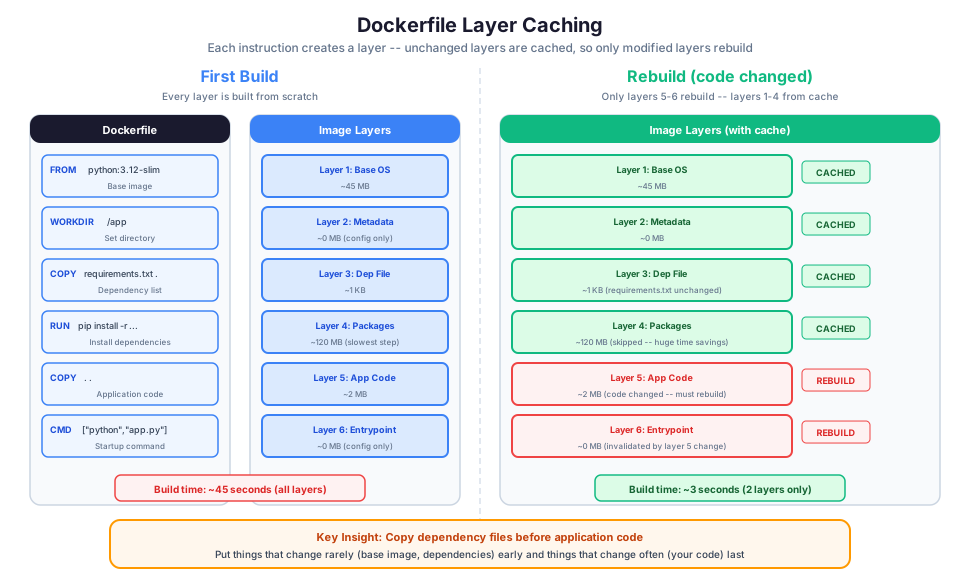
Each line creates a layer. Docker caches layers, so if you only change your application code, Docker skips reinstalling dependencies and rebuilds only the changed layers. This makes builds fast.
A Node.js Dockerfile
# Use the official Node.js LTS image
FROM node:20-alpine

# Set working directory
WORKDIR /app

# Copy package files first (for layer caching)
COPY package*.json ./
RUN npm ci --only=production

# Copy application code
COPY . .

# Create non-root user for security
RUN addgroup -S appgroup && adduser -S appuser -G appgroup
USER appuser

# Expose port
EXPOSE 3000

# Health check
HEALTHCHECK --interval=30s --timeout=3s \
  CMD wget --no-verbose --tries=1 --spider http://localhost:3000/health || exit 1

# Start the application
CMD ["node", "server.js"]
Building and Running Locally
# Build the image
docker build -t my-web-app .

# Run a container from the image
docker run -p 8080:8080 my-web-app

# Run in detached mode (background)
docker run -d -p 8080:8080 --name web my-web-app

# Run with environment variables
docker run -d -p 8080:8080 \
  -e DATABASE_URL=postgresql://localhost/mydb \
  -e API_KEY=secret123 \
  my-web-app

# List running containers
docker ps

# View container logs
docker logs web --follow

# Execute a command inside a running container
docker exec -it web /bin/sh

# Stop and remove the container
docker stop web
docker rm web

# List all images
docker images

# Remove an image
docker rmi my-web-app
That is Docker in a nutshell. You define a recipe, build an image, and run containers. The same image runs the same way everywhere.
Docker Best Practices
1. Use specific base image tags. Never use latest in production. Use python:3.12-slim instead of python:latest. This ensures reproducible builds.
2. Minimize image size. Use -slim or -alpine variants. Remove build tools after compilation. Use multi-stage builds.
# Multi-stage build: compile in one image, run in a smaller one
FROM node:20 AS builder
WORKDIR /app
COPY package*.json ./
RUN npm ci
COPY . .
RUN npm run build

FROM node:20-alpine AS runtime
WORKDIR /app
COPY --from=builder /app/dist ./dist
COPY --from=builder /app/node_modules ./node_modules
CMD ["node", "dist/server.js"]
3. Order Dockerfile instructions for caching. Put things that change least often first (base image, dependencies) and things that change most often last (application code).
4. Run as a non-root user. Create a dedicated user in your Dockerfile. Running as root inside a container is a security risk.
5. Use .dockerignore. Exclude files that should not be in the image:
node_modules
.git
.env
*.md
Dockerfile
docker-compose.yml
6. Add health checks. Docker and ECS use health checks to determine if your container is working correctly.
The Container Orchestration Problem
Running one container is easy. Running dozens or hundreds in production introduces challenges:
- Scheduling: Which server should each container run on?
- Scaling: How do you add more containers when traffic increases?
- Health checking: How do you detect and replace failed containers?
- Networking: How do containers find and communicate with each other?
- Load balancing: How do you distribute traffic across container instances?
- Updates: How do you deploy new versions without downtime?
This is where container orchestration comes in. You need a system to manage all of this automatically.
Amazon ECS: Container Orchestration on AWS
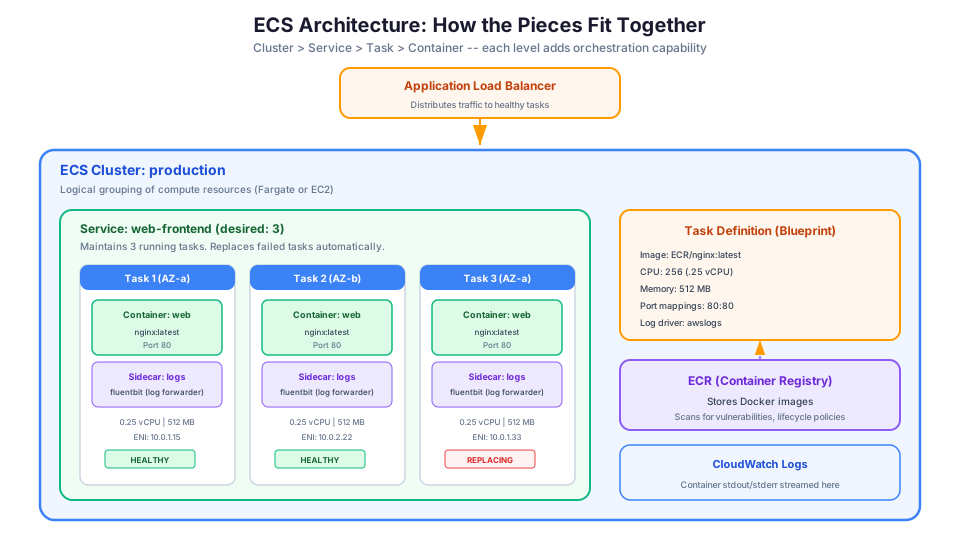
Amazon Elastic Container Service (ECS) is AWS's container orchestration service. It handles scheduling, scaling, health checking, and networking for your containers.
ECS Core Concepts
Cluster: A logical grouping of resources where your containers run. Think of it as the environment (development, staging, production).
Task Definition: A blueprint that describes your container(s). It specifies the Docker image, CPU and memory requirements, port mappings, environment variables, and logging configuration. Think of it like an EC2 launch template, but for containers.
Task: A running instance of a task definition. One task can contain one or more containers that need to run together (like an application container and a logging sidecar).
Service: Maintains a desired number of tasks running at all times. If a task fails, the service automatically replaces it. Services also handle integration with load balancers for distributing traffic.
Here is how they relate:
Cluster
  └── Service (maintains desired count)
        └── Task (running instance)
              └── Container(s) (your application)
ECS Launch Types: EC2 vs Fargate
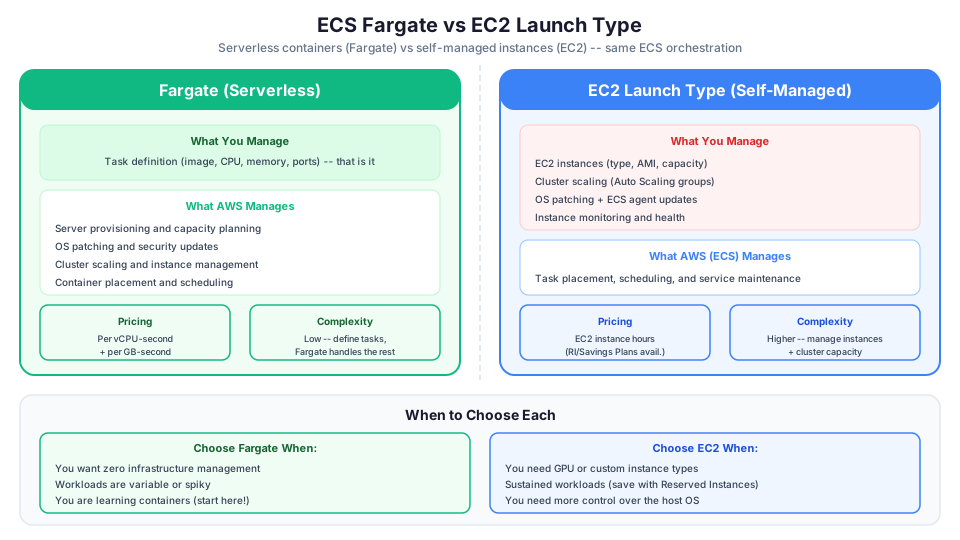
When you create a task in ECS, you choose where it runs:
| Aspect | EC2 Launch Type | Fargate Launch Type |
|---|---|---|
| Infrastructure | You manage EC2 instances | AWS manages everything |
| Scaling | You scale the instances AND the tasks | You only scale the tasks |
| Pricing | Pay for EC2 instances (even if underused) | Pay per task (CPU + memory + duration) |
| Patching | You patch the OS on your instances | AWS handles it |
| Control | Full control over instance type, GPU, etc. | Limited to available CPU/memory combos |
| Complexity | Higher (manage cluster capacity) | Lower (just define tasks) |
Fargate is serverless containers. You define your task (image, CPU, memory) and Fargate runs it. No EC2 instances to manage, no capacity planning, no patching. AWS handles the infrastructure.
EC2 launch type gives you more control and can be cheaper for steady-state workloads where you can use Reserved Instances or Spot Instances. Choose it when you need GPU instances, specific instance types, or when sustained workloads make EC2 pricing more economical.
For beginners, start with Fargate. It removes an entire layer of complexity so you can focus on learning containers.
Fargate CPU and Memory Combinations
Fargate limits you to specific CPU/memory combinations:
| CPU (vCPU) | Memory Options |
|---|---|
| 0.25 | 0.5, 1, 2 GB |
| 0.5 | 1, 2, 3, 4 GB |
| 1 | 2, 3, 4, 5, 6, 7, 8 GB |
| 2 | 4 through 16 GB (1 GB increments) |
| 4 | 8 through 30 GB (1 GB increments) |
| 8 | 16 through 60 GB (4 GB increments) |
| 16 | 32 through 120 GB (8 GB increments) |
For most web applications, 0.25 vCPU and 0.5 GB is sufficient to start.
Containers vs Lambda: When to Use Which
This is one of the most common architecture questions, and the answer depends on your workload.
| Factor | Lambda | Containers (ECS/Fargate) |
|---|---|---|
| Max execution time | 15 minutes | Unlimited |
| Startup | Milliseconds (warm) | Seconds |
| Max memory | 10 GB | Up to 120 GB (Fargate) |
| Scaling | Per-request, automatic | Per-task, configurable |
| Idle cost | Zero | Pay for running tasks |
| Language support | Specific runtimes | Any language, any framework |
| State | Stateless | Can maintain state in memory |
| Networking | Limited (VPC optional) | Full VPC networking |
Choose Lambda When:
- Tasks complete in under 15 minutes
- Traffic is spiky with periods of zero usage
- Functions are small and focused
- You want zero operational overhead
Choose Containers When:
- Tasks run longer than 15 minutes
- Your application is a complex monolith or microservice with many dependencies
- You need a specific runtime, library, or system tool
- Traffic is steady and predictable (containers can be cheaper)
- Your team already has Docker expertise
- You need persistent network connections (WebSockets, gRPC)
The Honest Answer
For many workloads, either choice works fine. If you are building something new and it fits within Lambda's limits, start there. Lambda is simpler. If you outgrow Lambda's constraints, containers are the natural next step. Many production architectures use both: Lambda for event-driven glue and containers for long-running services.
Hands-On: Running a Container on Fargate
Here is how to get a container running on ECS Fargate using the AWS CLI. This assumes you have the AWS CLI configured and Docker installed.
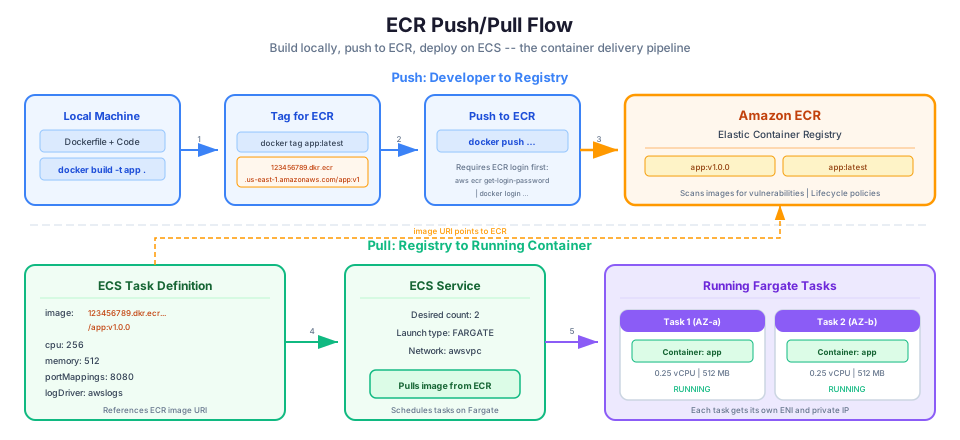
Step 1: Create an ECR Repository
aws ecr create-repository --repository-name my-web-app

# Save the repository URI for later
REPO_URI=$(aws ecr describe-repositories \
  --repository-name my-web-app \
  --query 'repositories[0].repositoryUri' --output text)
echo $REPO_URI
Step 2: Build and Push Your Image
# Get the login command for ECR
aws ecr get-login-password --region us-east-1 | \
  docker login --username AWS --password-stdin \
  YOUR_ACCOUNT_ID.dkr.ecr.us-east-1.amazonaws.com

# Build the image
docker build -t my-web-app .

# Tag it for ECR
docker tag my-web-app:latest $REPO_URI:latest
docker tag my-web-app:latest $REPO_URI:v1.0.0

# Push to ECR (push both tags)
docker push $REPO_URI:latest
docker push $REPO_URI:v1.0.0

# Verify the image is in ECR
aws ecr list-images --repository-name my-web-app
Step 3: Create an ECS Cluster
aws ecs create-cluster --cluster-name my-cluster
Step 4: Create the Task Execution Role
ECS needs a role to pull images from ECR and send logs to CloudWatch:
# Create the role
aws iam create-role \
  --role-name ecsTaskExecutionRole \
  --assume-role-policy-document '{
    "Version": "2012-10-17",
    "Statement": [{
      "Effect": "Allow",
      "Principal": {"Service": "ecs-tasks.amazonaws.com"},
      "Action": "sts:AssumeRole"
    }]
  }'

# Attach the managed policy
aws iam attach-role-policy \
  --role-name ecsTaskExecutionRole \
  --policy-arn arn:aws:iam::aws:policy/service-role/AmazonECSTaskExecutionRolePolicy
Step 5: Create the CloudWatch Log Group
aws logs create-log-group --log-group-name /ecs/my-web-app
Step 6: Register a Task Definition
Create a file called task-definition.json:
{
  "family": "my-web-app",
  "networkMode": "awsvpc",
  "requiresCompatibilities": ["FARGATE"],
  "cpu": "256",
  "memory": "512",
  "executionRoleArn": "arn:aws:iam::YOUR_ACCOUNT_ID:role/ecsTaskExecutionRole",
  "containerDefinitions": [
    {
      "name": "web",
      "image": "YOUR_ACCOUNT_ID.dkr.ecr.us-east-1.amazonaws.com/my-web-app:latest",
      "essential": true,
      "portMappings": [
        {
          "containerPort": 8080,
          "protocol": "tcp"
        }
      ],
      "healthCheck": {
        "command": ["CMD-SHELL", "wget --no-verbose --tries=1 --spider http://localhost:8080/health || exit 1"],
        "interval": 30,
        "timeout": 5,
        "retries": 3,
        "startPeriod": 60
      },
      "logConfiguration": {
        "logDriver": "awslogs",
        "options": {
          "awslogs-group": "/ecs/my-web-app",
          "awslogs-region": "us-east-1",
          "awslogs-stream-prefix": "ecs"
        }
      },
      "environment": [
        {"name": "NODE_ENV", "value": "production"},
        {"name": "PORT", "value": "8080"}
      ]
    }
  ]
}
aws ecs register-task-definition --cli-input-json file://task-definition.json
Step 7: Run the Task
aws ecs run-task \
  --cluster my-cluster \
  --launch-type FARGATE \
  --task-definition my-web-app \
  --network-configuration '{
    "awsvpcConfiguration": {
      "subnets": ["subnet-xxxxx"],
      "securityGroups": ["sg-xxxxx"],
      "assignPublicIp": "ENABLED"
    }
  }'
Step 8: Create a Service (for Production)
A service keeps your desired number of tasks running and integrates with a load balancer:
# First, create an ALB and target group (see Load Balancer guide)

# Then create the service
aws ecs create-service \
  --cluster my-cluster \
  --service-name my-web-service \
  --task-definition my-web-app \
  --desired-count 2 \
  --launch-type FARGATE \
  --network-configuration '{
    "awsvpcConfiguration": {
      "subnets": ["subnet-1a", "subnet-1b"],
      "securityGroups": ["sg-ecs-tasks"],
      "assignPublicIp": "DISABLED"
    }
  }' \
  --load-balancers '[{
    "targetGroupArn": "arn:aws:elasticloadbalancing:...",
    "containerName": "web",
    "containerPort": 8080
  }]'
Step 9: Set Up Auto Scaling
# Register the service as a scalable target
aws application-autoscaling register-scalable-target \
  --service-namespace ecs \
  --resource-id "service/my-cluster/my-web-service" \
  --scalable-dimension ecs:service:DesiredCount \
  --min-capacity 2 \
  --max-capacity 10

# Scale based on CPU usage
aws application-autoscaling put-scaling-policy \
  --service-namespace ecs \
  --resource-id "service/my-cluster/my-web-service" \
  --scalable-dimension ecs:service:DesiredCount \
  --policy-name cpu-target-tracking \
  --policy-type TargetTrackingScaling \
  --target-tracking-scaling-policy-configuration '{
    "PredefinedMetricSpecification": {
      "PredefinedMetricType": "ECSServiceAverageCPUUsage"
    },
    "TargetValue": 70.0,
    "ScaleInCooldown": 300,
    "ScaleOutCooldown": 60
  }'
Step 10: Deploy a New Version
# Build and push the new image
docker build -t my-web-app:v2.0.0 .
docker tag my-web-app:v2.0.0 $REPO_URI:v2.0.0
docker tag my-web-app:v2.0.0 $REPO_URI:latest
docker push $REPO_URI:v2.0.0
docker push $REPO_URI:latest

# Register a new task definition revision
# (update the image tag in task-definition.json)
aws ecs register-task-definition --cli-input-json file://task-definition.json

# Update the service to use the new task definition
aws ecs update-service \
  --cluster my-cluster \
  --service my-web-service \
  --task-definition my-web-app:2 \
  --force-new-deployment

# Watch the deployment progress
aws ecs describe-services \
  --cluster my-cluster \
  --services my-web-service \
  --query 'services[0].deployments'
ECS performs a rolling deployment by default: it starts new tasks with the new version, waits for them to pass health checks, then stops old tasks. Zero downtime.
Step 11: Clean Up
# Scale service to 0
aws ecs update-service --cluster my-cluster --service my-web-service --desired-count 0

# Delete the service
aws ecs delete-service --cluster my-cluster --service my-web-service

# Delete the cluster
aws ecs delete-cluster --cluster my-cluster

# Delete the ECR repository and images
aws ecr delete-repository --repository-name my-web-app --force
Troubleshooting Common Errors
COPY failed: file not found in build context
Your Dockerfile references a file that does not exist relative to the build context directory. Make sure the file path in your COPY instruction matches the actual file location, and check your .dockerignore to confirm you are not excluding the file. Run docker build from the directory that contains both the Dockerfile and the files you need.
ECS task stuck in PENDING
The most common cause is that your Fargate task cannot pull the container image because the subnet lacks internet access. If your tasks run in a private subnet, you need a NAT Gateway or VPC endpoints for ECR and CloudWatch Logs. Also verify that the task execution role has the AmazonECSTaskExecutionRolePolicy attached and that the security group allows outbound HTTPS traffic on port 443.
ECR login token expired (authorization token has expired)
ECR authentication tokens are valid for 12 hours. If your build pipeline caches the login and runs longer than that window, the push will fail. Re-run aws ecr get-login-password before each push, or add the login step immediately before your docker push command in your build script.
ECS vs EKS: Which Orchestrator?
| Feature | ECS | EKS (Kubernetes) |
|---|---|---|
| Complexity | Simpler, AWS-native | Complex, industry standard |
| Learning curve | Moderate | Steep |
| Portability | AWS-only concepts | Runs anywhere (AWS, GCP, Azure, on-prem) |
| Community | AWS documentation | Massive open-source ecosystem |
| Cost | No control plane cost | $0.10/hour ($72/month) for control plane |
| Best for | AWS-native apps | Multi-cloud, existing K8s teams |
Rule of thumb: If you are starting fresh on AWS and do not have existing Kubernetes experience, choose ECS. If your team already uses Kubernetes or you need multi-cloud portability, choose EKS.
Common Mistakes and Troubleshooting
Mistake 1: Using Latest Tag in Production
The latest tag is mutable. If you deploy :latest and then push a new image with the same tag, your next deployment might get a completely different image. Always use specific version tags.
Mistake 2: Running as Root
Running containers as root is a security risk. If an attacker exploits your application, they have root access inside the container. Create a non-root user in your Dockerfile.
Mistake 3: No Health Checks
Without health checks, ECS cannot detect if your application is broken. A container might be running (process alive) but returning errors. Always define health checks.
Mistake 4: Hardcoding Configuration
Never bake environment-specific configuration (database URLs, API keys) into the Docker image. Use environment variables or AWS Systems Manager Parameter Store.
# Use SSM Parameter Store for secrets
aws ssm put-parameter \
  --name "/myapp/prod/database-url" \
  --value "postgresql://..." \
  --type SecureString
Then reference it in your task definition using valueFrom:
{
  "secrets": [
    {
      "name": "DATABASE_URL",
      "valueFrom": "arn:aws:ssm:us-east-1:123456789012:parameter/myapp/prod/database-url"
    }
  ]
}
Mistake 5: Ignoring Log Configuration
If you do not configure logging, your container output disappears when the task stops. Always configure the awslogs log driver.
Troubleshooting Common Issues
# Task fails to start? Check the stopped task reason
aws ecs describe-tasks \
  --cluster my-cluster \
  --tasks TASK_ARN \
  --query 'tasks[0].{status:lastStatus, reason:stoppedReason, containers:containers[*].{name:name, reason:reason, exitCode:exitCode}}'

# Image pull failures? Verify ECR permissions
aws ecr get-login-password --region us-east-1 | docker login --username AWS --password-stdin YOUR_ACCOUNT.dkr.ecr.us-east-1.amazonaws.com

# Out of memory? Check container memory usage
aws logs filter-log-events \
  --log-group-name /ecs/my-web-app \
  --filter-pattern "OutOfMemory"

# Task stuck in PROVISIONING? Check subnet has internet access (NAT Gateway or public subnet)
ECS Pricing
ECS itself is free. You pay only for the underlying compute:
| Launch Type | You Pay For |
|---|---|
| Fargate | vCPU per second + Memory per GB per second |
| EC2 | The EC2 instances in your cluster |
Fargate pricing examples:
| Configuration | Hourly Cost | Monthly Cost (24/7) |
|---|---|---|
| 0.25 vCPU, 0.5 GB | $0.01 | ~$9.50 |
| 0.5 vCPU, 1 GB | $0.02 | ~$18.50 |
| 1 vCPU, 2 GB | $0.05 | ~$37.00 |
| 2 vCPU, 4 GB | $0.10 | ~$74.00 |
For learning, run tasks only when you need them and stop them immediately after. Fargate charges by the second, so a 10-minute experiment costs pennies.
Cost Optimization Tips
- Use Fargate Spot for fault-tolerant workloads (up to 70% cheaper)
- Right-size your tasks -- do not over-provision CPU and memory
- Use Savings Plans for steady-state Fargate workloads (up to 52% savings)
- Stop dev/test services outside business hours
# Create a service with Fargate Spot for batch workloads
aws ecs create-service \
  --cluster my-cluster \
  --service-name batch-service \
  --task-definition batch-processor \
  --desired-count 5 \
  --capacity-provider-strategy '[
    {"capacityProvider": "FARGATE_SPOT", "weight": 4},
    {"capacityProvider": "FARGATE", "weight": 1}
  ]'
How This Shows Up in Architecture Decisions
- ECS vs EKS: ECS is AWS-native container orchestration. EKS is managed Kubernetes. If the team already uses Kubernetes or needs multi-cloud portability, choose EKS. Otherwise, default to ECS for lower operational overhead.
- Fargate is serverless containers. No instance management, no capacity planning. Choose it when you want to minimize ops work.
- ECR stores container images. It is the AWS-native Docker registry, integrated with IAM for access control.
- Task definitions are blueprints. Tasks are running instances. Services maintain desired task count. This separation matters when designing for rolling deployments and auto scaling.
- awsvpc network mode gives each task its own ENI (elastic network interface) and private IP. This is required for Fargate and simplifies security group rules per task.
- ECS integrates with ALB for load balancing across container tasks, enabling path-based routing to different microservices.
- ECS Anywhere lets you run ECS tasks on your own on-premises servers, which is relevant for hybrid cloud architectures.
- Service Connect and Cloud Map provide service discovery for microservices, replacing the need for hardcoded service endpoints.
The Docker to ECS Journey
Here is the learning path I recommend:
- Learn Docker locally. Build a Dockerfile, run containers on your laptop. Get comfortable with
docker build,docker run, anddocker ps. - Push to ECR. Learn how to store your images in the AWS registry.
- Run on Fargate. Deploy your first ECS task with Fargate. No instance management.
- Add a Service and ALB. Make your container production-ready with auto-scaling and load balancing.
- Learn ECS with EC2 launch type. Understand when and why you would manage your own instances.
- Explore CI/CD. Use CodePipeline + CodeBuild to automatically build, push, and deploy container updates.
Do not try to learn everything at once. Each step builds on the previous one.
Hands-On Challenge
Containerize a simple web application, push it to ECR, and run it on Fargate. Use the steps in this guide and verify each of the following success criteria:
- Your Dockerfile uses a specific base image tag (not
latest) and runs as a non-root user - The Docker image builds locally and the container responds on the expected port when run with
docker run - The image is pushed to an ECR repository with a versioned tag (e.g.,
v1.0.0) - An ECS Fargate task definition specifies CPU, memory, a health check, and CloudWatch logging
- The task starts successfully in your ECS cluster and reaches a RUNNING state
- CloudWatch Logs shows your application's startup output (no errors)
- After you verify everything works, you clean up all resources (service, cluster, ECR repository) so you are not charged
Pricing note: Fargate costs (for example, approximately $0.01/hour for 0.25 vCPU and 0.5 GB) cited in this article are for us-east-1 and were verified in May 2026. Check the AWS Pricing Calculator for current rates in your Region.
Here is a challenge: pick a small project you have already built, something like a personal site, a REST API, or a script that runs on a schedule. Write a Dockerfile for it. Build the image, run it locally, and push it to ECR. You will learn more in that one exercise than in ten tutorials. And if you get halfway through and realize containers are overkill for what you are building? That is a perfectly valid conclusion. Not everything needs to be containerized. A Lambda function or a plain EC2 instance is sometimes the simpler, cheaper, better answer. Knowing when containers add unnecessary complexity is just as valuable as knowing how to use them.
This topic is covered in depth in Module 19: ECS and Fargate of our free AWS Bootcamp.