
EC2 Instance Types: How to Choose the Right One
Amazon EC2 has hundreds of instance types. When you open the instance type selector in the AWS Console for the first time, you are greeted with names like t3.micro, m7g.xlarge, and r6i.2xlarge. It looks like alphabet soup.
But there is a logic to it. Every instance type name tells you exactly what it is optimized for, how powerful it is, and what generation of hardware it uses. Once you decode the naming convention, choosing the right instance becomes straightforward.
This guide will teach you how to read instance type names, when to use each family, and how to pick the right pricing model to avoid overspending.
Prerequisites: You should understand cloud computing basics before starting this article.
What You Will Learn
By the end of this article, you will be able to:
- Explain the EC2 naming convention and identify the family, generation, processor, and size of any instance type
- Compare the five main instance families and select the right one based on workload bottlenecks (CPU, memory, storage, or GPU)
- Evaluate On-Demand, Reserved Instances, Savings Plans, and Spot pricing to design a cost-optimized compute strategy
- Configure Auto Scaling groups with target tracking policies and launch templates using the AWS CLI
- Troubleshoot common EC2 launch and connectivity issues including pending state, SSH failures, and application health problems
Decoding the Instance Type Name
Every EC2 instance type follows a naming convention: Family + Generation + [Additional Info] + Size.
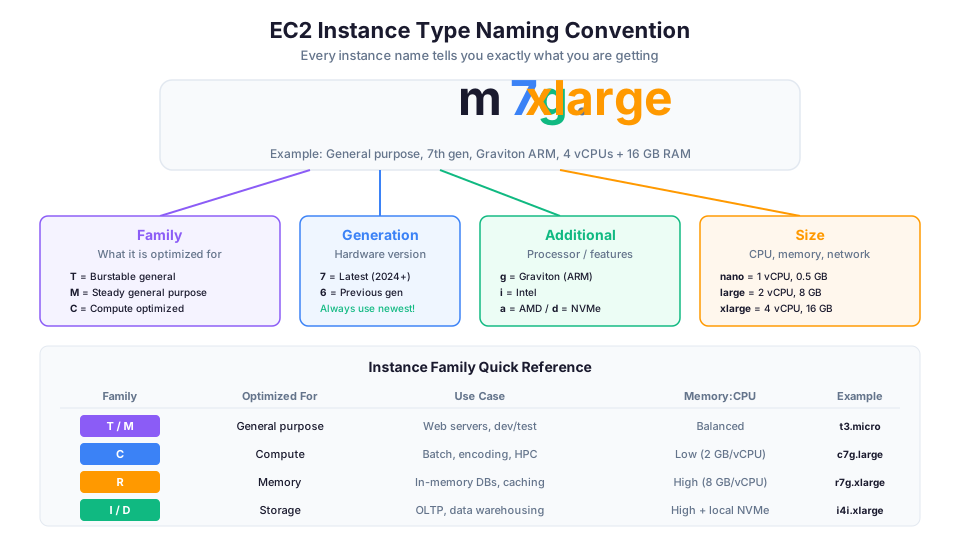
Let us decode m7g.xlarge:
m    7    g    .    xlarge
|    |    |         |
|    |    |         +-- Size (CPU, memory, network)
|    |    +------------ Additional: Graviton (ARM processor)
|    +----------------- Generation: 7th generation
+---------------------- Family: General purpose
Here is another example. c6i.2xlarge:
c    6    i    .    2xlarge
|    |    |         |
|    |    |         +-- Size: 2xlarge (8 vCPUs, 16 GB RAM)
|    |    +------------ Additional: Intel processor
|    +----------------- Generation: 6th generation
+---------------------- Family: Compute optimized
Common Additional Indicators
| Letter | Meaning | Example |
|---|---|---|
| a | AMD processor | m6a.large |
| g | AWS Graviton (ARM) processor | m7g.large |
| i | Intel processor | c6i.xlarge |
| d | Local NVMe instance storage | m6id.large |
| n | Enhanced networking | c6in.large |
| e | Extra memory or storage | r6ie.xlarge |
| z | High frequency | z1d.large |
| metal | Bare metal (no hypervisor) | m7g.metal |
You can combine these indicators. For example, m7gd.xlarge is a 7th-gen general purpose Graviton instance with local NVMe storage.
Instance Sizes
Sizes scale predictably. Each step up roughly doubles the resources:
| Size | Typical vCPUs | Typical RAM | Network Bandwidth |
|---|---|---|---|
| nano | 1 | 0.5 GB | Low |
| micro | 1 | 1 GB | Low |
| small | 1 | 2 GB | Low |
| medium | 1-2 | 4 GB | Low-Moderate |
| large | 2 | 8 GB | Moderate |
| xlarge | 4 | 16 GB | Moderate |
| 2xlarge | 8 | 32 GB | High |
| 4xlarge | 16 | 64 GB | High |
| 8xlarge | 32 | 128 GB | 10 Gbps |
| 12xlarge | 48 | 192 GB | 12 Gbps |
| 16xlarge | 64 | 256 GB | 25 Gbps |
| 24xlarge | 96 | 384 GB | 50 Gbps |
| metal | Full physical server | Varies | 100+ Gbps |
Pro tip: Always use the latest generation available. Newer generations deliver better performance at the same or lower price. A t3.micro is cheaper and faster than a t2.micro. A m7g.large outperforms a m5.large at a lower cost per hour.
# Check available instance types in your Region
aws ec2 describe-instance-types \
  --filters "Name=instance-type,Values=m7g.*" \
  --query "InstanceTypes[].{Type:InstanceType,vCPUs:VCpuInfo.DefaultVCpus,MemGB:MemoryInfo.SizeInMiB}" \
  --output table
The Five Main Instance Families
General Purpose (T, M)
Best for: Balanced workloads that need a mix of compute, memory, and networking.
Common types: t3.micro, t3.medium, m7g.large, m6i.xlarge
Use cases:
- Web servers and application servers
- Development and test environments
- Small to medium databases
- Code repositories
- Microservices
The T family (t3, t4g) is special because it uses a burstable CPU model. Your instance earns CPU credits when idle and spends them when busy. This is perfect for workloads that occasionally spike but are mostly low-usage. A t3.micro is Free Tier eligible and is where most beginners start.
The M family (m7g, m6i, m7i) provides a consistent balance of compute, memory, and networking without the burstable model. Use M instances when your workload needs steady, predictable performance.
Understanding T-Family CPU Credits
This concept confuses many beginners and is worth understanding in detail:
| Instance | Baseline CPU | CPU Credits/Hour | Max Credits | Credit Duration |
|---|---|---|---|---|
| t3.nano | 5% | 6 | 144 | 24 hours |
| t3.micro | 10% | 12 | 288 | 24 hours |
| t3.small | 20% | 24 | 576 | 24 hours |
| t3.medium | 20% | 24 | 576 | 24 hours |
| t3.large | 30% | 36 | 864 | 24 hours |
Baseline CPU means the guaranteed CPU performance level. A t3.micro runs at 10% CPU consistently. When it needs to burst (handle a traffic spike), it spends accumulated credits to run at up to 100% CPU.
What happens when credits run out?
- Standard mode (default): CPU is throttled to the baseline. Your application slows down but keeps running.
- Unlimited mode: Instance can burst past baseline indefinitely. You pay a small surcharge ($0.05 per vCPU-hour of burst).
# Check CPU credit balance
aws cloudwatch get-metric-statistics \
  --namespace AWS/EC2 \
  --metric-name CPUCreditBalance \
  --dimensions Name=InstanceId,Value=i-abc123 \
  --start-time 2026-05-11T00:00:00Z \
  --end-time 2026-05-12T00:00:00Z \
  --period 3600 \
  --statistics Average
Decision rule: If your average CPU usage stays above the baseline for extended periods, switch to an M-family instance. T-family is for bursty workloads, not sustained compute.
Compute Optimized (C)
Best for: Workloads that require high-performance processors.
Common types: c7g.large, c6i.xlarge, c7gn.medium
Use cases:
- Batch processing
- Media transcoding (video encoding)
- High-performance computing (HPC)
- Scientific modeling
- Machine learning inference
- Gaming servers
- CPU-intensive web servers
Compute optimized instances have a higher ratio of vCPUs to memory compared to general purpose instances. A c6i.xlarge has 4 vCPUs and 8 GB RAM, while an m6i.xlarge has 4 vCPUs and 16 GB RAM, same CPU, half the memory, lower price.
| Comparison | vCPUs | RAM | Price/hr (On-Demand) |
|---|---|---|---|
| m6i.xlarge | 4 | 16 GB | $0.192 |
| c6i.xlarge | 4 | 8 GB | $0.170 |
| Savings | Same | Half | 11% cheaper |
If your workload does not need 16 GB of RAM, why pay for it? That is the value of compute optimized instances.
Memory Optimized (R, X, z)
Best for: Workloads that process large datasets in memory.
Common types: r7g.xlarge, r6i.2xlarge, x2idn.xlarge
Use cases:
- In-memory databases (Redis, Memcached, SAP HANA)
- Real-time big data analytics
- High-performance relational databases
- In-memory caching layers
Memory optimized instances provide the most RAM per dollar. An r6i.xlarge gives you 4 vCPUs and 32 GB RAM, that is double the memory of an m6i.xlarge at the same vCPU count. If your application is memory-bound (database queries scanning large datasets, caching servers holding hot data), this family saves you money because you need fewer instances.
| Comparison | vCPUs | RAM | RAM per vCPU |
|---|---|---|---|
| m6i.xlarge | 4 | 16 GB | 4 GB |
| r6i.xlarge | 4 | 32 GB | 8 GB |
| x2idn.xlarge | 4 | 64 GB | 16 GB |
Storage Optimized (I, D, H)
Best for: Workloads that require high, sequential read/write access to very large datasets on local storage.
Common types: i4i.xlarge, d3.xlarge, h1.2xlarge
Use cases:
- High-frequency online transaction processing (OLTP) databases
- Data warehousing
- Distributed file systems (HDFS, Elasticsearch)
- Log processing
Storage optimized instances include high-performance NVMe SSDs directly attached to the host. This local storage is faster than EBS but is ephemeral, meaning it is lost when the instance stops or terminates. Use these for workloads where the data is replicated elsewhere (like a distributed database that replicates across nodes).
Key warning: Instance store data is lost when an instance stops, terminates, or the underlying hardware fails. Always replicate critical data to EBS or S3.
Accelerated Computing (P, G, Inf, Trn)
Best for: Workloads that require hardware accelerators (GPUs or custom chips).
Common types: p5.48xlarge, g5.xlarge, inf2.xlarge, trn1.2xlarge
Use cases:
- Machine learning training (P and Trn families)
- Machine learning inference (Inf family)
- Graphics rendering (G family)
- Video processing
- Genomics
These instances are expensive and specialized. Most beginners will not use them, but you should know they exist for architecture discussions and interviews. AWS Trainium chips (Trn1) and AWS Inferentia chips (Inf2) are custom-designed by AWS for ML workloads and offer better price-performance than GPU instances for supported frameworks.
The Instance Family Quick Reference
| Family | Optimized For | Memory:vCPU Ratio | Example Use Case |
|---|---|---|---|
| T | Burstable general purpose | Balanced | Dev/test, small web servers |
| M | Steady general purpose | Balanced | Production web/app servers |
| C | Compute | Lower memory | Batch processing, encoding |
| R | Memory | Higher memory | In-memory databases, caching |
| I/D | Storage | High + local NVMe | Distributed databases, HDFS |
| P/G | Accelerated (GPU) | Varies | ML training, graphics |
| Inf/Trn | ML inference/training | Varies | AI/ML workloads |
How to Choose: A Decision Framework
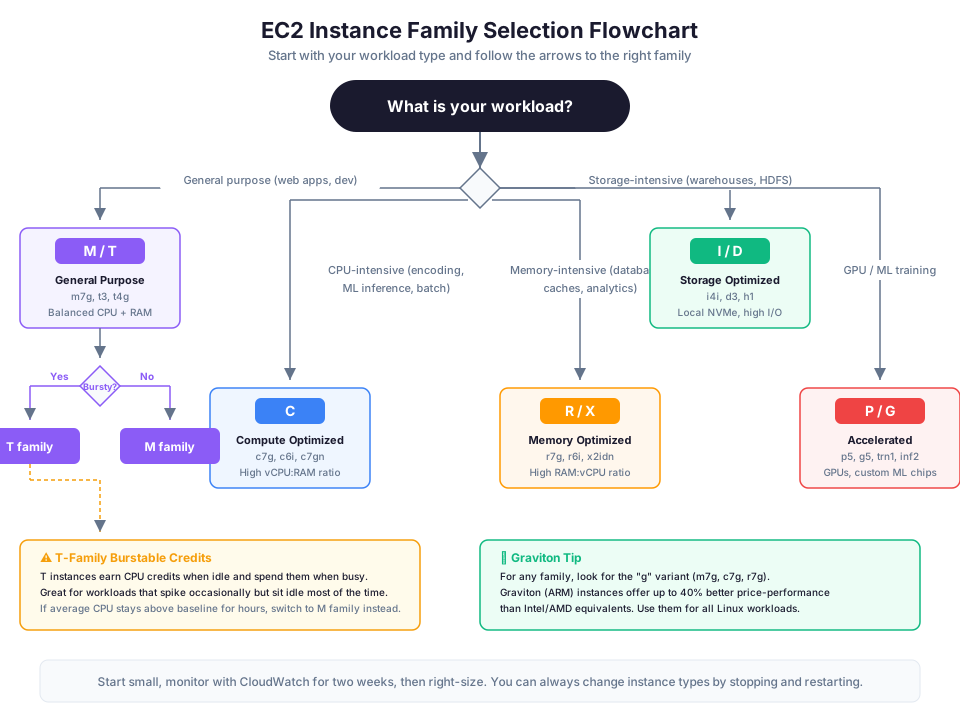
Ask yourself these four questions. And if you are still unsure whether EC2 is even the right compute model for your workload, our EC2 vs Lambda comparison guide walks through the full decision framework.
1. Is my workload bursty or steady?
- Bursty (occasional spikes, mostly idle): Start with a T family instance
- Steady (consistent usage): Use an M family instance
2. What is my bottleneck?
- CPU-bound (processing, encoding, computation): Use C family
- Memory-bound (large datasets in memory, caching): Use R family
- Storage-bound (high I/O, large local datasets): Use I or D family
- Balanced (no single bottleneck): Use M family
3. Can I use ARM (Graviton)?
- If your application runs on Linux and does not require x86-specific software: Yes, use Graviton. Graviton instances (indicated by "g" in the name, like
m7gorc7g) offer up to 40% better price-performance than their Intel/AMD equivalents. - If your software requires Windows or specific x86 instructions: Use Intel (i) or AMD (a) variants.
4. What size do I need?
- Start small. You can resize an EC2 instance by stopping it, changing the instance type, and starting it again. There is no penalty for starting with a
t3.smalland upgrading to at3.largelater.
# Resize an instance (must be stopped first)
aws ec2 stop-instances --instance-ids i-abc123

# Wait for it to stop, then change the type
aws ec2 modify-instance-attribute \
  --instance-id i-abc123 \
  --instance-type '{"Value": "m7g.large"}'

aws ec2 start-instances --instance-ids i-abc123
Real-World Instance Selection Examples
| Scenario | Recommended Instance | Reasoning |
|---|---|---|
| Personal blog (low traffic) | t3.micro | Free Tier, bursty, cheap |
| WordPress site (moderate) | t3.medium | Burstable, 4 GB RAM |
| Production API server | m7g.large | Steady, Graviton savings |
| Video transcoding pipeline | c7g.2xlarge | CPU-heavy, Graviton |
| Redis cache cluster | r7g.large | Memory-optimized |
| Elasticsearch cluster | i4i.xlarge | NVMe storage, fast I/O |
| ML model training | p5.48xlarge | GPU required |
| Development environment | t3.small | Low cost, burstable |
| CI/CD build server | c7g.xlarge | CPU-heavy, short-lived |
| SAP HANA database | x2idn.xlarge | Extreme memory needs |
EC2 Pricing Models: How to Pay Less
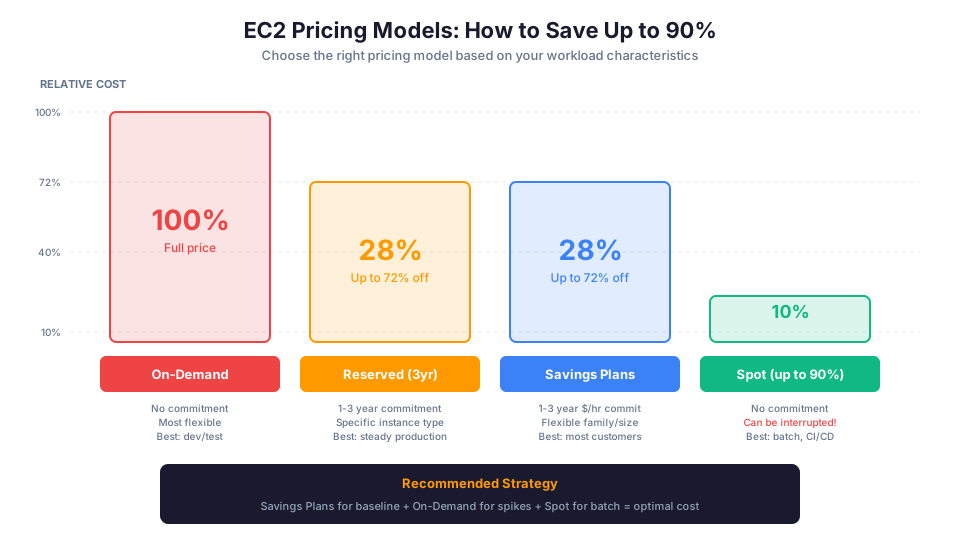
Choosing the right pricing model can reduce your EC2 bill by 30-72%. Here are the four options.
On-Demand
How it works: Pay by the second (Linux) or by the hour (Windows) with no commitment.
Best for: Unpredictable workloads, short-term projects, testing and development.
Discount: None (this is the baseline price).
# Example: t3.micro On-Demand in us-east-1
$0.0104 per hour = ~$7.59 per month (running 24/7)

# Example: m7g.large On-Demand in us-east-1
$0.0816 per hour = ~$59.57 per month (running 24/7)
On-Demand is the default and the most flexible option. You pay only while the instance is running, and you can start or stop it at any time. The downside is that it is the most expensive per-hour option for long-running workloads.
Reserved Instances (RIs)
How it works: Commit to using a specific instance type in a specific Region for 1 or 3 years.
Best for: Steady-state workloads where you know you will run the same instance type for at least a year.
Discount: Up to 72% compared to On-Demand.
| Payment Option | 1-Year Discount | 3-Year Discount |
|---|---|---|
| No upfront | ~36% | ~40% |
| Partial upfront | ~40% | ~54% |
| All upfront | ~42% | ~60-72% |
Reserved Instances require planning. You are committing to a specific instance type, and if your needs change, you may end up paying for capacity you do not use. AWS offers Convertible RIs that let you change the instance family, but the discount is smaller (roughly 30-54%).
Savings Plans
How it works: Commit to a consistent amount of compute spending (measured in $/hour) for 1 or 3 years.
Best for: Organizations that want RI-level savings with more flexibility.
Discount: Up to 72% (similar to RIs).
There are two types:
- Compute Savings Plans: Apply to any instance family, any size, any Region, any OS, and even Fargate and Lambda. Maximum flexibility.
- EC2 Instance Savings Plans: Apply to a specific instance family in a specific Region, but any size within that family. Slightly higher discount than Compute Savings Plans.
Savings Plans are generally recommended over Reserved Instances for most customers because they offer comparable discounts with much more flexibility.
# View Savings Plans recommendations based on your usage
aws ce get-savings-plans-purchase-recommendation \
  --savings-plans-type COMPUTE_SP \
  --term-in-years ONE_YEAR \
  --payment-option NO_UPFRONT \
  --lookback-period-in-days SIXTY_DAYS
Spot Instances
How it works: Bid on unused EC2 capacity at steep discounts. AWS can reclaim the instance with a 2-minute warning when it needs the capacity back.
Best for: Fault-tolerant workloads like batch processing, data analysis, CI/CD builds, and containerized microservices.
Discount: Up to 90% compared to On-Demand.
# Launch a Spot Instance
aws ec2 run-instances \
  --instance-type c6i.large \
  --instance-market-options '{"MarketType": "spot"}' \
  --image-id ami-0abcdef1234567890

# Check current Spot pricing
aws ec2 describe-spot-price-history \
  --instance-types c6i.large \
  --product-descriptions "Linux/UNIX" \
  --max-items 5
Spot instances offer the biggest savings but require your application to handle interruptions gracefully. If AWS needs the capacity back, your instance gets a 2-minute warning and then terminates. This is perfect for jobs that can be retried (batch processing, rendering) but terrible for databases or stateful applications.
Spot Instance Strategies
| Strategy | Description | Use Case |
|---|---|---|
| Capacity-optimized | Launch in pools with most available capacity | Lowest interruption rate |
| Price-capacity-optimized | Balance price and capacity | Best overall strategy |
| Lowest price | Choose cheapest pool | Maximum savings, higher interruption |
| Diversified | Spread across multiple pools | Reduce all-at-once interruption |
# Use Spot Fleet for automatic diversification
aws ec2 request-spot-fleet \
  --spot-fleet-request-config '{
    "IamFleetRole": "arn:aws:iam::123456789012:role/spot-fleet-role",
    "TargetCapacity": 10,
    "AllocationStrategy": "priceCapacityOptimized",
    "LaunchSpecifications": [
      {"InstanceType": "c6i.large", "ImageId": "ami-abc123"},
      {"InstanceType": "c6i.xlarge", "ImageId": "ami-abc123"},
      {"InstanceType": "c7g.large", "ImageId": "ami-abc123"},
      {"InstanceType": "m6i.large", "ImageId": "ami-abc123"}
    ]
  }'
Pricing Model Comparison
| Model | Commitment | Discount | Interruption Risk | Best For |
|---|---|---|---|---|
| On-Demand | None | 0% | None | Development, unpredictable workloads |
| Reserved | 1 or 3 years | Up to 72% | None | Steady, predictable production |
| Savings Plans | 1 or 3 years ($/hr) | Up to 72% | None | Flexible commitment |
| Spot | None | Up to 90% | 2-minute warning | Batch, fault-tolerant workloads |
The Optimal Pricing Mix
Most production environments use a combination:
| Layer | Pricing Model | % of Capacity | Purpose |
|---|---|---|---|
| Base | Savings Plans | 60-70% | Steady baseline load |
| Variable | On-Demand | 10-20% | Traffic spikes |
| Batch | Spot | 10-30% | Background processing |
Auto Scaling: Match Capacity to Demand
Running a fixed number of EC2 instances is like on-premises thinking applied to the cloud. Auto Scaling automatically adjusts the number of instances based on demand.
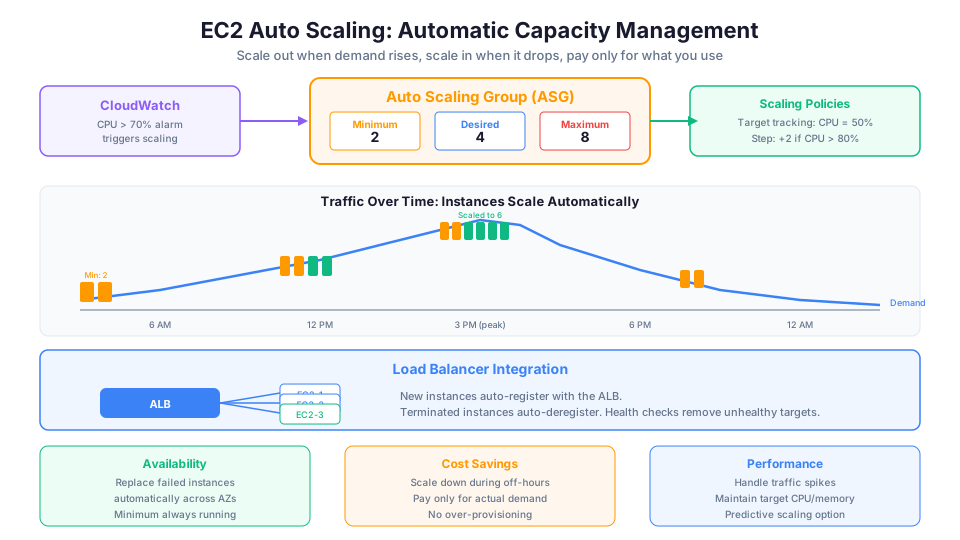
Auto Scaling Components
- Launch Template: Defines what to launch (AMI, instance type, security group, user data)
- Auto Scaling Group (ASG): Manages the fleet (min, max, desired count)
- Scaling Policy: When and how to scale (target tracking, step scaling, scheduled)
# Create a launch template
aws ec2 create-launch-template \
  --launch-template-name web-server-template \
  --launch-template-data '{
    "ImageId": "ami-abc123",
    "InstanceType": "m7g.large",
    "SecurityGroupIds": ["sg-abc123"],
    "UserData": "IyEvYmluL2Jhc2gKeXVtIHVwZGF0ZSAteQ=="
  }'

# Create an Auto Scaling group
aws autoscaling create-auto-scaling-group \
  --auto-scaling-group-name web-asg \
  --launch-template LaunchTemplateName=web-server-template,Version='$Latest' \
  --min-size 2 \
  --max-size 8 \
  --desired-capacity 4 \
  --vpc-zone-identifier "subnet-abc123,subnet-def456" \
  --target-group-arns "arn:aws:elasticloadbalancing:us-east-1:123456789012:targetgroup/web-tg/abc123"

# Add target tracking scaling (maintain 50% average CPU)
aws autoscaling put-scaling-policy \
  --auto-scaling-group-name web-asg \
  --policy-name cpu-target-tracking \
  --policy-type TargetTrackingScaling \
  --target-tracking-configuration '{
    "PredefinedMetricSpecification": {
      "PredefinedMetricType": "ASGAverageCPUUsage"
    },
    "TargetValue": 50.0
  }'
Scaling Policy Types
| Policy Type | How It Works | Best For |
|---|---|---|
| Target tracking | Maintain a target metric (e.g., CPU at 50%) | Most workloads |
| Step scaling | Add/remove specific counts at thresholds | Fine-grained control |
| Scheduled scaling | Scale at specific times | Predictable patterns |
| Predictive scaling | ML-based forecast of future demand | Recurring patterns |
Cost Optimization Tips
1. Right-Size Your Instances
Most EC2 instances are over-provisioned. Use AWS Compute Optimizer to analyze your usage and get recommendations. Switching from a m5.xlarge to a m5.large cuts your cost in half with no effort. Right-sizing is one of the highest-impact strategies covered in our AWS cost optimization guide.
# Get right-sizing recommendations
aws compute-optimizer get-ec2-instance-recommendations \
  --instance-arns arn:aws:ec2:us-east-1:123456789012:instance/i-abc123
2. Use Graviton Instances
Graviton (ARM) instances deliver better price-performance for most Linux workloads. Switching from m6i.large to m7g.large can save 20-40% on your bill.
| Intel/AMD | Graviton | Savings |
|---|---|---|
| m6i.large ($0.096/hr) | m7g.large ($0.0816/hr) | 15% |
| c6i.xlarge ($0.170/hr) | c7g.xlarge ($0.145/hr) | 15% |
| r6i.large ($0.126/hr) | r7g.large ($0.107/hr) | 15% |
These percentages compound significantly across a fleet of instances running 24/7.
3. Stop Idle Instances
Development and test instances do not need to run nights and weekends. Use AWS Instance Scheduler or a simple Lambda function to stop instances outside business hours.
# Manually stop an instance (you still pay for EBS storage)
aws ec2 stop-instances --instance-ids i-0abcdef1234567890

# Tag instances for automated scheduling
aws ec2 create-tags \
  --resources i-abc123 \
  --tags Key=Schedule,Value=office-hours
Running dev instances only during business hours (12 hours/day, 5 days/week) saves ~64% compared to running 24/7.
4. Use Spot for Batch Work
Any workload that can tolerate interruptions should use Spot instances. CI/CD pipelines, data processing jobs, and testing workloads are all candidates.
5. Set Up Cost Alerts
Use AWS Budgets to create alerts when your EC2 spending exceeds a threshold. Find out before the bill arrives, not after.
# View your current EC2 spending
aws ce get-cost-and-usage \
  --time-period Start=2026-05-01,End=2026-05-31 \
  --granularity MONTHLY \
  --filter '{"Dimensions":{"Key":"SERVICE","Values":["Amazon Elastic Compute Cloud - Compute"]}}' \
  --metrics "UnblendedCost"
Pricing note: On-Demand rates, Graviton comparison prices, and EBS volume costs cited in this article are for us-east-1 and were verified in May 2026. Check the AWS Pricing Calculator for current rates in your Region.
6. Use the EC2 Instance Lifecycle
Understanding the instance lifecycle helps you avoid paying for instances you are not using:
| State | Pay for Compute? | Pay for EBS? | Action |
|---|---|---|---|
| Running | Yes | Yes | Instance is active |
| Stopped | No | Yes | Instance paused, EBS persists |
| Terminated | No | No (by default) | Instance deleted |
| Hibernated | No | Yes (memory on EBS) | Faster restart |
Key insight: Stopped instances still cost money for their EBS volumes. If you do not need the instance again, terminate it. If you might need it later, stop it (EBS costs are much lower than instance costs).
EBS Volumes: Your Instance's Storage
EC2 instances need storage, and the most common option is Amazon Elastic Block Store (EBS). Think of EBS volumes as virtual hard drives that attach to your instance.
EBS Volume Types
| Volume Type | Use Case | Max IOPS | Max Throughput | Cost |
|---|---|---|---|---|
| gp3 (General Purpose SSD) | Most workloads | 16,000 | 1,000 MB/s | $0.08/GB/mo |
| gp2 (General Purpose SSD) | Previous gen | 16,000 | 250 MB/s | $0.10/GB/mo |
| io2 (Provisioned IOPS SSD) | Databases, critical | 64,000 | 1,000 MB/s | $0.125/GB/mo + IOPS |
| st1 (Throughput HDD) | Big data, logs | 500 | 500 MB/s | $0.045/GB/mo |
| sc1 (Cold HDD) | Infrequent access | 250 | 250 MB/s | $0.015/GB/mo |
Always use gp3 over gp2. gp3 is 20% cheaper and lets you independently configure IOPS and throughput. There is no reason to use gp2 for new workloads.
# Create a gp3 volume
aws ec2 create-volume \
  --volume-type gp3 \
  --size 100 \
  --iops 3000 \
  --throughput 125 \
  --availability-zone us-east-1a

# Attach it to an instance
aws ec2 attach-volume \
  --volume-id vol-abc123 \
  --instance-id i-abc123 \
  --device /dev/sdf
EBS Snapshots for Backups
EBS snapshots are point-in-time copies of your volumes stored in S3. They are incremental, meaning only changed blocks are stored after the first snapshot.
# Create a snapshot
aws ec2 create-snapshot \
  --volume-id vol-abc123 \
  --description "Daily backup 2026-05-12"

# Create a volume from a snapshot (for recovery)
aws ec2 create-volume \
  --snapshot-id snap-abc123 \
  --volume-type gp3 \
  --availability-zone us-east-1a
Cost tip: Snapshot storage costs $0.05/GB/month. Set up a lifecycle policy to delete old snapshots automatically using Amazon Data Lifecycle Manager.
Troubleshooting Common Errors
Instance stuck in "pending" state You launched an instance but it stays in pending for several minutes without transitioning to running. This is usually caused by insufficient capacity for the requested instance type in the selected Availability Zone. Try launching in a different AZ, or switch to a different instance size within the same family. If you are using a placement group, capacity constraints are more common. Run aws ec2 describe-instance-status --instance-id i-abc123 to check for status events. For Spot instances, a prolonged pending state may mean your request cannot be fulfilled at the current market price.
Cannot SSH to instance (connection timed out) The instance is running but you cannot connect via SSH. Check these items in order: (1) The security group attached to the instance must allow inbound traffic on port 22 from your IP address. (2) The instance must be in a public subnet with a public IP or Elastic IP, or you must be connecting through a bastion host or VPN. (3) The route table for the subnet must have a route to an internet gateway (for public subnets) or a NAT gateway (if using Session Manager). (4) The network ACL on the subnet must allow both inbound port 22 and the ephemeral outbound port range. Run aws ec2 describe-security-groups --group-ids sg-abc123 and aws ec2 describe-network-acls --filters Name=association.subnet-id,Values=subnet-abc123 to verify.
Instance running but application not responding The instance shows as running with passing status checks, but your web application returns errors or does not respond. Check that the application process actually started by reviewing the instance's system log with aws ec2 get-console-output --instance-id i-abc123. If you used a user data script, it may have failed silently. Also confirm the application's port (for example, 80 or 443) is open in the security group. If the instance recently exhausted its T-family CPU credits, the application may have become unresponsive due to CPU throttling. Check the CPUCreditBalance metric in CloudWatch.
EC2 Launch Checklist
Before launching an EC2 instance for production, verify these items:
| Step | Action | Why |
|---|---|---|
| 1 | Choose the latest generation instance | Better price-performance |
| 2 | Use Graviton if possible | 20-40% savings |
| 3 | Start small, right-size later | Avoid over-provisioning |
| 4 | Use an IAM role (not access keys) | Security best practice |
| 5 | Place in a private subnet | Not directly internet-accessible |
| 6 | Use gp3 EBS volumes | Cheaper and faster than gp2 |
| 7 | Enable detailed monitoring | Better scaling decisions |
| 8 | Tag everything | Cost allocation and management |
| 9 | Set up Auto Scaling | Match capacity to demand |
| 10 | Choose the right pricing model | 30-72% savings on steady workloads |
Key Terms Quick Reference
| Term | Definition |
|---|---|
| Instance type | The hardware configuration (CPU, memory, network) |
| Instance family | The optimization category (T, M, C, R, etc.) |
| Generation | The hardware version (higher = newer and better) |
| vCPU | Virtual CPU, a portion of a physical CPU core |
| Burstable | T-family model where CPU credits allow temporary high usage |
| CPU credits | Tokens earned during idle time, spent during burst |
| Graviton | AWS-designed ARM processor with better price-performance |
| On-Demand | Pay by the second, no commitment |
| Reserved Instance | 1-3 year commitment for up to 72% discount |
| Savings Plan | Flexible commitment-based discount |
| Spot Instance | Unused capacity at up to 90% discount, can be interrupted |
| Auto Scaling Group | Manages a fleet of instances based on demand |
| Launch Template | Configuration blueprint for new instances |
| EBS | Elastic Block Store, persistent storage for EC2 |
| AMI | Amazon Machine Image, a template for launching instances |
Quick Knowledge Check
- What does the "g" mean in
m7g.xlarge? - Which instance family would you choose for an in-memory Redis cache?
- What is the difference between a T family and an M family instance?
- When should you avoid Spot instances?
- Which pricing model offers the most flexibility with commitment-based discounts?
- What happens when a T-family instance runs out of CPU credits?
- Why should you prefer Graviton instances for Linux workloads?
- What are the three components of an Auto Scaling setup?
- How much can you save by running dev instances only during business hours?
- What is the difference between stopping and terminating an instance?
Hands-On Challenge
Launch, connect to, monitor, and right-size an EC2 instance. When you are finished, verify you have met all of these success criteria:
- A
t4g.microinstance is running in a public subnet with a security group that allows SSH (port 22) only from your IP address - You can connect to the instance via SSH (or Session Manager) and run
uname -mto confirm it is an ARM (aarch64) Graviton instance - CloudWatch detailed monitoring is enabled and you can view CPU usage, network in/out, and disk read/write metrics
- You installed a simple web server (such as nginx) via user data or SSH, and you can access the web page from your browser through the instance's public IP on port 80
- You checked the
CPUCreditBalancemetric in CloudWatch and can explain whether the instance is earning or spending credits - You stopped the instance, changed the instance type to
t4g.small, restarted it, and confirmed the web server is still running with the larger instance size - You created an EBS snapshot of the instance's root volume and verified the snapshot status is
completed
My recommendation for anyone starting out: launch a t3.medium Graviton equivalent (t4g.medium) for everything. Run it for two weeks, check your CloudWatch CPU and memory metrics, then right-size from there. Nine times out of ten, Graviton instances are the right default for new Linux workloads because of the price-performance advantage. This topic is covered in more detail in Module 13: EC2 Fundamentals of our free AWS Bootcamp.